Home Office Ergonomics Checklist
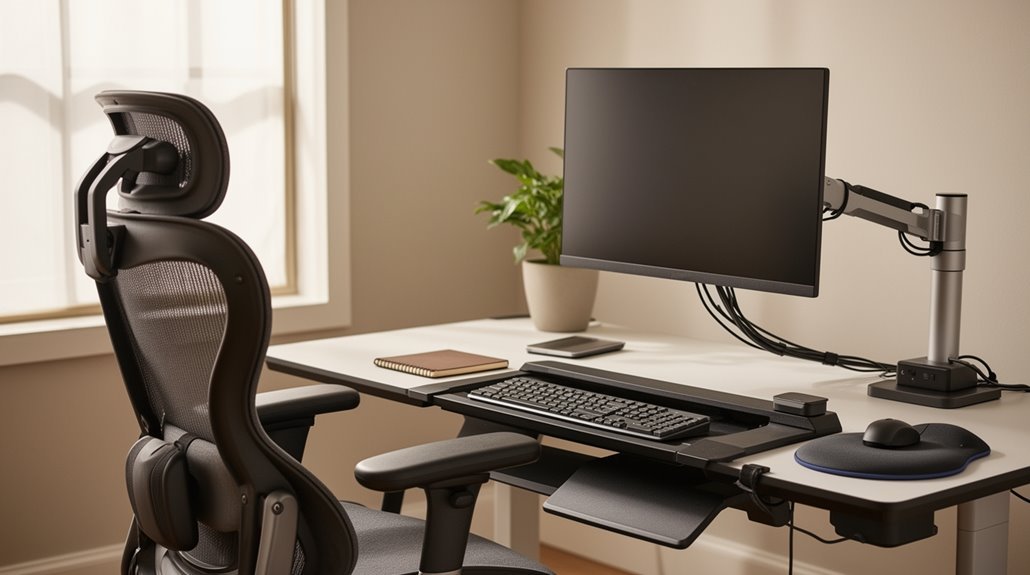
Home Office Ergonomics Checklist: Verify your desk height keeps your forearms parallel, typically 29–30 inches, to support good posture. Adjust your chair for proper lumbar support so it follows the natural curve of your lower back.
Position your monitor about an arm’s length away with the top just below eye level to reduce neck strain. Place your keyboard and mouse on the same surface, keeping wrists straight and relaxed.
Take micro-breaks every 20–30 minutes to relieve muscle tension and eye fatigue. Maintain a comfortable room temperature, ideally between 20–22°C, and explore additional adjustments to further enhance your workspace setup.
Workstation Setup
When you set up your workstation, it’s crucial to take into account several factors that enhance comfort and productivity.
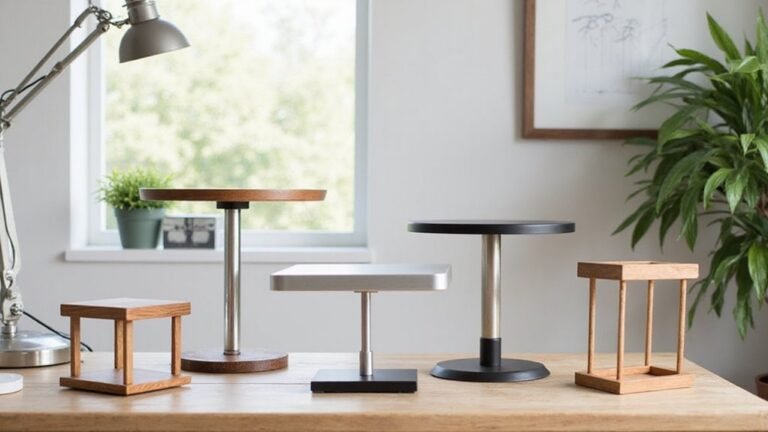
Start with desk height; it should allow your forearms to remain parallel to the desk surface, typically between 29 and 30 inches for most adults. If your desk isn’t adjustable, use sturdy boards or blocks to raise it.
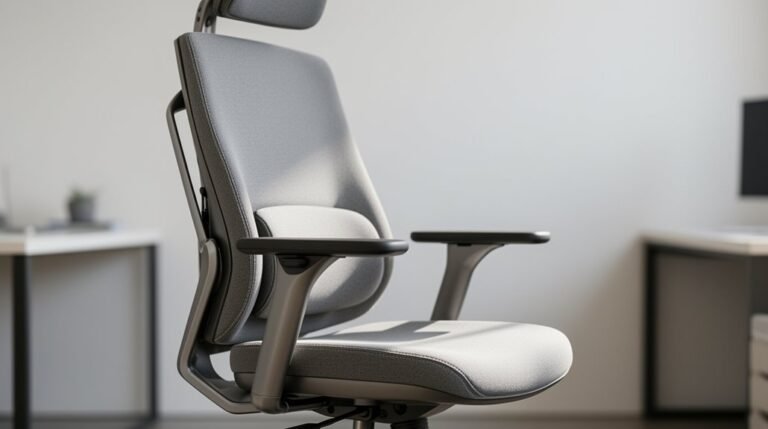
Your chair must support your spine, featuring adjustable height and lumbar support. Make sure your feet rest flat on the floor or on a footrest.
Position your keyboard and mouse on the same surface, keeping them within easy reach; wrists should remain straight. Regular movement is vital to mitigate the risks associated with prolonged static posture, so consider incorporating reminders to prompt you to change positions throughout the day.
Finally, position your monitor about an arm’s length away, with the top of the screen at or just below eye level for the best viewing.
Posture and Positioning
Proper posture and positioning are essential for maintaining comfort and reducing the risk of injury while working at a desk.
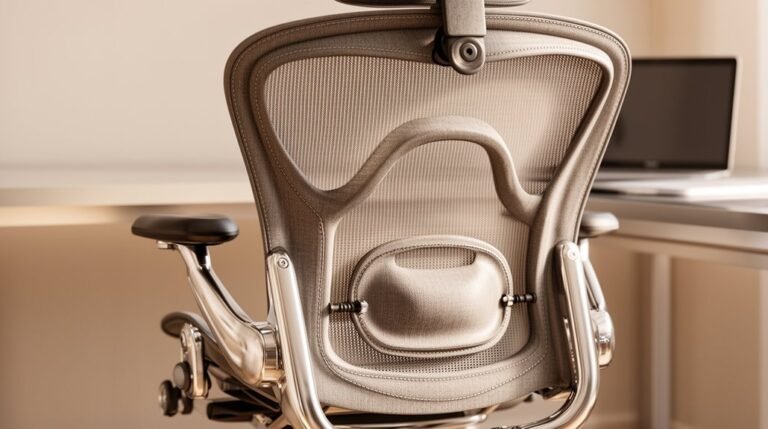
Support your lumbar spine’s natural curve using an ergonomic chair with adjustable lumbar support. Sit back fully to distribute weight evenly, avoiding slouching.
Keep your elbows close to your body, forming a 90-degree angle, with forearms parallel to the floor. Place your keyboard and mouse at the same height to maintain neutral wrist alignment. Clutter-free workspaces help reduce strain on the body and enhance focus, making it easier to maintain proper posture.
Your feet should rest flat on the floor or a footrest, with knees at or slightly below hip level.
Position your monitor so your eyes are level with the top of the screen, maintaining an arm’s length distance to reduce neck strain.
Environmental Factors
Creating an effective workspace involves more than just the right furniture; environmental factors play an essential role in your overall comfort and productivity.
Lighting and Visual Environment
Use task lighting for printed materials to reduce eye strain.
Position monitors to avoid glare, placing screens at right angles to windows.
Adjust monitor brightness and tilt to minimize fatigue.
Proper setup enhances comfort and productivity levels to ensure that your visual environment supports your work tasks.
Noise and Acoustic Conditions
Minimize background noise to improve concentration.
Use noise-cancelling headphones in loud environments.
Ambient Temperature and Air Quality
Maintain room temperature between 20–22°C (68–72°F).
Guarantee ventilation for fresh air and use air purifiers to filter allergens.
Workspace Organization
Keep frequently used items within reach and maintain a clutter-free desk to enhance efficiency.
Safety Features
Guarantee work surfaces have rounded edges and provide adjustable lighting controls to reduce fatigue.
Equipment and Tools
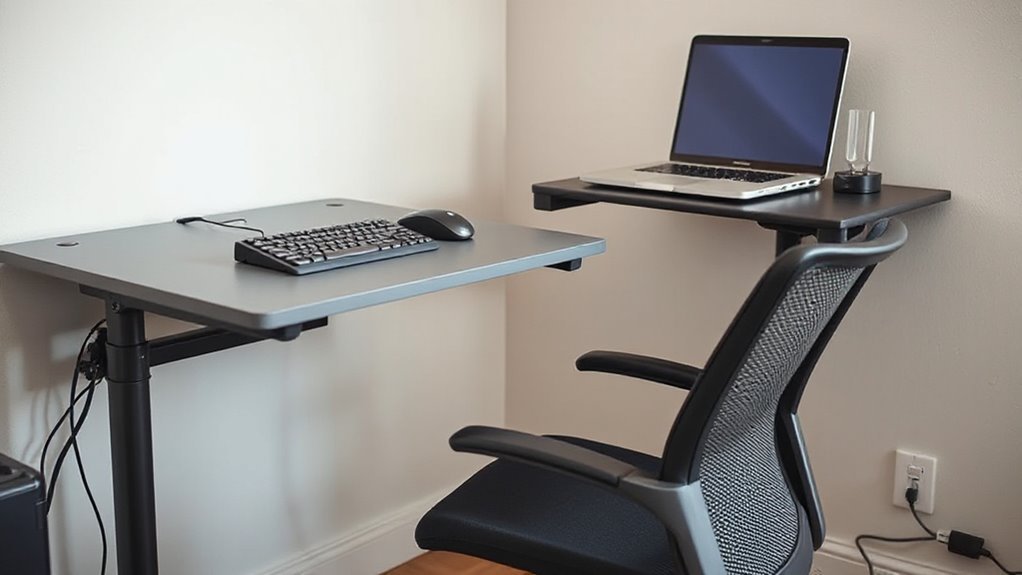
Choosing the right equipment and tools is essential for maintaining a comfortable and productive home office. A well-structured setup helps prevent strain and enhances efficiency.
- Adjustable Chair: Verify the chair supports your lower back, with adjustable height for 90-degree knee bends and adequate armrest positioning.
- Ergonomic Keyboard and Mouse: Position both at elbow height, allowing neutral wrist alignment. Use a full-sized keyboard and a comfortable mouse to reduce strain.
- Monitor Setup: Place the monitor at eye level, an arm’s length away, to minimize neck strain. Tilt it slightly upwards for ideal visibility.
Investing in ergonomically designed equipment can greatly improve your workspace and overall comfort.
Proper adjustments can lead to a healthier work environment.
Movement and Breaks
While working in a home office, incorporating regular movement and breaks is essential for maintaining comfort and productivity. Aim to take micro-breaks every 20-30 minutes, lasting 5-10 minutes, to relieve muscle strain.
Longer breaks should occur every 30-60 minutes. Include active movements like walking and light aerobic exercises, alongside passive activities such as seated stretching.
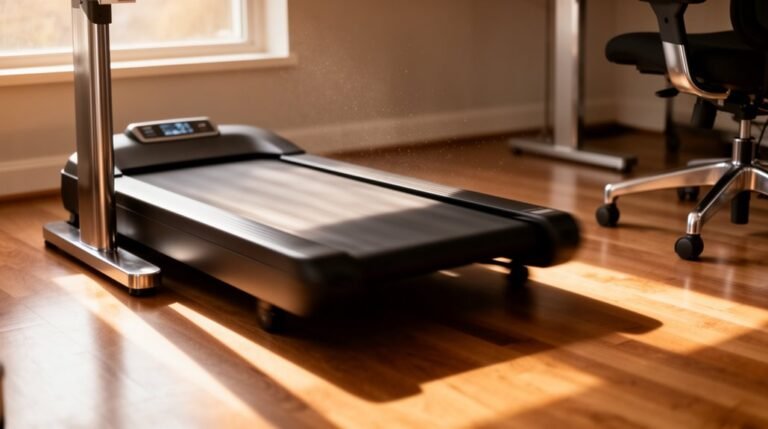
Vary your posture by switching between sitting, standing, or walking during tasks. Utilize a standing desk or elevated surfaces when possible.
Staying hydrated and adjusting room temperature enhances comfort, promoting adherence to these routines.
Regular movement breaks not only reduce muscle stiffness but also improve focus, reducing cognitive fatigue and enhancing overall productivity in your home office environment.
Safety and Injury Prevention
Since improper home office setups can lead to noteworthy injuries, understanding ergonomic risk factors is essential. Many home-based workers experience musculoskeletal disorders due to poor ergonomics.
You need to be aware of these common issues:
- Awkward postures, like slouching or overreaching, increase discomfort.
- Repetitive motions, such as constant typing, can strain muscles.
- Using laptops instead of desktop monitors can worsen neck and back pain.
Incorporating ergonomic principles is vital for injury prevention. Regularly assess your workspace for these risk factors, and prioritize adjustments.
Consider using adjustable furniture, setting monitors at eye level, and practicing proper posture. These actions can greatly reduce your risk of injury and enhance your overall productivity.
Prioritize safety to maintain a healthy work environment.
Chair and Desk Adjustments
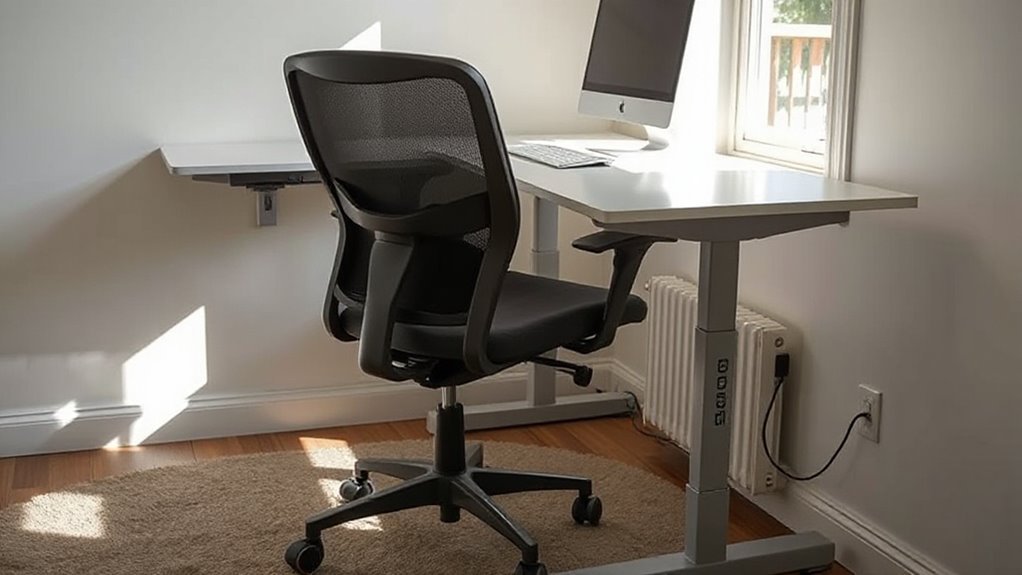
To create an ergonomic workspace, you must adjust your chair and desk correctly.
First, set the seat height so your feet rest flat on the floor, with knees bent at approximately 90 degrees. Verify there’s about 5 cm (2 inches) between the seat’s front edge and the back of your knees for circulation.
Adjust the backrest to fit the lower back’s hollow, providing lumbar support. Next, position armrests to align with your elbows, bent at 90 degrees.
Finally, verify your desk height complements these adjustments, allowing relaxed shoulders and proper wrist positioning.
This sequential adjustment process helps maintain a neutral posture, reducing discomfort and enhancing productivity during long hours of work.
Monitor Placement and Setup
How can proper monitor placement enhance your workspace ergonomics? Correct monitor setup minimizes neck and shoulder strain, ensuring comfort during long work hours.
- Position the top of the screen at or slightly below eye level, allowing your neck to remain neutral.
- Maintain a viewing distance of 20 to 40 inches, adjusting for screen size to reduce eye strain.
- Place the monitor directly in front of you, avoiding twisting your neck and ensuring an ideal viewing angle.
Keyboard and Mouse Ergonomics
Effective keyboard and mouse ergonomics are essential for maintaining comfort and preventing injury during extended computer use.
Position your keyboard at elbow height, allowing your shoulders to relax. Align your keyboard and mouse in a straight line with your elbows, wrists, and hands. Keep the keyboard approximately 5 cm from the desk’s edge and lay it flat or negatively inclined.
For the mouse, guarantee it’s at the same height as the keyboard and as close as possible to minimize stretching. Choose a mouse that fits your palm comfortably, allowing you to use larger arm muscles.
Maintain a neutral wrist position while moving the mouse from your elbow, not just your wrist, to reduce strain.
Stretching and Exercise Tips
Stretching and exercise tips play an essential role in maintaining overall musculoskeletal health, especially for individuals who spend long hours at a desk. Incorporating regular stretching into your routine can notably reduce tension and discomfort.
- Neck and shoulder stretches: Perform gentle neck stretches for 10-30 seconds, and do shoulder rolls to relieve tension.
- Arm and wrist exercises: Include wrist rotations and finger stretches to enhance flexibility and reduce stiffness.
- Leg and knee techniques: Hug one knee to your chest for hip relief, and alternate leg stretches 3-5 times for effective results.
Aim for 5-10 minute breaks every hour, focusing on stretching and movement.
Follow proper posture during these activities to maximize benefits and prevent injury.
Frequently Asked Questions
How Can I Improve My Home Office Design Aesthetics?
To improve your home office design aesthetics, start with a neutral color palette, incorporating pops of color for vibrancy.
Position your desk to maximize natural light, and use adjustable artificial lighting for flexibility.
Choose minimalist furniture with organic shapes, ensuring at least 60” in width for workspace.
Integrate plants and personal elements for warmth.
Maintain a consistent color scheme throughout, using decor that matches your overall home style for visual cohesion.
What Are the Best Colors for a Productive Workspace?
To create a productive workspace, consider using blue, yellow, green, red, and orange.
Blue promotes focus and calm, ideal for concentration.
Yellow sparks creativity and optimism, enhancing collaborative efforts.
Green offers balance and reduces eye strain, perfect for long hours.
Red and orange boost energy and motivation, suitable for active environments.
Use these colors strategically; balance bright hues with neutral tones to avoid overstimulation, ensuring a harmonious and efficient workspace.
How Can I Minimize Distractions in My Home Office?
To minimize distractions in your home office, designate a clutter-free workspace.
Use noise-cancelling headphones to block ambient sounds.
Turn off non-essential notifications on devices to maintain focus.
Break work into focused time blocks of 30 minutes, scheduling high-energy tasks during peak hours.
Communicate boundaries with household members to limit interruptions, and incorporate regular breaks to prevent burnout.
Finally, consider using productivity tools to track your focused time versus distractions.
What Plants Are Safe and Beneficial for Home Office Air Quality?
To enhance your home office air quality, consider plants like the Snake Plant, which purifies the air by removing toxins and releases oxygen even at night.
The Spider Plant thrives in indirect light, effectively filtering harmful substances.
The Peace Lily not only cleans the air but also adds humidity.
For low maintenance, opt for the ZZ Plant, which tolerates low light while removing pollutants.
Each plant contributes uniquely to a healthier indoor environment.
How Can I Incorporate Technology for Better Home Office Ergonomics?
To incorporate technology for better home office ergonomics, use software like RSIGuard for posture reminders and stretch alerts.
Implement height-adjustable desks to facilitate sitting and standing.
Utilize ergonomic peripherals, including specialized mice and keyboards, to minimize strain.
Employ intelligent break reminder apps that prompt micro-breaks.
Consider multi-monitor setups for enhanced productivity and reduced neck movement.
Monitor your workstation with self-assessments to identify and correct ergonomic issues proactively.
Conclusion
In conclusion, refining your home office ergonomics is like tuning a musical instrument for peak performance. You need to adjust your workstation setup, posture, and equipment for harmonious productivity.
Prioritize your chair and desk adjustments, monitor placement, and keyboard positioning to reduce strain.
Incorporate regular movement and breaks into your routine, and don’t forget to stretch.
By following this checklist, you can create a balanced environment that supports both comfort and efficiency in your work.