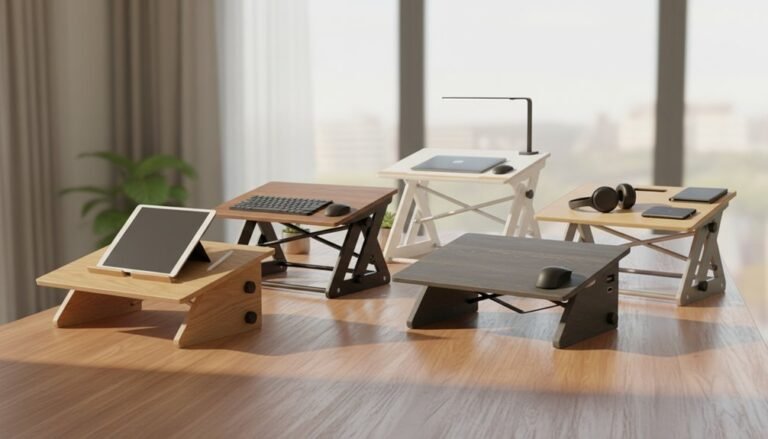
Setting Up Dual Monitors on a Standing Desk Converter
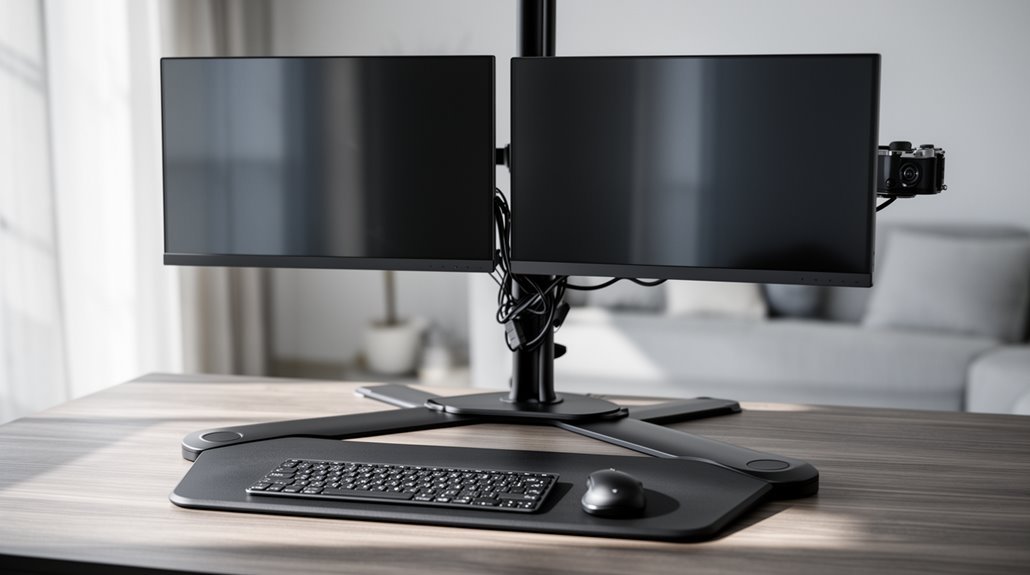
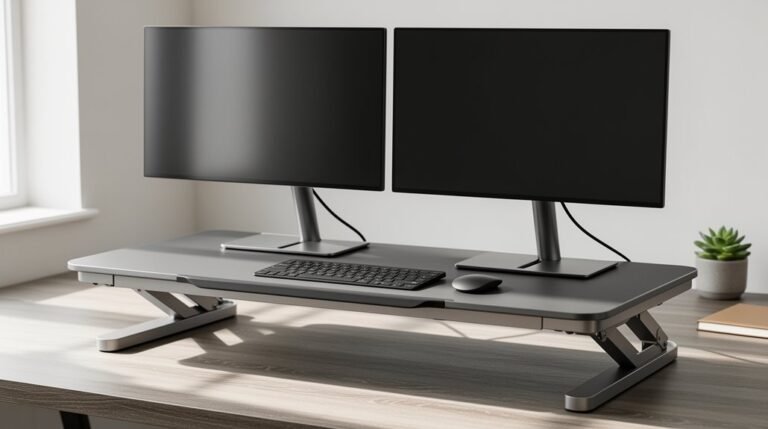
To set up dual monitors on a standing desk converter, choose a model at least 36 inches wide and confirm it supports 30–45 lbs total weight. Also check for VESA compatibility so you can mount the displays securely.
Adjust each monitor so the top of the screen is at or slightly below eye level, and angle them inward for a comfortable viewing position. Position the keyboard on a lower tier beneath the monitors to maintain a neutral wrist posture.
A thoughtful layout improves ergonomics and boosts productivity. With a few tweaks to height, angle, and spacing, your dual-monitor standing desk converter setup will be both comfortable and efficient.
Choosing the Right Desk Converter for Dual Monitors
When setting up dual monitors, choosing the right desk converter is vital for maximizing your workspace. A wider platform, typically 47″ x 23″, accommodates monitors, keyboards, and additional devices effectively. Standard models range from 36″ to 42″ in width, providing sufficient space for dual setups. Consider the footprint dimensions, which vary from 21″ x 27″ to 26″ x 36.5″, as this impacts your desk’s real estate. Verify monitor mount compatibility with VESA standards of 75x75mm or 100x100mm, and check that your monitors fit within the size limits. Height adjustability is essential; most converters offer ranges from 5.9″ to 19.3″, allowing for personalized ergonomic positioning. Additionally, a suitable converter often features gas spring technology that enables smooth height adjustments, enhancing both comfort and productivity in your workspace.
Understanding Weight Capacity and Stability Requirements
Understanding the weight capacity and stability requirements of dual monitor desk converters is essential for ensuring a safe and functional workspace. Here are key points to reflect on:
- Weight Limit: Most converters support between 30 to 45 lbs total, including monitors, keyboard, mouse, and accessories. Always verify manufacturer specifications.
- Stability Features: Choose models with a weighted base or dual stability bars for reduced wobbling. Wider platforms (36 inches or more) provide better balance. Additionally, models designed for dual monitor setups often incorporate features specifically aimed at enhancing stability during use.
- Construction Materials: Solid materials like steel or reinforced laminate enhance stability. Anti-scratch pads and non-slip feet prevent sliding during use.
Assembly and Installation Process
Setting up your dual monitor desk converter involves a systematic assembly and installation process that guarantees both functionality and safety. adjusting desk converter height for monitors is an essential step to achieve optimal viewing angles and ergonomic posture. Ensure that the monitors are aligned at eye level to reduce strain on your neck and eyes. Additionally, fine-tuning the converter height can enhance your overall productivity by allowing for a more comfortable working environment.
Begin by inspecting all components to verify nothing is damaged or missing. It’s recommended to have two people for safe installation. The installation surface must be stable, flat, and free from vibration. Removing the converter from the box is the first step to ensure you can begin setting it up safely and efficiently.
Start by placing non-slip pads on each corner of the converter base. Turn the unit upside down to secure the pads, then flip it right side up. Ascertain stability by verifying the gas spring mechanism operates smoothly.
For pole installation, align the grommet plate and secure with bolts. Attach monitor arms, tighten bolts, and manage cables with clips for organization.
Finalize by confirming all components are secure.
Monitor Mounting: VESA Compatibility and Adjustment
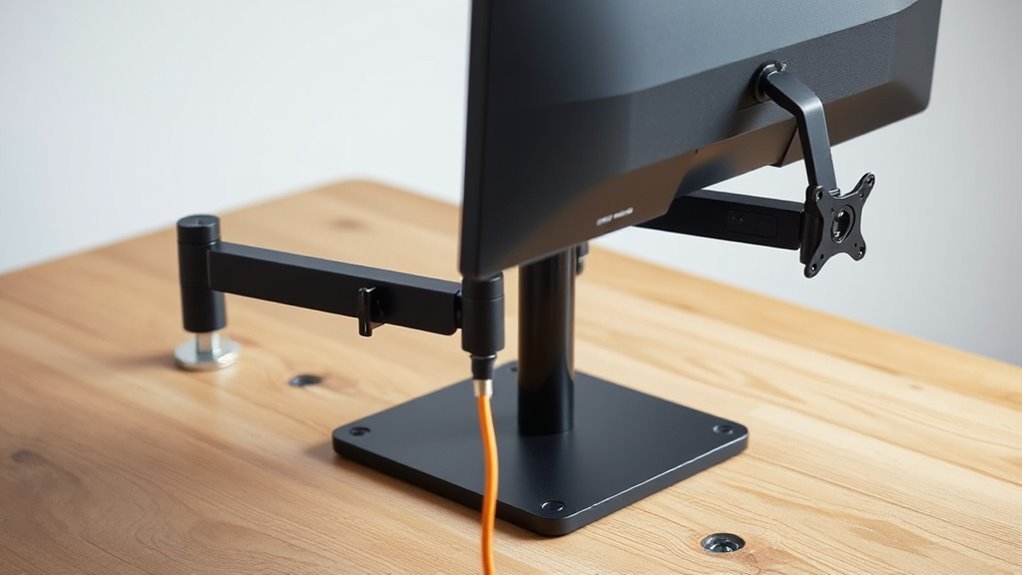
To guarantee a successful dual monitor setup, you’ll need to check for VESA compatibility, as it dictates how monitors attach to mounts.
Most monitors feature four screw holes on the back, arranged in a square or rectangle. Common VESA patterns include:
- 75×75 mm
- 100×100 mm
- 200×200 mm
Ensure your monitors match these patterns. Some monitors have recessed mounts that may not work with all mounts.
If you’re uncertain about VESA compatibility, consult the manufacturer’s mount finder tool or the product documentation.
Ergonomic Considerations for Dual Monitor Setup
Ergonomic considerations play an essential role in optimizing your dual monitor setup.
Position your monitors side-by-side, allowing for eye movement rather than head rotation, reducing strain. Set the height so the top edge aligns with or slightly below eye level, adjusting for bifocal or trifocal lenses. Confirm both monitors are aligned at the same height, especially if they differ in size.
Angle them inward by 10 to 30 degrees for a comfortable view. Use monitors of the same size and resolution, ideally over 19 inches, to minimize eye strain.
Maintain an arm’s length distance from screens, and center your keyboard in front of the primary monitor to sustain neutral wrist posture. Adjust lighting to avoid glare and reflections.
Cable Management for a Tidy Workspace
Effective cable management is essential for maintaining a tidy workspace, especially when using a standing desk with dual monitors.
To optimize your setup, consider these three cable management solutions:
- Cable Trays: Mount these under your desk to hold power strips and cables securely, reducing trip hazards and keeping cables off the floor.
- Cable Chains: Use patented chains designed for standing desks, allowing cable slack as the desk height adjusts, preventing tangling and damage.
- Adhesive Clips: Attach these to the desk edges to organize and secure cables without drilling, ensuring easy access and maintenance.
Implementing these solutions will help you achieve a streamlined workspace, enhance safety, and maintain a professional appearance.
Adjusting Monitor Heights and Angles
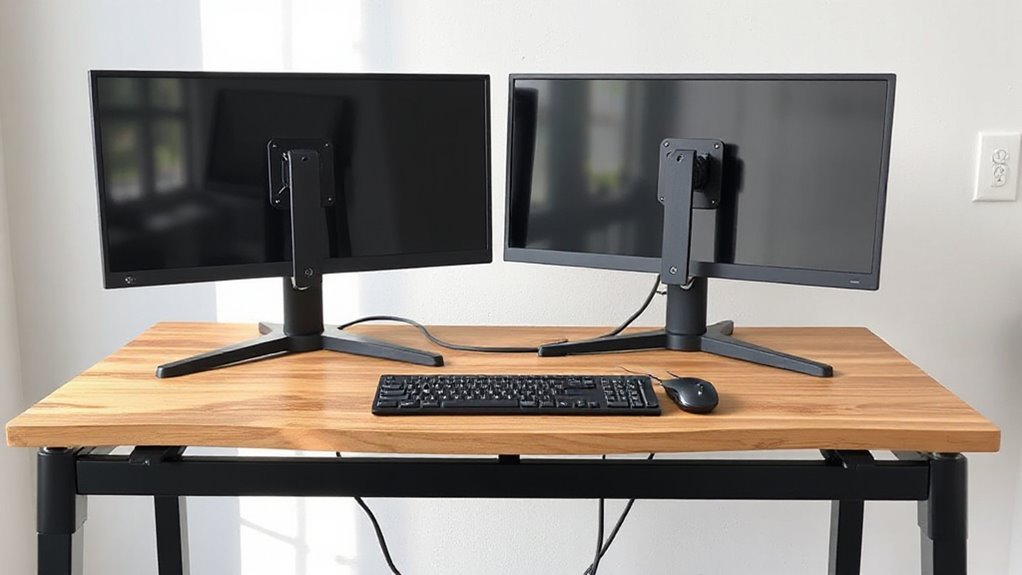
When setting up dual monitors, adjusting their heights and angles is essential for maintaining comfort and reducing strain.
Set the top of each monitor at or slightly below eye level. Position the center of each screen 15–20 degrees below horizontal eye level. Both monitors should be the same height to prevent neck and shoulder strain.
Maintain a viewing distance of 20–30 inches and angle the monitors slightly toward you for peak sightlines. Tilt each monitor back 10–20 degrees to reduce glare.
For larger monitors, verify the top doesn’t exceed eye level. Use adjustable mounts for precise height and tilt adjustments, allowing you to create a balanced and ergonomic workspace that accommodates both sitting and standing positions.
Utilizing the Keyboard and Mouse Platform Effectively
To enhance your productivity and comfort while using dual monitors, the keyboard and mouse platform plays a crucial role. Here are three key aspects to take into account:
- Dimensions and Space Utilization: Choose a platform width between 13.8″ and 40″. This range accommodates full-sized keyboards and mouse pads, optimizing your workspace.
- Ergonomic Adjustability: Verify the platform’s height aligns with your elbows, ideally slightly below. This positioning promotes neutral wrist posture, reducing strain.
- Stability and Material Quality: Opt for platforms made from sturdy materials like steel and laminate. These prevent flexing during use and maintain desk stability.
Enhancing Workspace Layout With Additional Accessories
Enhancing your workspace layout with additional accessories can greatly improve both organization and efficiency.
Cable management solutions, like trays and clips, keep cords tidy and reduce clutter. Integrated systems in desk converters minimize tripping hazards, while desk grommets allow clean routing of cables.
Monitor arms free up desktop space, allowing flexible positioning of dual monitors. Articulating arms enable height and tilt adjustments for ideal viewing angles.
Anti-fatigue mats provide cushioning, promoting better posture during prolonged standing.
LED desk lamps offer focused lighting with adjustable arms for precise placement.
Storage solutions, such as under-desk drawers and desk organizers, keep essentials within easy reach, ensuring an organized workspace.
These accessories contribute to a functional and efficient work environment.
Features to Look for in a Desk Converter
Choosing the right desk converter involves several key features that impact functionality and user experience. Consider the following:
1. Stability and Weight Capacity: Verify the converter has a heavy-weighted base or sturdy metal frame, supporting dual monitors with weight capacities from 28 lbs to over 50 lbs.
Look for stability features like patent mechanisms to minimize wobbling.
2. Height Adjustability and Range: A good converter should offer adjustable heights from 5″ to 19″.
Smooth adjustment mechanisms, such as electric actuators or gas springs, enhance usability.
3. Work Surface Size and Layout: Opt for a large work surface, ideally 30″ to 47″ wide.
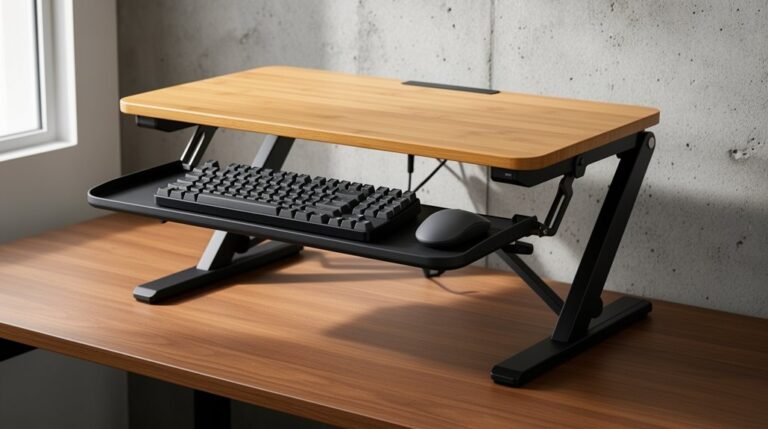
Two-tier designs improve ergonomics by separating keyboard trays from monitor platforms.
Frequently Asked Questions
Can I Use Non-Vesa Monitors With a Desk Converter?
Yes, you can use non-VESA monitors with a desk converter by utilizing adapter kits.
These kits often include adjustable arms, allowing secure mounting. Verify your monitor’s thickness falls within the adapter’s specified range, typically 25-80mm.
Check the adapter’s weight capacity, confirming it meets or exceeds your monitor’s weight. Some kits fit a variety of bezel sizes, but confirm compatibility, especially with curved monitors, as not all adapters support them.
What Are the Best Practices for Cable Management?
Start by evaluating your devices and determining necessary cable types. Measure lengths accurately, avoiding slack or tightness.
Bundle cables with Velcro strips or ties, and label them for easy identification. Utilize cable trays or grommets to conceal excess length and secure bundles.
Regularly check connections to prevent issues. Maintain a tidy workspace by grouping power, video, and data cables separately, ensuring safety and simplifying troubleshooting for future upgrades.
How Do I Clean and Maintain My Desk Converter?
To clean and maintain your desk converter, use a soft, damp microfiber cloth to remove dust.
For stains, apply mild soap and water, then dry immediately.
Regularly inspect bolts and screws for tightness to guarantee stability.
Lubricate moving parts with recommended lubricants, checking for wear.
Organize cables using clips to prevent tangling.
Finally, avoid harsh chemicals and make certain surfaces remain dry to protect finishes and components.
Are There Any Weight Limits for Accessories on the Converter?
Yes, there are weight limits for accessories on the converter. Typically, keyboard trays support about 4.4 lbs, while monitor arms can reduce the converter’s maximum weight capacity.
Ascertain the total weight, including monitors and accessories, stays within the specified limits—usually between 33 lbs and 55 lbs. Exceeding these limits risks damaging the converter’s lifting mechanism, compromising stability, and voiding warranties.
Always consult product specifications for precise weight guidelines.
Can I Adjust the Keyboard Platform Height Separately?
Yes, you can adjust the keyboard platform height separately on many models.
For instance, the UPLIFT ATX converter features an ergonomic keyboard tray that allows independent height adjustments, promoting an ideal typing posture. This can prevent repetitive strain injuries.
Models like the Ergotron WorkFit-TL also offer similar capabilities, enabling you to position your keyboard comfortably while adjusting your monitor height.
Confirm you verify the specific model’s features for this independent adjustment functionality.
Conclusion
To conclude, setting up dual monitors on a standing desk converter enhances productivity and workspace efficiency. setting up dual monitors effectively can significantly reduce the time spent switching between applications. By optimizing your screen real estate, you can keep important documents and tools visible at all times. This setup can be particularly beneficial for multitasking and managing complex projects.
Studies show that using dual monitors can increase work efficiency by up to 40%.
By selecting the right desk converter, ensuring stability, and properly adjusting monitor heights, you can create an ergonomic workspace that supports long hours of use.
Remember to utilize a keyboard and mouse platform effectively, and consider additional accessories to optimize your setup further.