Monitor Arm Vs Stand: Which Is Better?
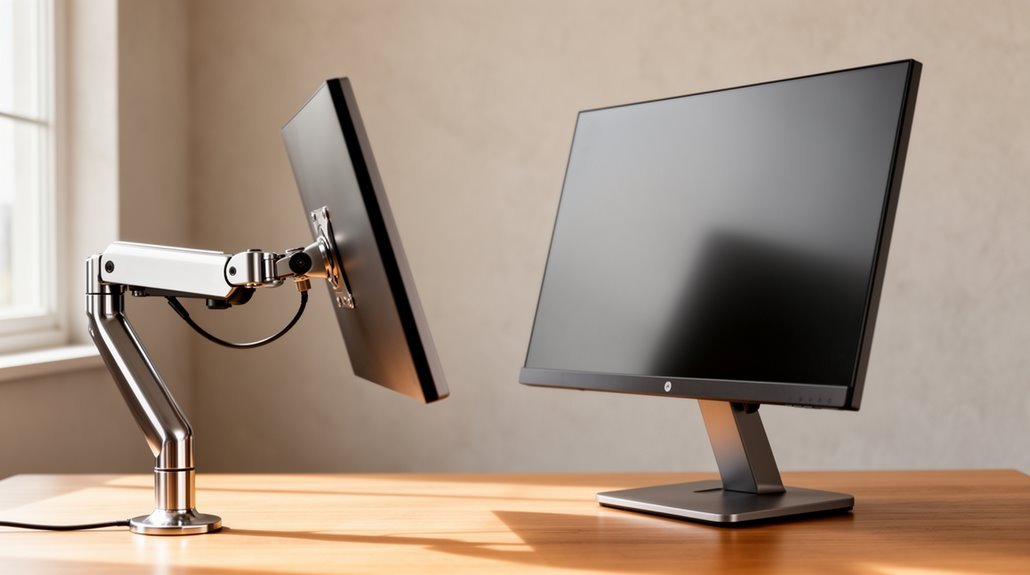
When deciding between a monitor arm and a stand, monitor arms excel in adjustability and ergonomics. They allow multi-directional movement so you can position screens at eye level, which helps minimize neck and back discomfort.
Arms also help optimize desk space by clamping to the edge or mounting through a grommet, and many include cable management to reduce clutter. That makes them a strong choice for tidy, flexible workspaces.
In contrast, stands provide immediate stability with no installation required but lack the same range of movement and customization. Costs vary, but monitor arms often represent a better long-term investment for comfort and productivity.
If you want more considerations—weight capacity, desk thickness, single versus dual monitor setups, or aesthetics—read on for additional insights.
Adjustability and Flexibility
When comparing monitor arms and stands, adjustability plays an essential role in user experience.
Monitor arms provide multi-directional movement, allowing vertical height adjustments, horizontal reach, tilt, swivel, and rotation. This flexibility helps you position the screen at eye level, promoting better posture and reducing discomfort. Additionally, monitor arms allow for repositioning and rotation of monitors, making them ideal for accommodating multi-monitor setups and different orientations.
In contrast, monitor stands typically offer limited height adjustments and minor tilt, lacking swivel or rotation capabilities. While arms support screen rotation between landscape and portrait modes, stands remain fixed in one orientation.
Additionally, arms allow dynamic repositioning without the need for physical lifting, enhancing convenience. For tasks requiring frequent adjustments, monitor arms offer superior versatility compared to the static nature of traditional stands.
Desk Space and Workspace Efficiency
Monitor arms considerably enhance desk space utilization compared to traditional monitor stands. By elevating your monitor above the desk, they free up significant surface area for documents, peripherals, or decor.
In contrast, fixed monitor stands take up around 9×11 inches of desk space, limiting your available workspace. Some stands offer storage underneath, but this doesn’t fully offset their footprint.
Desk-mounted monitor arms allow you to position monitors at edges or behind the desk, optimizing side or rear space. For smaller desks under 60 cm wide, monitor arms provide superior space efficiency. Additionally, monitor arms typically occupy less desk space than stands, allowing for even more efficient use of the workspace.
They also promote cleaner cable management by routing cables along the arm, reducing clutter and supporting a more organized workspace for multitasking.
Ergonomics and Comfort
How can you enhance your workspace for maximum comfort? Using a monitor arm allows precise height, tilt, swivel, and rotation adjustments to achieve ideal viewing angles.
Position the top edge of your monitor at or slightly below eye level, which supports neutral neck and spine alignment. Maintain a distance of 20-40 inches (50-100 cm) from your eyes to reduce strain. Monitor arms allow for extensive adjustability, which is beneficial for users experiencing neck and eye strain.
Tilt adjustments minimize glare, improving comfort during long work sessions. For multi-monitor setups, independent adjustment capabilities let you personalize ergonomics.
Enhanced positioning reduces neck, shoulder, and eye strain, promoting better posture and long-term spinal health. Overall, monitor arms provide extensive customization options, making them superior to fixed-height stands regarding ergonomic comfort and adaptability.
Stability and Installation
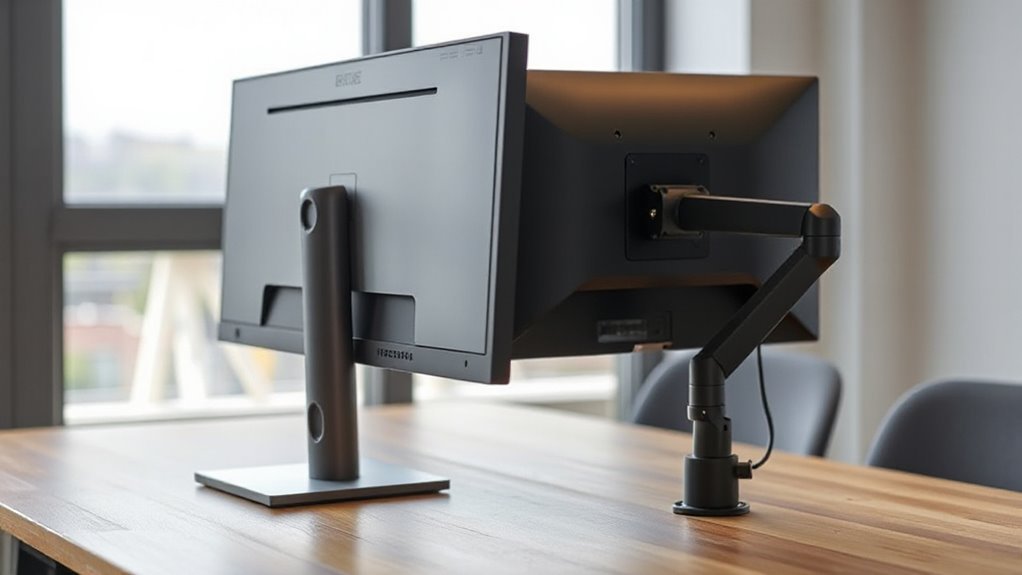
Stability and installation are vital factors in determining the effectiveness of monitor arms and stands. Monitor stands generally provide more stability due to their solid, non-moving base.
In contrast, monitor arms can wobble if not installed correctly or matched to desk and monitor weight. Secure mounting is essential for arms, requiring either clamp or bolt-through methods; clamps are easier but depend on desk edge thickness.
Bolt-through installations offer maximum stability but involve drilling. Wall-mounted arms provide the highest stability but limit repositioning flexibility.
Monitor stands, needing no installation, simply sit on the desk surface. Always verify the weight capacity and specifications for both monitors and mounts to guarantee safety and stability in your workspace.
Cost and Value
When considering cost and value, it’s essential to evaluate the initial investment and long-term benefits of monitor arms versus stands.
- Monitor stands typically cost $20-$100, while arms range from $25-$300+.
- Most monitors come with a native stand, negating upfront costs for stands.
- Monitor arms require a separate purchase, adding to your overall expense.
- Entry-level arms ($25-$43) offer basic adjustments, while premium models justify higher costs with durability and build quality.
- Upgrading from a stand to an arm later can save you money compared to buying a premium model initially.
Monitor Compatibility and Usage
Understanding monitor compatibility is essential for selecting the right mounting solution. Most monitor arms require VESA compatibility, typically with mounting holes at 75x75mm or 100x100mm. Larger monitors may need VESA patterns like 200x100mm or 200x200mm.
If your monitor lacks VESA holes, you’ll need an adapter plate. Be aware that monitor thickness and depth can impact compatibility, especially with ultra-thin or curved displays.
When considering weight capacity, typical arms support 7–20 lbs per monitor. Exceeding these limits can lead to instability. Additionally, verify your desk has at least 4 inches of clear edge space for clamping; thicker desks may not work with standard clamps.
Always check manufacturer specifications for both monitor and arm ratings to confirm compatibility.
Aesthetic Considerations
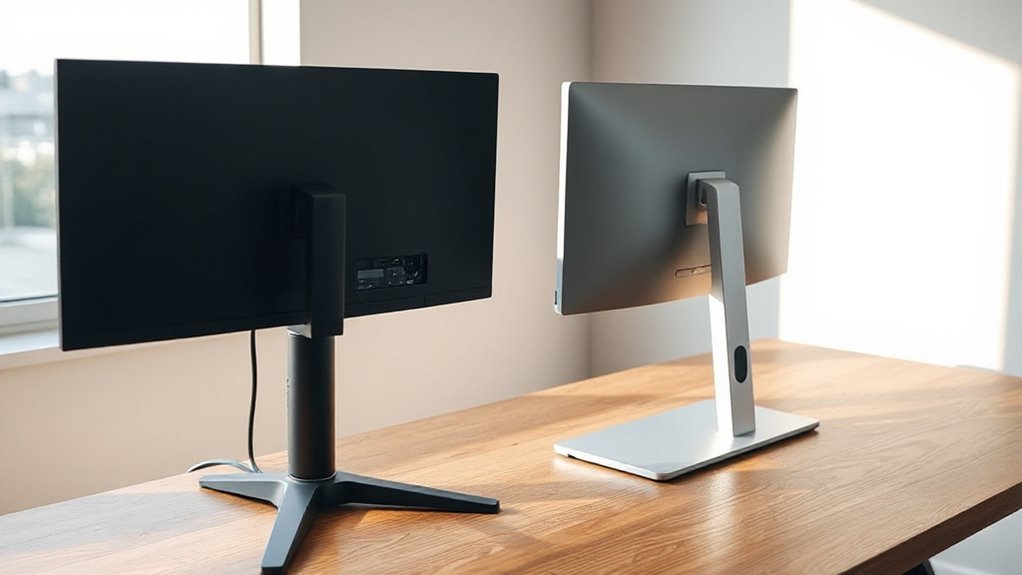
A monitor arm enhances your workspace’s visual appeal through its sleek and minimalist design. It complements modern aesthetics and effectively reduces visual clutter.
Here are some key aspects to take into account:
- Sleek Design: Monitor arms typically have contemporary profiles that convey a polished look.
- Floating Effect: Elevating the monitor creates a spacious feel, enhancing desk cleanliness.
- Cable Management: Many models incorporate systems to conceal wires, promoting visual harmony.
- RGB Options: Customizable lighting can add flair, particularly in gaming setups.
- Contrast with Stands: Monitor stands are often bulkier, making desks appear more crowded.
Long-Term Investment
Investing in a monitor arm or stand can greatly impact your workspace over time, especially regarding durability and adaptability.
Monitor arms typically use metal construction, enhancing long-term durability with resistance to wear. Though monitor stands are cheaper upfront, they may require replacement sooner, especially under heavy loads.
Quality monitor arms, priced between $50 and $300, justify their cost with adjustability, supporting multiple monitors and larger screens. They require minor maintenance, like tension adjustments, while stands need less upkeep.
However, stands lack adaptability; changing monitor sizes may necessitate a new stand. Monitor arms allow for easy repositioning and support evolving workflow needs, ensuring you invest wisely for the future.
User Preferences and Work Environment
When choosing between a monitor arm and a stand, users must take into account their unique preferences and work environment.
Monitor arms excel in ergonomic adjustments, allowing for precise height, tilt, and swivel, which can greatly reduce strain. In contrast, monitor stands offer basic height adjustability but lack flexibility.
Here are key factors to take into account:
- Ergonomic Needs: Monitor arms promote healthier postures; stands are simpler.
- Space Utilization: Arms save desk space; stands can clutter.
- Flexibility: Arms allow for easy repositioning; stands are more static.
- Office Settings: Arms suit dynamic environments; stands fit traditional setups.
- Home Work: Arms benefit remote workers; stands appeal to budget-conscious users.
Evaluating these factors helps guarantee you choose the right option for your workspace.
Frequently Asked Questions
How Do I Choose the Right Monitor Arm for My Setup?
To choose the right monitor arm for your setup, consider the following factors.
First, check your monitor’s weight and size against the arm’s weight capacity.
Next, verify the arm fits your desk space, requiring at least 4 inches of clear edge for clamping.
Look for adjustable height and tilt features to maintain ergonomic posture.
Finally, assess installation complexity; some arms may need professional help, while others are easy to attach yourself.
Can Monitor Arms Support Curved or Ultra-Wide Monitors?
Yes, monitor arms can support curved and ultra-wide monitors.
Most modern arms accommodate VESA patterns 75x75mm and 100x100mm, fitting screens from 17″ to 49″.
Heavy-duty arms handle weights from 2.2 lbs to over 44 lbs, essential for models like the Samsung Odyssey G9.
They feature full-motion designs, reinforced tilt pivots, and durable materials to guarantee stability, while integrated cable management keeps your workspace organized.
Always verify weight limits and VESA compatibility for safety.
Are Monitor Arms Easy to Transport or Relocate?
Monitor arms aren’t easy to transport or relocate. They require secure attachment, which means you’ll need tools for installation and reinstallation.
Removing an arm involves disconnecting cables and handling hardware carefully to avoid damage. In contrast, monitor stands allow for simple lifting and repositioning without tools.
Stands offer compact storage, while monitor arms can be bulkier, complicating transportation. Overall, stands provide greater convenience for quick relocations in various workspaces.
Do Monitor Arms Have Weight Limits for Different Monitor Sizes?
Yes, monitor arms have weight limits for different monitor sizes.
Each model specifies a maximum weight capacity, which can range from 4.4 lbs to 44 lbs, depending on materials like steel or aluminum.
Monitor depth also impacts support; curved monitors usually require stronger arms due to their design.
Always check the manufacturer’s specifications to guarantee compatibility, as similar-sized monitors can differ greatly in weight and dimensions, affecting the arm’s performance.
What Tools Are Needed for Installing a Monitor Arm?
To install a monitor arm, you’ll need several tools for an efficient setup.
Start with a Phillips head screwdriver for VESA plate fastening. Use Allen wrenches for assembly adjustments, and a flathead screwdriver for additional needs.
A tape measure helps with accurate placement, while a pencil marks mounting points. For drilling, you’ll require a drill with appropriate bits, and a level tool guarantees your monitor is properly aligned.
Conclusion
To sum up, choosing between a monitor arm and a stand depends on your specific needs.
Monitor arms offer adjustability and flexibility, enhancing ergonomics and workspace efficiency.
Stands, while stable and simpler to install, may limit positioning options.
Consider your workspace, comfort, and monitor compatibility to determine which solution best supports your productivity and well-being.
Both options have merits; evaluating your unique work environment will guide you to the ideal choice for long-term usage and value.