Using a Monitor Arm for Your Laptop
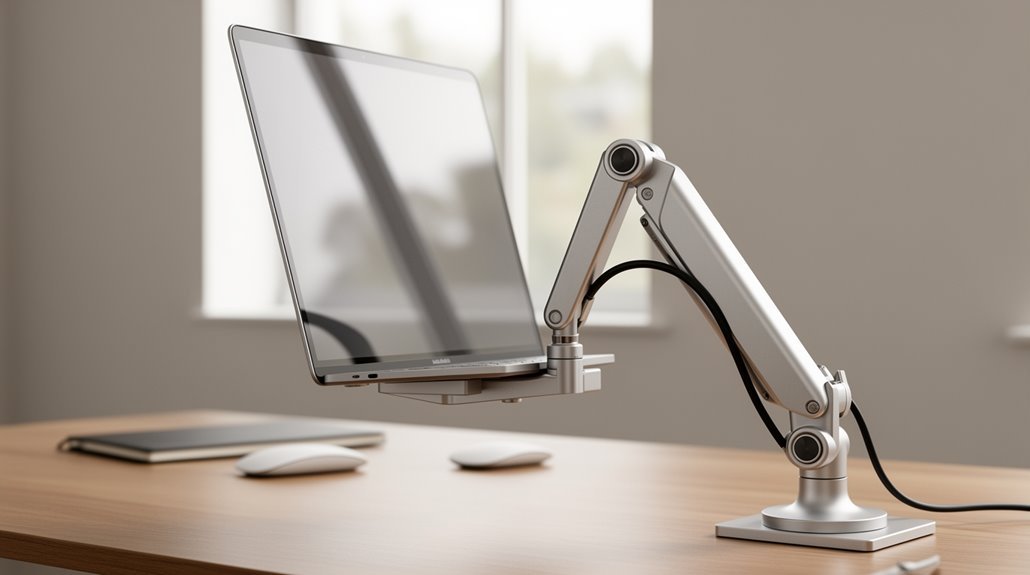
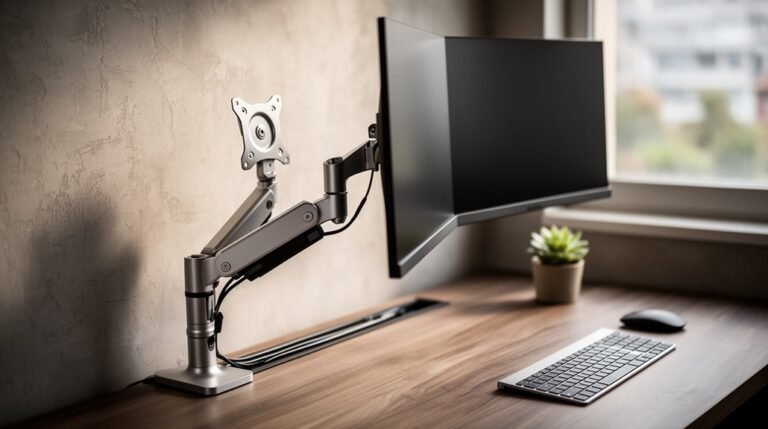
Using a monitor arm for your laptop enhances ergonomics and optimizes your workspace. You can easily adjust the height to maintain a neutral spine position, reducing strain on your neck and shoulders.
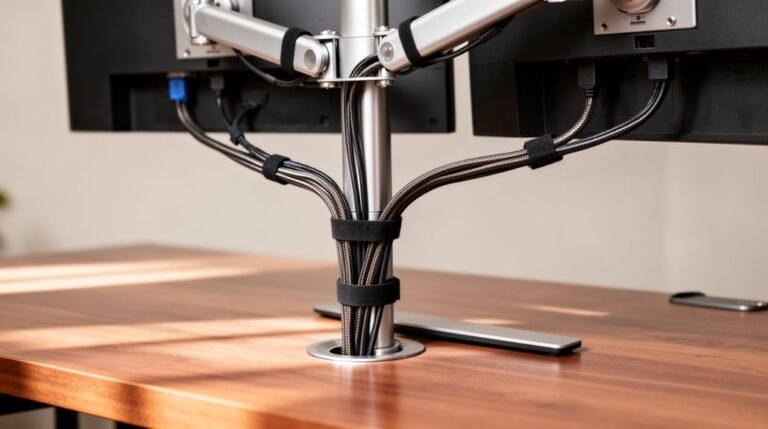
Monitor arms support multiple screen setups, which improves multitasking and workflow. They also save desk space and help keep cables organized through integrated cable management.
Various installation options make monitor arms compatible with most desks. Overall, they offer cost-effective benefits and can boost productivity.
Benefits of Using a Monitor Arm for Your Laptop
Using a monitor arm for your laptop offers numerous ergonomic benefits that can enhance your workspace.
First, elevating your laptop to eye level promotes a neutral spine position and reduces neck flexion, which helps prevent slouching and awkward postures. This proper alignment decreases strain on your neck and shoulders, leading to less torso tension. Additionally, maximizing desk space by lifting your laptop off the surface creates room for a keyboard or other accessories, further improving your workspace organization.
Studies indicate that over half of monitor arm users report reduced neck flexion. Additionally, adjusting screen height minimizes eye strain by maintaining a comfortable viewing distance and decreasing glare.
The flexibility of a monitor arm allows you to tilt, swivel, and rotate your laptop for ideal viewing angles, supporting a dynamic work environment. This adaptability encourages healthy ergonomic habits, ultimately reducing the risk of chronic pain.
Space Optimization in Small Work Areas
Many professionals face the challenge of limited desk space, making effective workspace organization essential. Monitor arms optimize space by elevating laptops, freeing horizontal workspace, and reducing clutter. C-clamp or desk-mounted options create non-permanent setups that conserve surface area, perfect for small desks. Integrated cable management prevents tangles, leading to a cleaner work environment. Additionally, adjustable monitors promote healthy posture and reduce musculoskeletal pain, ensuring you remain comfortable during long work hours.
Multi-monitor arms enable vertical stacking of screens, maximizing productivity in tight areas. Wall-mounted solutions utilize overhead space, saving every inch of your desk. Adjustable features allow you to position screens precisely, accommodating various tasks without needing extra furniture. Compact designs and portable mounts provide flexibility, ensuring that even the smallest work areas can support efficient workflows while maintaining a clean, organized surface.
Achieving Ergonomic Posture With Adjustable Heights
Achieving ergonomic posture is a significant benefit of adjustable monitor arms. These arms position your laptop screen at eye level, reducing head tilt and minimizing neck strain. Studies show that 50.6% of users experience decreased neck flexion compared to traditional setups. Proper screen height maintains neutral spinal alignment, reducing musculoskeletal disorder risks.
With adjustable heights, you can alleviate tension headaches and cervical stiffness. In addition, 99.1% of users report satisfaction with their ergonomic setup. The ability to customize height and tilt supports individual preferences, ensuring everyone can achieve a comfortable posture. By preventing awkward positions, monitor arms help mitigate long-term stress injuries, making them an essential tool for promoting spinal health and overall comfort during extended work sessions. Additionally, monitor arms provide dynamic adjustability which allows for quick repositioning based on task needs.
Flexibility for Multi-Tasking and Collaboration
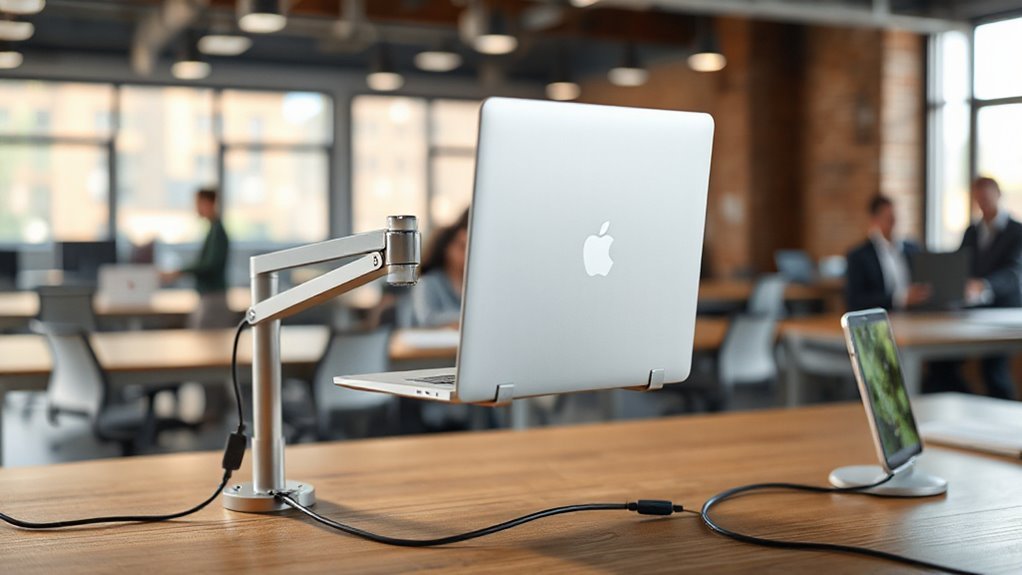
When you incorporate a monitor arm into your workspace, you gain the ability to efficiently manage multiple tasks and collaborate effectively.
Monitor arms allow for seamless window management, enabling you to view multiple full-screen applications simultaneously. This reduces the need for constant window toggling, conserving time and mental energy. With dual or triple monitor setups, you can maintain focus by dedicating one screen to primary tasks and another for secondary information.
During meetings, easily rotate or swivel screens to share work without disrupting your workspace. Aligning screens across multiple displays ensures consistent viewing angles, enhancing group collaboration.
This flexibility supports dynamic configurations for individual and team-based projects, optimizing your workflow for both personal and collaborative tasks.
Enhancing Productivity Through Screen Positioning
Ideal screen positioning plays an essential role in boosting productivity. By utilizing a monitor arm, you can make precise adjustments to your screen’s height, angle, and distance, which considerably reduces physical strain.
Consider these benefits:
- Optimal Alignment: Keeping your screen at eye level minimizes neck flexion and maintains better posture.
- Reduced Eye Strain: Proper distance helps avoid squinting and tension headaches.
- Balanced Setup: Dual monitor arms guarantee even visual alignment, reducing side-to-side neck movements.
- Workspace Efficiency: Enhanced ergonomic positioning correlates with a measurable improvement in posture, promoting comfort and focus.
These adjustments foster an environment that supports sustained cognitive function, ultimately leading to increased productivity throughout your workday.
Installation Options for Different Workspaces
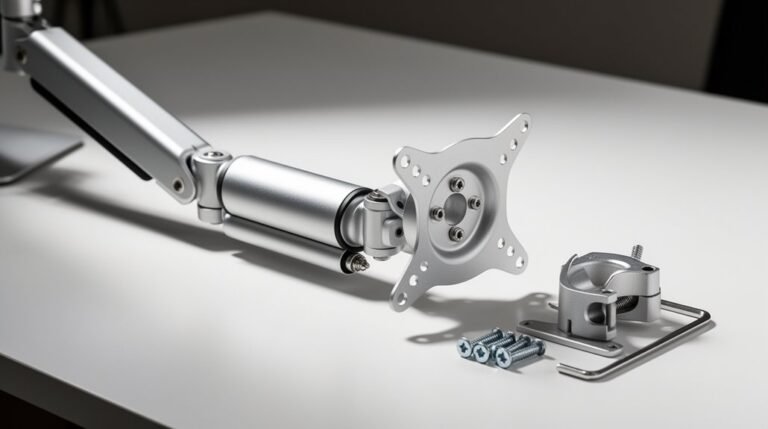
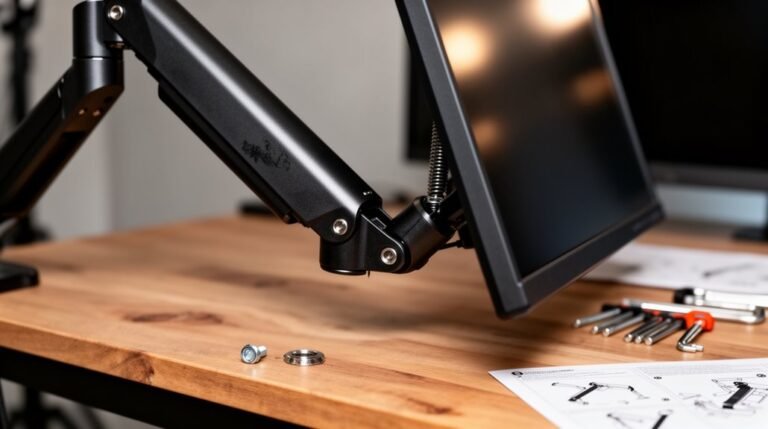
Installing a monitor arm for your laptop involves selecting the right method based on your workspace’s specific requirements.
Desk Clamp Installation: This method attaches the clamp base to the desk edge, ideal for desks with an overhanging lip.
You can tighten the clamp screws gradually, ensuring you don’t overtighten and damage the desk.
Grommet Hole Installation: This option uses a pre-existing or drilled hole, securing the arm with a bolt and nut.
It allows for effective cable management.
Wall Mount Installation: For permanent setups, this method requires wall anchors and a stud finder.
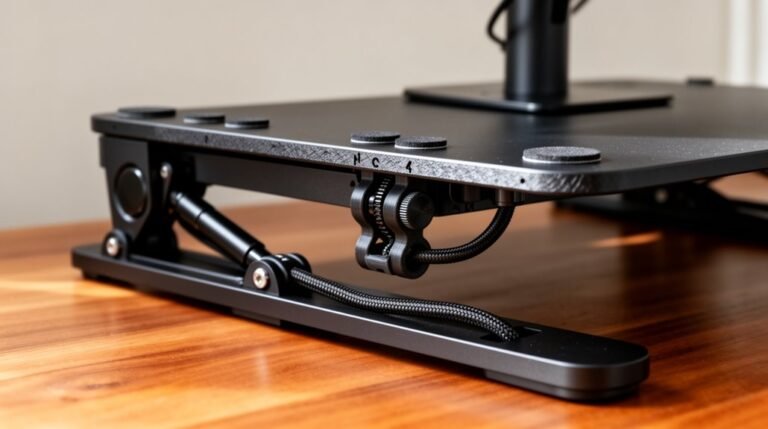
Freestanding Base Installation: This option sits directly on the desk, providing flexibility but taking up more space.
Each method has unique benefits to fit your workspace needs.
Compatibility With Various Laptop Models
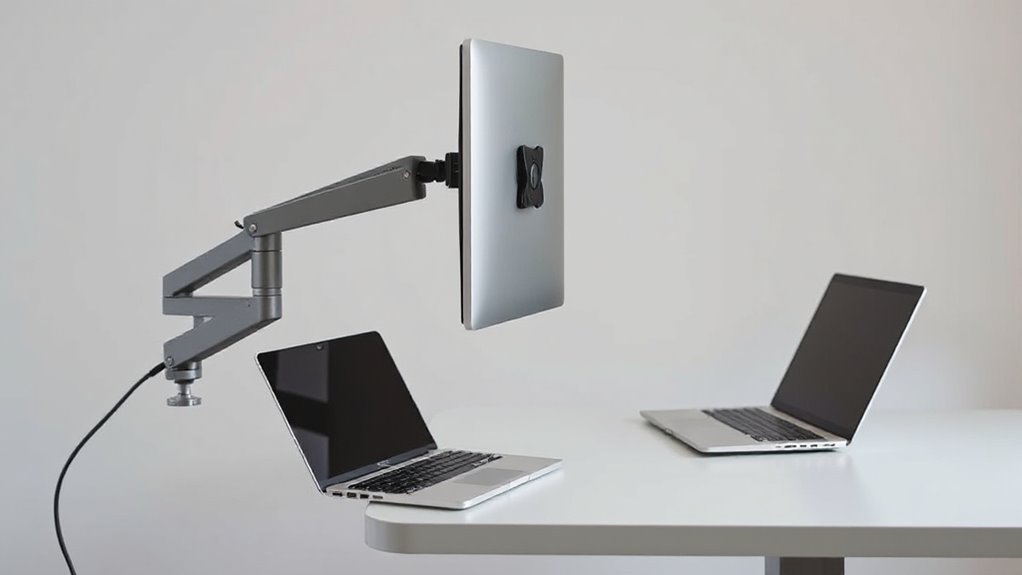
Understanding laptop compatibility with monitor arms is essential for guaranteeing a secure and functional setup. Most monitor arms require laptops to have standard VESA mounting holes, typically spaced at 75×75 mm or 100×100 mm.
If your laptop lacks these mounts, consider using third-party VESA adapter plates.
Key considerations include:
- Maximum weight capacity: Verify your arm supports the combined weight of your laptop and any external monitor.
- Laptop size: Choose arms that accommodate screen sizes up to 15” or 17”.
- Adjustment features: Look for arms allowing tilt, swivel, and height adjustments for ergonomic positioning.
- Physical design: Consider the thickness and footprint of your laptop for best compatibility.
Cost-Effectiveness Compared to Other Solutions
When evaluating the cost-effectiveness of monitor arms for your laptop, consider the price range and features that fit your needs.
Entry-level monitor arms start at $29, while budget options like Huano are priced at $39.99, offering basic functionality.
Mid-range arms, such as VIVO at $99 to $119, provide improved build quality and support for larger monitors.
Premium models, like the Ergotron LX, cost $247-$289 but guarantee durability and stability.
Analyzing cost-per-use, entry-level arms might require replacement due to wear, while mid-range options can last 3-5 years.
Ultimately, investing in a quality arm can reduce long-term costs and enhance your workspace efficiency greatly, making it a practical choice in the long run.
Frequently Asked Questions
Can I Use a Monitor Arm With a Laptop Stand?
Yes, you can use a monitor arm with a laptop stand. Confirm the monitor arm has a VESA-compatible mount, often 75x75mm or 100x100mm.
Check the weight capacity of the arm, as not all are rated for laptops. Some monitor arms come with integrated laptop cradles, while others need separate mounts.
Proper installation allows height adjustment, enhancing ergonomics and freeing desk space for other materials.
Are Monitor Arms Suitable for Outdoor or Temporary Setups?
Suitability of Monitor Arms for Outdoor Use****
Monitor arms aren’t ideal for outdoor or temporary setups. They require stable surfaces for secure mounting, which outdoor conditions often lack. Weather exposure can damage materials, reducing durability.
While some models allow quick installation, their weight limits portability. In addition, outdoor visibility issues arise from glare, complicating ergonomic benefits.
For temporary use, lightweight, foldable stands are generally more practical and easier to transport than traditional monitor arms.
How Much Weight Can a Typical Monitor Arm Hold?
A typical monitor arm can hold between 4.4 lbs (2 kg) to 44 lbs (20 kg).
Consumer models generally support up to 17.6 lbs (8 kg) for screens sized 15″ to 34″.
Heavy-duty options, like the BenQ Ergo arm, accommodate larger monitors up to 45″.
Factors affecting weight capacity include materials, arm structure, extension, and desk sturdiness.
Always check manufacturer specifications for precise weight limits and compatibility with your specific setup.
Do Monitor Arms Come With Built-In USB or Power Ports?
Yes, monitor arms often come with built-in USB or power ports.
Many models feature two USB ports, typically USB 3.0, allowing high-speed data transfer and charging.
Some advanced options include additional multimedia ports, such as USB-C and AC outlets, supporting multiple devices.
These arms are designed for ergonomic adjustments, enhancing workspace flexibility while providing convenient access to power and data connections, which is essential for today’s tech-driven environments.
Can I Adjust the Monitor Arm After Installation?
Yes, you can adjust the monitor arm after installation. You’ll find features like height, tilt, swivel, and rotation adjustments.
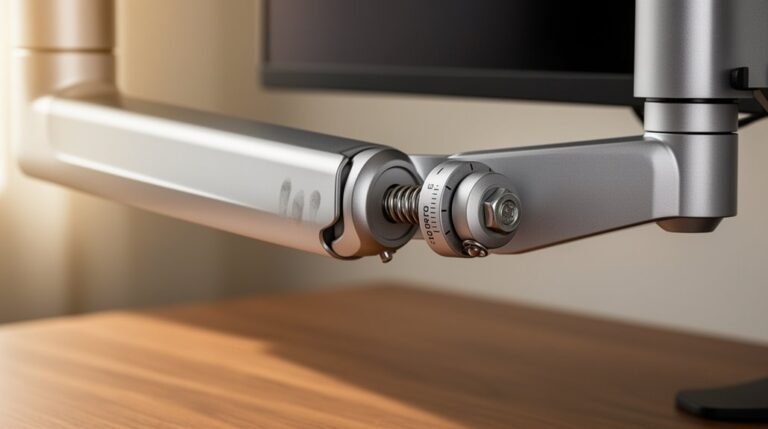
To fine-tune the position, gently slide the monitor or arm up and down. Use the tension screws to control stiffness and guarantee smooth movement.
Adjusting the tilt requires loosening or tightening specific screws. Always consult your user manual for precise instructions, as mechanisms can vary greatly among different brands and models.
Conclusion
Incorporating a monitor arm for your laptop offers significant advantages. It optimizes space, letting you use small areas more efficiently.
Adjustable heights promote ergonomic posture and help reduce strain during prolonged use. The flexibility also supports multi-tasking and enhances collaboration.
You can position your screen for maximum productivity, adapting it to various tasks. With easy installation options and compatibility with many laptop models, a monitor arm is a cost-effective way to elevate your workspace and work efficiency.