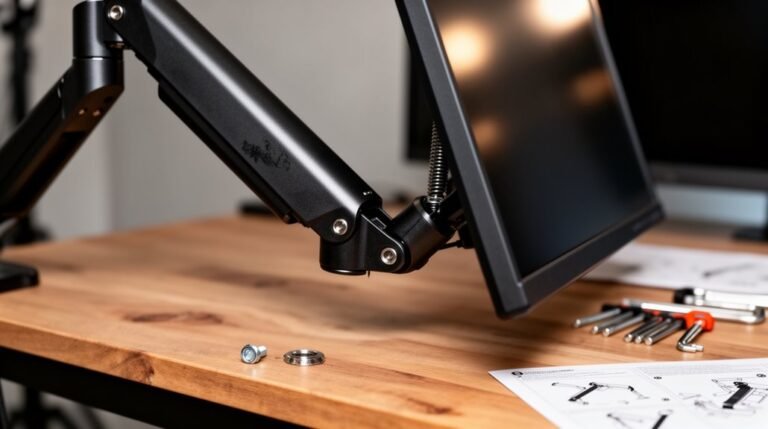
Monitor Arm Cable Management Tips
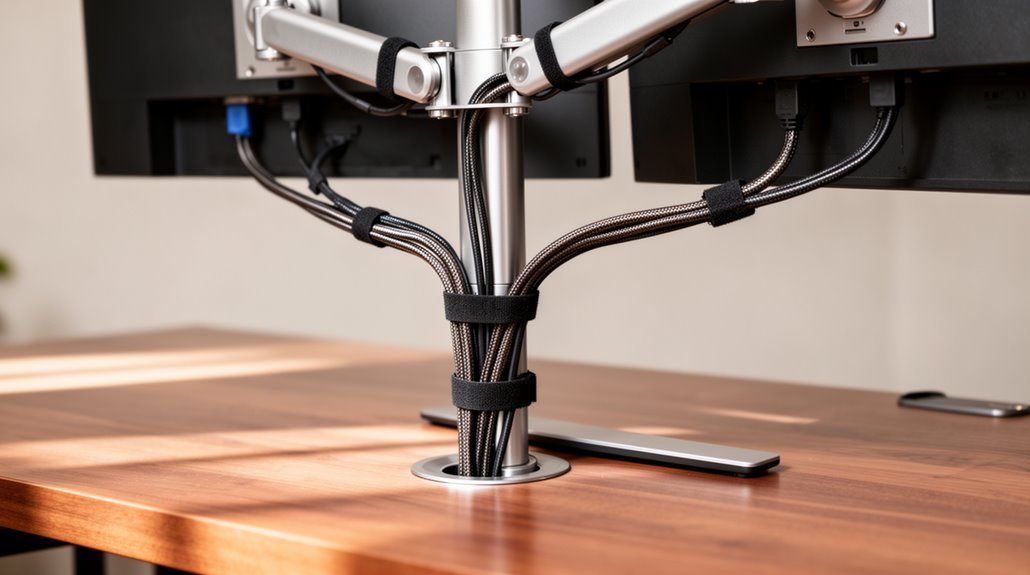
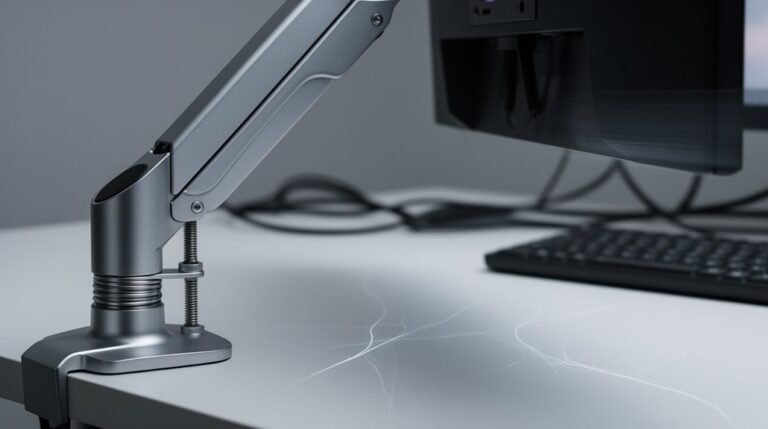
Monitor Arm Cable Management Tips: Use built-in cable channels and clips to hide loose cables and keep them tidy. Secure cables with clips or zip ties to prevent sagging and reduce strain on connectors.
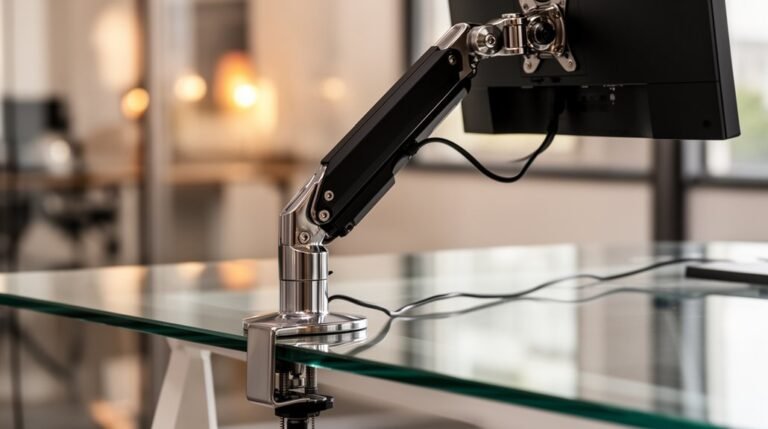
Route cables along the monitor arm and under the desk for easier access and a cleaner look. Bundle cables that run in the same direction to maintain a neat appearance and simplify adjustments.
Also verify your monitor arm is VESA compliant and matches your monitor’s weight and size to avoid poor fit or stress on the arm. With these strategies, you’ll achieve a streamlined workspace — explore additional techniques to further enhance organization.
Benefits of Built-in Cable Management
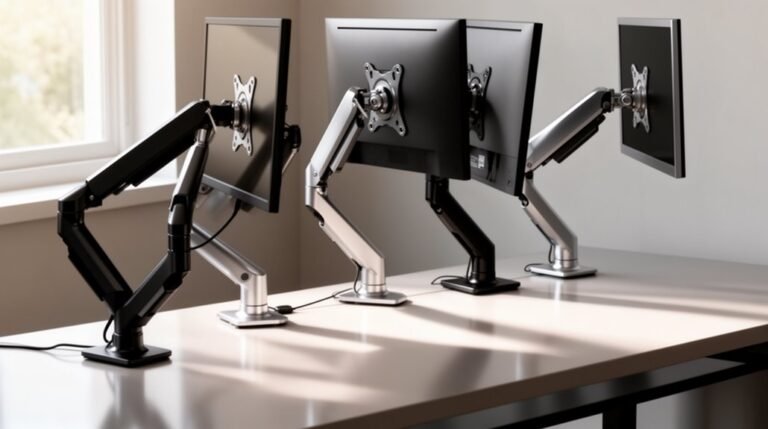
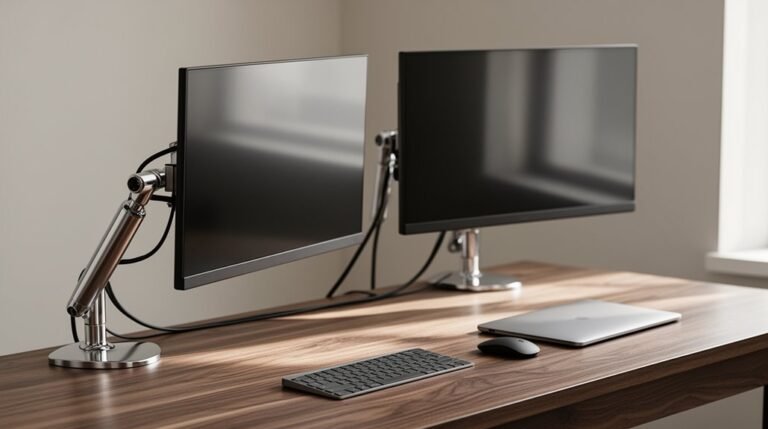
Built-in cable management systems offer significant advantages for workspace organization. Cables and cords stay concealed within integrated channels and clips, reducing visual clutter across your desk. This creates a professional appearance while preventing tangled wires through secure routing mechanisms. In dual or triple monitor setups, you can manage multiple cables simultaneously, ensuring no visible wire exposure.
Additionally, monitor elevation frees up valuable desk space, allowing for more room for documents or peripherals. Smaller workspaces benefit most from this space-saving capability, enabling better organization. Effective cable management also reduces the risk of physical injuries like repetitive strain injuries and back pain by keeping the workspace tidy and organized.
A decluttered desk enhances your productivity by keeping work materials accessible. Overall, these systems improve aesthetics and workspace functionality, promoting a more efficient and organized environment.
Cable Organization Techniques
When organizing cables in a workspace, employing effective techniques can greatly enhance both functionality and aesthetics. Start by routing cables strategically to maintain a clean look.
Consider these methods:
- Zigzag cables across monitor arms and under desks for efficient port access.
- Group cables moving in the same direction to reduce clutter.
- Bundle laptop, pad, and monitor cables together, as they typically begin at the same power outlet.
- Conceal cable bundles behind desks to keep wires hidden and avoid tangling.
Using these techniques will help you optimize your workspace while ensuring easy access to your devices. Additionally, consider utilizing cable management solutions like under-desk trays to further enhance organization and conceal excess cable length.
Types of Cable Management Features
Effective cable management directly impacts your workspace’s functionality and appearance. Built-in cable channels and routing systems within monitor arms effectively organize and conceal cables.
These modern features route cables through the arm structure, keeping them hidden and maintaining a tidy desk. Cable clips secure individual cables in place, preventing sagging during monitor adjustments. Integrated concealment designs hold wires securely, minimizing visual clutter.
Length accommodation features support longer cables for frequent adjustments, ensuring flexibility without strain on connectors. For multi-monitor setups, specialized cable management systems prevent interference, managing power and display cables simultaneously.
Each feature works together to create a streamlined, efficient workspace while enhancing aesthetic appeal, making your setup both functional and visually pleasing.
Monitor Arm Installation and Compatibility
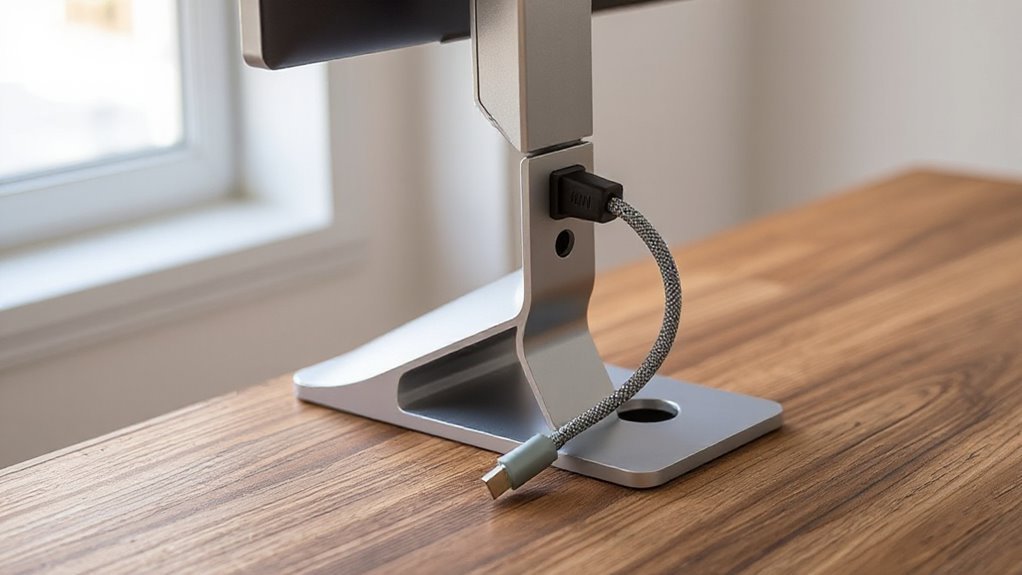
To guarantee a successful installation, you must first verify your monitor’s compatibility with the monitor arm’s specifications.
Check the following key points:
- VESA Compliance: Make sure your monitor supports 75x75mm or 100x100mm mounting patterns.
- Weight Limit: Confirm that your monitor’s weight is within the arm’s range, usually 4.4 lbs (2 kg) to 17.6 lbs (8 kg).
- Desk Compatibility: Determine if your desk can accommodate clamp or grommet mounts, depending on thickness and type.
- Monitor Design: Assess if your monitor’s thickness or curvature may affect installation.
Once you confirm these factors, follow the provided installation steps for a secure and effective setup.
Proper installation prevents potential issues and guarantees peak performance.
Workspace Optimization and Ergonomics
A well-organized workspace greatly enhances both comfort and productivity. Monitor arms with integrated cable management reduce visual clutter, helping you focus on tasks. Built-in cable channels conceal multiple cords, while cable clips secure individual wires, preventing tangling. Proper cable routing along monitor arms allows for smooth adjustments, promoting ergonomic flexibility.
Neat cable management not only looks professional but also boosts morale. Studies indicate that organized workspaces can lower stress and increase task completion rates.
Confirm accurate measurements for monitor height to enhance ergonomics. Use adjustable arms to allow cables to move freely without strain. Labeling cables simplifies future adjustments, guaranteeing your workspace remains efficient and clean.
Prioritize these features for peak workspace functionality.
Frequently Asked Questions
Can I Use a Monitor Arm With Any Type of Monitor?
You can’t use a monitor arm with any type of monitor. Most monitors adhere to VESA standards, with common patterns of 75 x 75 mm or 100 x 100 mm.
Non-VESA monitors, like many Apple displays, need specialized adapters for compatibility. Larger monitors may require specific mounts due to their unique VESA patterns.
Always check your monitor’s specifications to verify it matches the arm’s requirements for safe and effective mounting.
How Do I Clean the Cables and Monitor Arm?
To clean your cables and monitor arm, start by unplugging all cables and sorting them. Inspect each for damage and untangle knots.
Wipe cables with a dry microfiber cloth, or use a damp cloth with mild soap for stubborn grime.
Clean the monitor arm with an appropriate solution, focusing on dust-prone areas.
After cleaning, route the cables through channels, securing them neatly to prevent future tangling and guarantee a tidy workspace.
Are Monitor Arms Suitable for Heavy Monitors?
Yes, monitor arms are suitable for heavy monitors. Heavy-duty models support up to 59.4 lbs, using steel for maximum durability.
They feature strong joints and reinforced stress points, ensuring even weight distribution. Compatibility ranges from 17″ to 57″ monitors with VESA patterns of 75×75 mm and 100×100 mm.
Always check your monitor’s weight without its stand before installation, as fully extended arms may reduce weight capacity. Proper installation maximizes stability and functionality.
What Tools Do I Need for Installation?
You’ll need a variable speed drill with appropriate bits for pilot holes.
A stud finder helps locate wall studs for secure mounting. Use a power drill-driver for efficient installation of screws.
A Phillips head screwdriver, measuring tape, hex keys, and a pencil are essential for precise placement.
Finally, a level tool guarantees accurate alignment, preventing potential issues during installation.
These tools streamline the setup process for peak performance and stability.
How Much Weight Can Most Monitor Arms Support?
Most monitor arms support weights between 4.4 lbs (2 kg) and 44 lbs (20 kg) per arm, depending on the model.
Standard office monitor arms typically handle 8 lbs (3.6 kg) to 20 lbs (9 kg). Heavy-duty models accommodate larger monitors, reaching up to 44 lbs (20 kg).
Verify your arm’s weight capacity exceeds your monitor’s total weight, including accessories. Monitor depth and curvature also influence the required weight capacity for peak performance.
Conclusion
Incorporating effective cable management into your monitor arm setup transforms disarray into order. With built-in channels, you can neatly route cables along the arm, eliminating clutter.
This not only enhances aesthetics but also promotes a safer workspace. By selecting compatible features, you optimize both functionality and ergonomics.
A well-organized workspace allows for efficient use of space, leading to improved productivity. Ultimately, effective cable management turns chaos into clarity, fostering a more focused and enjoyable work environment.