How to Reduce Eye Strain From Monitors
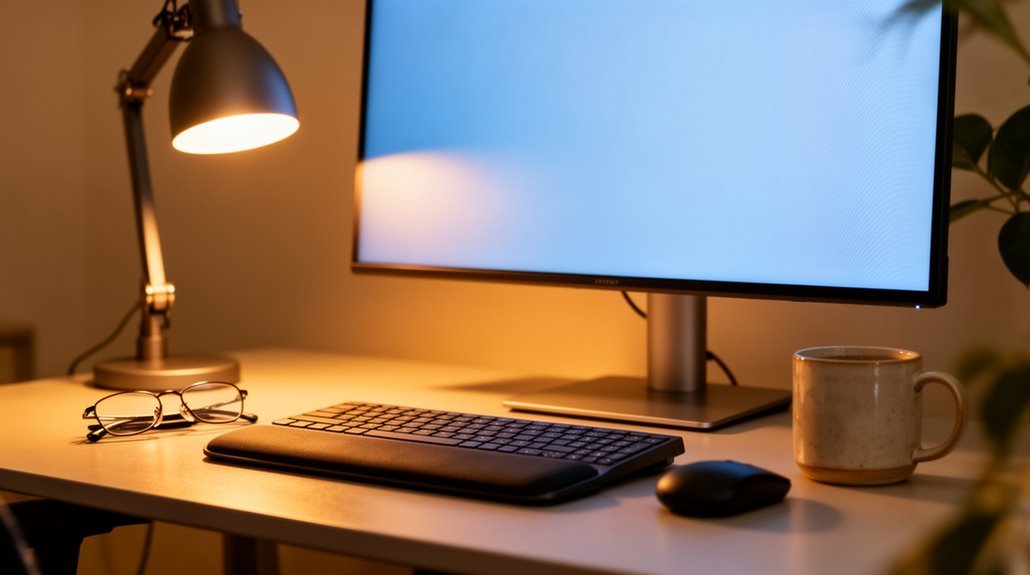
How to reduce eye strain from monitors: position your screen 20–40 inches away and at or slightly below eye level. This distance and height help keep your eyes relaxed and reduce focusing effort.
Adjust your monitor brightness to match the ambient light — ideally around 100–150 cd/m² — and set contrast between 60% and 70%. Use a warm color temperature near 5,000K to minimize blue light exposure.
Take short breaks of 20–30 seconds every 20 minutes, and longer breaks of 5–10 minutes each hour. These habits can greatly improve comfort and help maintain eye health.
You’ll find more strategies that enhance your setup ahead.
Understanding Eye Strain and Its Causes
When you spend long periods looking at digital screens, you might experience eye strain, also known as digital eye strain or computer vision syndrome. This condition arises from discomfort and visual symptoms due to prolonged screen use, affecting users of computers, smartphones, and tablets.
Studies show that up to 90% of individuals using computers for over three hours daily report symptoms. Key causes include extended screen time, reduced blinking, and blue light exposure. Poor lighting conditions, glare, and improper viewing distances increase visual demands. Uncorrected vision problems can worsen the effects of digital eye strain, making it crucial to address any vision issues proactively.
Common symptoms include dry eyes, irritation, blurred vision, and visual discomfort, which can greatly impact productivity. Recognizing these factors is essential for mitigating eye strain and maintaining eye health.
Optimal Monitor Positioning
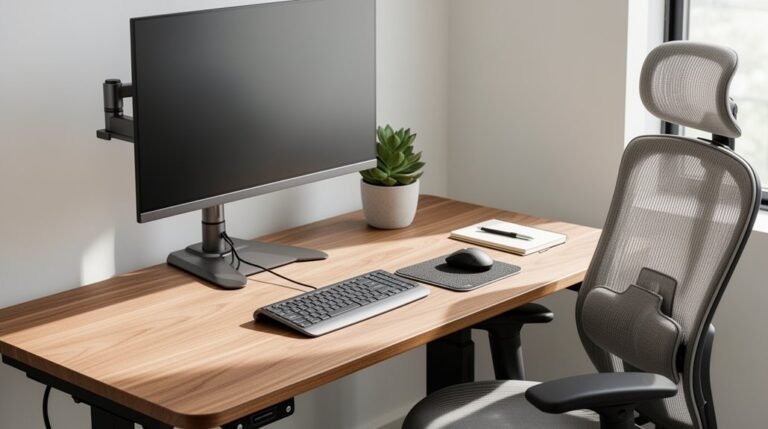
To effectively reduce eye strain, monitor positioning plays an essential role. Proper alignment guarantees comfort and minimizes strain on your eyes and neck. Consider these key factors:
- Monitor Height: The top of your monitor should be at or slightly below eye level. This keeps your neck in a neutral position, reducing strain. If you wear bifocals, lower the monitor 1–2 inches.
- Viewing Distance: Position your monitor 20–40 inches away from your eyes, ideally around an arm’s length. Larger screens may require more distance. Maintaining an optimal monitor distance supports natural body alignment and reduces eye strain.
- Screen Angle: Tilt your monitor slightly upward, around 10–20 degrees. This minimizes glare and aligns the screen with your line of sight, promoting a comfortable posture.
Effective Lighting Solutions
Effective lighting solutions are essential in reducing eye strain during prolonged screen use, as they help create a comfortable visual environment.
Monitor Light Bars provide soft, adjustable illumination that minimizes contrast between the screen and surrounding areas. High-quality models, like the BenQ ScreenBar Pro, deliver up to 500 lux of uniform lighting, ensuring ideal conditions without glare. This type of lighting not only reduces eye strain but also enhances productivity by allowing users to concentrate better on their tasks.
Bias Lighting involves positioning a light source behind the monitor, balancing brightness and reducing eye strain. This method enhances visual clarity when matched to ambient light levels.
Task Lighting from adjustable desk lamps illuminates workspaces effectively. Proper positioning and warm color temperatures (4000K–4500K) promote alertness while reducing shadows.
Using these lighting techniques helps create a balanced and effective workspace, improving overall visual comfort.
Adjusting Screen Settings for Comfort
Adjusting screen settings can remarkably enhance comfort during extended use. Here are three key adjustments to take into account:
- Brightness: Match your screen brightness to the ambient light level. Aim for 100-150 cd/m² in typical office conditions to avoid glare or squinting.
- Contrast and Font Size: Set contrast between 60% and 70% for better visibility. Use dark text on a light background, and increase font size to at least 12 points for comfortable reading.
- Color Temperature: Shift your display’s color temperature to warmer tones, ideally around 5,000K. This adjustment reduces blue light exposure, making it easier on your eyes, particularly in low-light conditions.
Making these adjustments can greatly improve your visual comfort.
The Importance of Regular Breaks
Since frequent breaks are essential for maintaining eye health during prolonged screen use, incorporating them into your daily routine can greatly reduce symptoms of digital eye strain.
Regular breaks prevent eye muscle fatigue, allowing your eyes to refocus and recover. When you don’t take breaks, decreased blinking leads to dry eyes, discomfort, and increased strain.
Scheduled breaks also enhance productivity and concentration by combating mental and visual fatigue. Short breaks, lasting 20 to 30 seconds every 20 minutes, help relax eye muscles, while longer breaks of 5 to 10 minutes each hour enable full recovery.
Studies indicate that maintaining a consistent break schedule lowers the incidence of eye strain, ensuring your vision remains comfortable during extended screen time.
Implementing the 20-20-20 Rule
Implementing the 20-20-20 rule is a straightforward strategy to combat digital eye strain during extended screen time.
This rule helps your eyes relax by encouraging breaks. Here’s how to do it effectively:
- Set a Timer: Use an alarm or app to remind you every 20 minutes to take a break.
- Shift Focus: During each break, look at something at least 20 feet away—like a distant wall or tree.
- Maintain the Break: Keep your focus on the distant object for at least 20 seconds to allow your eye muscles to relax.
Incorporating this rule into your routine can help reduce eye strain, even if studies show mixed results regarding its effectiveness.
Maintaining Eye Health and Lubrication
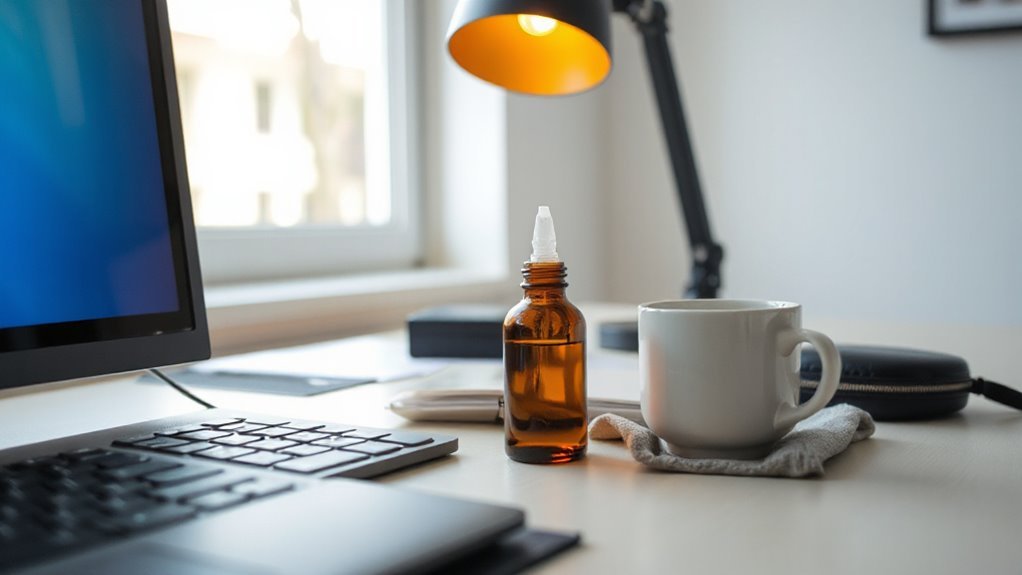
Maintaining proper eye health and lubrication is essential for reducing discomfort during extended screen use. Blinking frequency decreases considerably while using devices, leading to dry eyes. You should consciously blink more often to distribute tears evenly across your eye surface.
Artificial tears or lubricating eye drops can alleviate dryness and irritation, especially in air-conditioned environments.
Screen brightness should match your surroundings; too bright or too dim forces your eyes to work harder. Adjust brightness levels based on ambient lighting for ideal comfort. Use high-contrast color schemes, like black text on a white background, to reduce eye effort.
Position your monitor at arm’s length and slightly below eye level to minimize strain, ensuring a more comfortable viewing experience.
Managing Behavioral and Environmental Factors
To effectively reduce eye strain, you must consider both your behavior and the environment in which you work. Implementing structured habits can greatly help.
Here are three key strategies:
- Follow the 20-20-20 rule: Every 20 minutes, shift your gaze to an object 20 feet away for 20 seconds. This relaxes your eye muscles and mitigates fatigue.
- Limit your screen time: Aim for no more than 4 hours of daily exposure, allowing your eyes to recover.
- Adjust your workspace: Position your screen at arm’s length (20-28 inches) and keep the top of the screen at or slightly below eye level. This setup fosters better posture and reduces strain on your eyes and neck.
Ergonomic Chair and Desk Setup
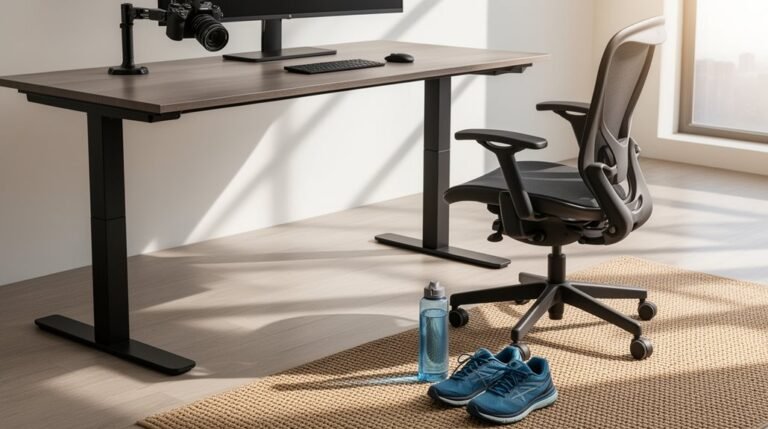
Creating an ergonomic chair and desk setup is essential for reducing eye strain and promoting overall well-being while working.
Chair Height Adjustment
Adjust your chair so your feet rest flat on the floor, or use a footrest. Your knees should be bent at about 90 degrees, with thighs parallel to the floor.
Armrests should support your arms, keeping elbows close to your body.
Desk Height and Surface
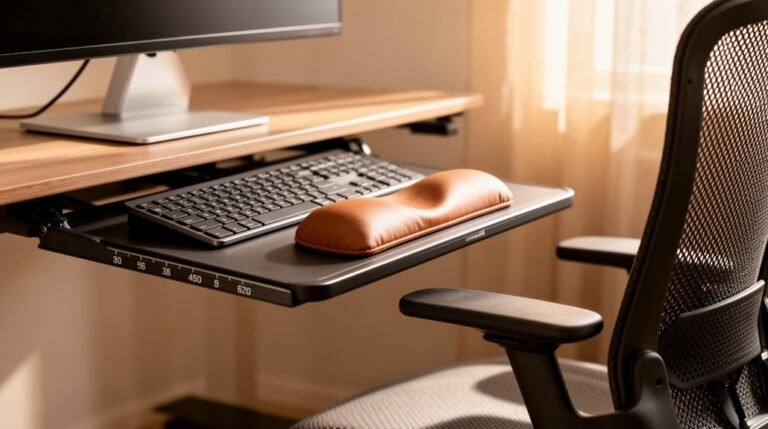
Set your desk height to allow forearms to remain parallel to the floor when typing.
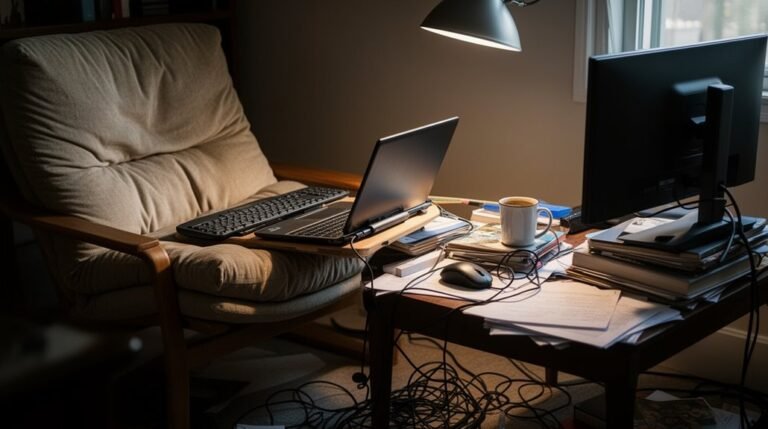
Maintain a clutter-free surface to minimize awkward reaching.
Monitor Positioning
Position your monitor directly in front of you, about an arm’s length away.
The top of the screen should align with or be slightly below eye level to reduce neck strain.
Seeking Professional Eye Care
While you may take steps to reduce eye strain on your own, seeking professional eye care is essential for thorough management.
Regular eye exams can identify refractive errors, update prescriptions, and detect underlying conditions like dry eye syndrome. Here are three key reasons to consult an eye care professional:
- Tailored Solutions: Professionals can recommend prescription computer glasses designed to reduce strain by optimizing screen distance.
- Comprehensive Assessment: Eye exams help diagnose issues that may not be visible to you, ensuring effective treatment plans.
- Long-Term Monitoring: Regular check-ups track changes in vision, helping prevent progression of eye diseases caused by digital strain.
Investing in professional eye care enhances your comfort and overall eye health.
Frequently Asked Questions
How Often Should I Replace My Monitor for Optimal Eye Health?
You should replace your monitor every 5 years for ideal eye health.
After this period, brightness and color accuracy typically decline, increasing the risk of eye strain.
If you notice flickering, blurriness, or persistent discomfort during use, consider replacing it sooner.
Prioritize models with higher refresh rates, blue light reduction features, and ergonomic adjustments.
Regularly assess your monitor’s performance to guarantee it supports your visual comfort and overall productivity.
Can Screen Filters Really Reduce Eye Strain Effectively?
Screen filters don’t effectively reduce eye strain. Studies show blue-light filtering filters, blocking 10–25% of blue light, offer no significant advantages over neutral-density filters.
A 2019 study confirmed that a blue-blocking filter wasn’t more effective than standard options during reading tasks. In addition, the perceived benefits might stem from placebo effects rather than actual efficacy.
Instead, focus on ergonomic seating, regular breaks, and high-resolution screens to alleviate eye strain effectively.
What Are the Best Eye Exercises for Screen Users?
To enhance eye health, incorporate focus-shifting exercises. Shift your gaze between a near object and one at least 20 feet away, holding focus for 3–6 seconds.
Roll your eyes clockwise and counterclockwise to relieve tension. Practice figure eight tracking to improve coordination.
Additionally, use palming to relax your eyes and perform rapid blinking to maintain moisture.
Implement these exercises regularly to reduce eye strain and enhance visual comfort.
Does Blue Light Blocking Glasses Really Help With Eye Strain?
Effectiveness of Blue Light Glasses
Blue light blocking glasses don’t greatly reduce eye strain. Studies show minimal differences between these glasses and placebo options.
Experts, including the American Academy of Ophthalmology, highlight that blue light isn’t the main cause of digital eye strain. Instead, factors like reduced blinking, glare, and poor ergonomics contribute more.
Focusing on proven methods, like the 20-20-20 rule and proper screen position, is advisable for alleviating discomfort during screen use.
Are There Specific Monitor Brands Known for Reducing Eye Strain?
Yes, several monitor brands focus on reducing eye strain.
BenQ offers TÜV Rheinland-certified low blue light and flicker-free technology.
Dell’s UltraSharp monitors feature ComfortView Plus, minimizing blue light exposure.
ASUS Eye Care monitors include customizable color modes and ergonomic designs.
Samsung provides Eye Saver Mode and flicker-free technology, while ViewSonic emphasizes ergonomic adjustments and TÜV-certified features.
Each brand’s technology aims to enhance visual comfort during prolonged use.
Conclusion
Reducing eye strain from monitors is crucial for long-term visual comfort. By adjusting your screen position, optimizing lighting, and taking regular breaks, you can greatly minimize discomfort.
Have you considered how small changes in your environment can lead to better eye health? Remember, maintaining screen settings and ensuring proper lubrication are essential.
Prioritize your eye care by consulting a professional when necessary. Implement these strategies consistently to enhance your overall visual experience while using digital devices.