Setting Ergonomic Guidelines for Your Office
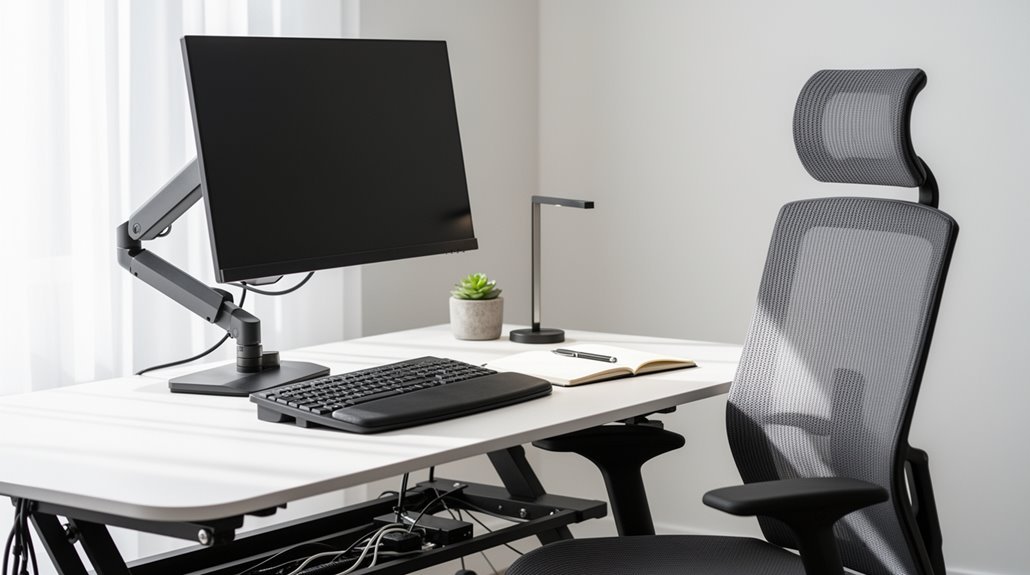
To set effective ergonomic guidelines in your office, verify chairs have adjustable height (4.5-inch range), depth (minimum 16.9 inches), and width (17.7 inches). Backrests should support lumbar areas and be at least 17.7 inches high.
Make desks adjustable, ideally between 66 cm and 76 cm tall, allowing for a 90° elbow bend when seated. Optimize monitor placement at eye level, positioned 20–40 inches away.
Comply with ergonomic standards to reduce workplace injuries. Further details on these specifications await.
Importance of Ergonomics in the Workplace
Ergonomics plays an essential role in enhancing workplace efficiency and employee health. Implementing ergonomic interventions can increase productivity by up to 25%, as studies show.
For instance, optimizing workstations leads to an 18% faster cycle time and a significant reduction in errors. Proper ergonomic design also helps reduce risk factors for musculoskeletal disorders, lowering injury rates by 15% to 35%. This not only decreases workers’ compensation claims but also minimizes costs associated with absenteeism and turnover. Moreover, ergonomic issues account for 33% of all worker injury and illness cases in the U.S., highlighting the critical need for effective ergonomic practices.
In ergonomically designed environments, employees report less fatigue and higher job satisfaction. Prioritizing ergonomics generates financial benefits, saving employers significant amounts on injury prevention and healthcare costs.
Chair Adjustability and Support Features
A well-designed office chair greatly impacts your comfort and productivity.
Adjustable seat height, with a range of at least 4.5 inches, allows your feet to rest flat on the floor or a footrest. The standard compressed seat height usually falls between 16.3 and 17.7 inches.
Confirm your chair has a minimum seat depth of 16.9 inches and a width of 17.7 inches to avoid pressure on your thighs. The backrest must be at least 17.7 inches high, with adjustable lumbar support to fit your lower back.
Armrests need height and width adjustability, ensuring your elbows rest comfortably close to your body. Additionally, adjustability is essential for maintaining good posture and preventing long-term injuries.
Finally, opt for a five-point base for stability, supporting a weight capacity of 250-275 lbs.
Desk and Work Surface Requirements
Choosing the right desk and work surface is crucial for maintaining comfort and productivity during work hours.
Desk Height and Adjustability
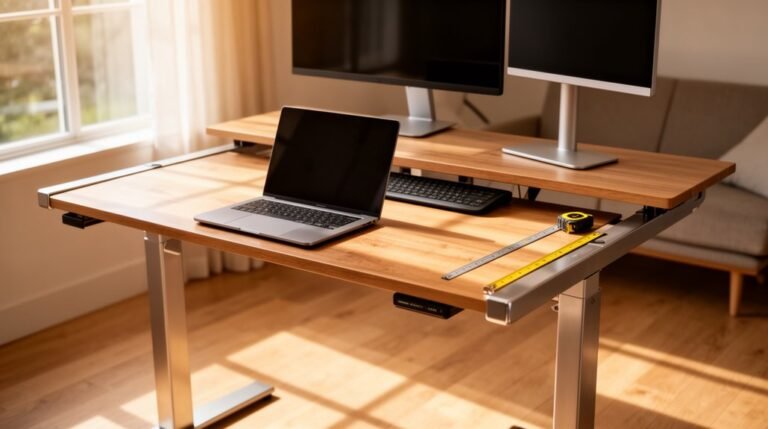
Your desk height should allow your elbows to bend at approximately 90° while typing or using a mouse. Adjustable desks promote movement and reduce musculoskeletal strain. Lighting conditions should also be considered, as proper desk setup can enhance visibility and reduce eye strain.
Standard desk height ranges from 66 cm to 76 cm, but flexibility is key for proper ergonomics. If your chair height leads to unsupported feet, use a footrest.
Work Surface Size and Layout
Opt for a minimum depth of 60 cm to avoid crowding. Keep frequently used items within easy reach to minimize excessive twisting. Corner or L-shaped desks enhance space without compromising posture. Make sure the keyboard and mouse sit on the same level plane for ideal comfort.
Optimal Monitor Positioning and Viewing Angles
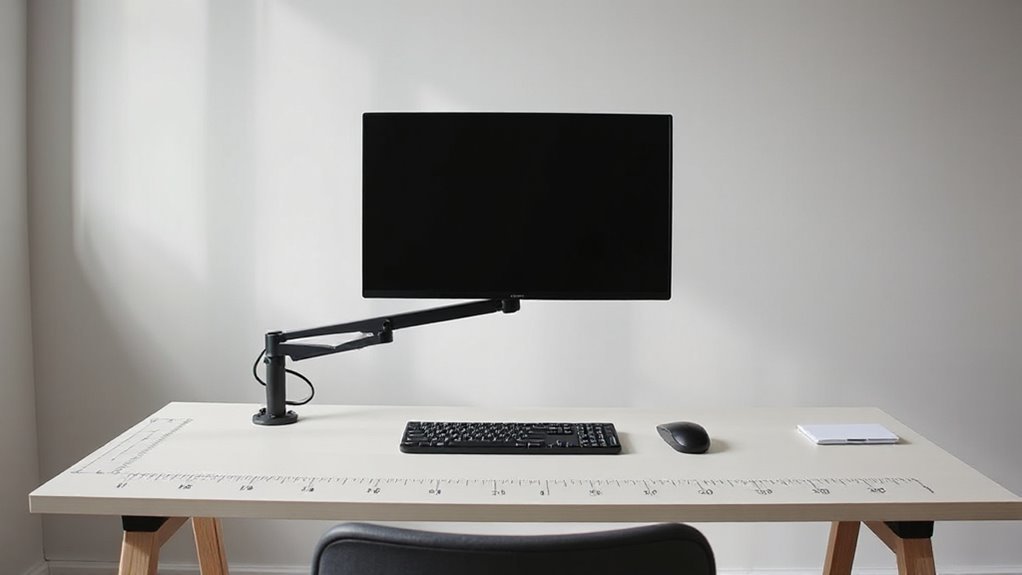
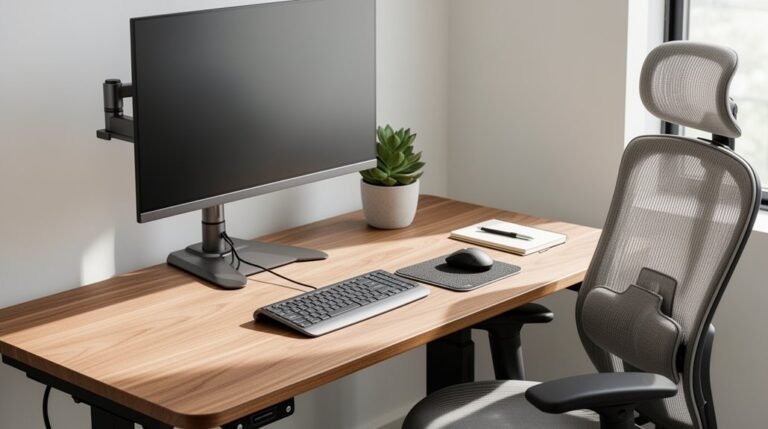
Proper monitor positioning greatly impacts your comfort and productivity. Position the top of your monitor screen at or slightly below eye level. This setup maintains neutral neck posture and minimizes strain.
If you wear bifocals, lower the monitor an additional 1–2 inches. For ideal viewing distance, place your monitor 20–40 inches away, ideally at arm’s length. Larger screens require more distance; for instance, a 27-inch screen should sit 28–36 inches away.
Center the monitor directly in front of you to avoid neck twisting. Tilt the monitor slightly upward at 10–20 degrees to reduce strain and glare. Guarantee adequate lighting to minimize reflections, and adjust blinds if necessary.
Follow these guidelines to enhance your workspace ergonomics effectively.
Keyboard and Mouse Ergonomics
Understanding keyboard and mouse ergonomics is essential for creating a comfortable and efficient workspace.
Position your keyboard and mouse directly in front of you to avoid torso twisting. Align them at elbow height, keeping your shoulders relaxed. Place the keyboard about 5 cm from the desk edge for wrist support. Position the mouse close to the keyboard to minimize awkward reaching.
Use a flat or negatively inclined keyboard to maintain straight wrists. Consider a vertical mouse for a neutral wrist position. Make certain the mouse is the same height as the keyboard to avoid strain.
Keep your wrists straight while typing and avoid resting your palms. Adjust your chair and desk height for peak alignment, supporting a neutral arm posture.
Foot and Leg Support Considerations
Foot and leg support plays an essential role in maintaining comfort and productivity during your workday. Up to 60% of office workers report lower extremity discomfort.
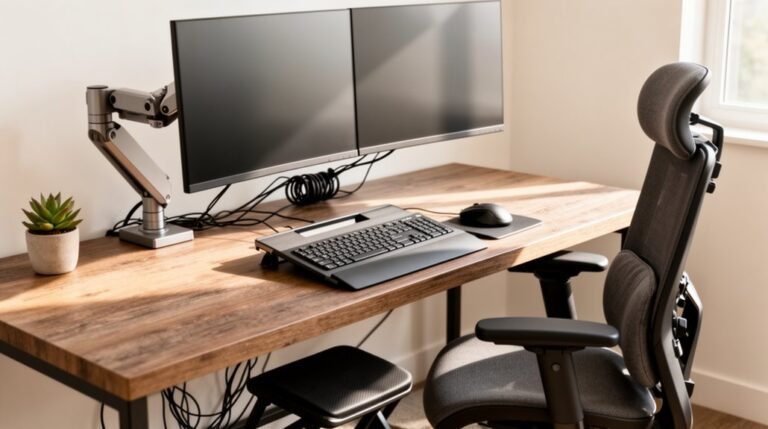
Improper foot positioning leads to leg, ankle, and lower back pain. Footrests distribute seated weight evenly, reducing pressure on your lower back and thighs. If your feet don’t rest flat on the floor, consider using a footrest.
It should allow your knees to bend at approximately 90 degrees while supporting your feet comfortably. Choose an adjustable height footrest, at least 15”-24” wide, to accommodate your needs.
Proper positioning promotes healthy joint alignment, decreases the risk of lower back pain, and minimizes fatigue in your legs and feet.
Compliance With Ergonomic Standards and Guidelines
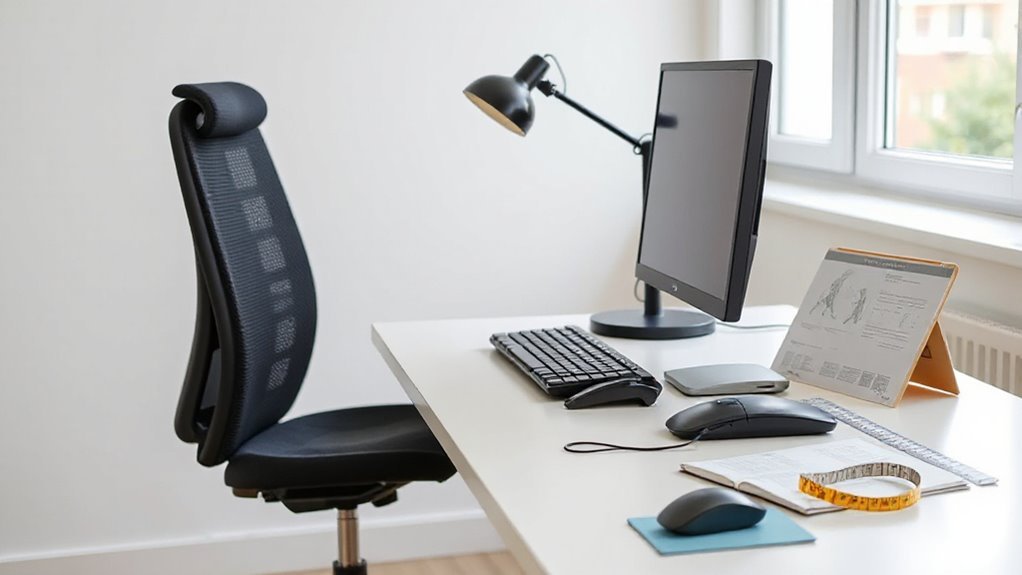
While many workplaces may not have specific ergonomic standards, compliance with the Occupational Safety and Health Administration (OSHA) General Duty Clause is fundamental. This clause mandates that employers maintain a workplace free from recognized hazards, including ergonomic risks.
Addressing ergonomic hazards, such as improper workstation setups and inadequate office chairs, is essential for compliance. Employers must implement effective controls to minimize these risks, or they may face citations. OSHA conducts inspections, responds to complaints, and issues hazard alert letters regarding ergonomic issues.
A corporate commitment to ergonomic improvements at each worksite is significant. Regular ergonomic assessments and employee training help identify risks, ensuring ongoing compliance and reducing the likelihood of musculoskeletal disorders.
Frequently Asked Questions
How Can I Assess My Current Office Setup for Ergonomic Compliance?
To assess your office setup for ergonomic compliance, start by checking your chair’s adjustability; guarantee it supports your lower back.
Next, confirm your desk height allows your elbows to bend at 90 degrees.
Arrange your keyboard and mouse close together, keeping wrists neutral.
Adjust your monitor to eye level to minimize strain.
Finally, confirm frequently used items are within easy reach, allowing for a clutter-free workspace that promotes good posture.
What Are the Signs of Poor Ergonomics in My Workspace?
You’ll notice persistent discomfort, like neck or back pain, often signaling inadequate support.
Your monitor’s position may cause eye strain or headaches.
If you find yourself slouching, adjusting frequently, or struggling to maintain proper posture, that’s a clear indication of misalignment.
Limited leg room or awkward arm positions can restrict movement, while non-adjustable furniture may hinder your ability to customize your workspace for ideal comfort and efficiency.
How Often Should I Adjust My Workstation for Optimal Ergonomics?
You should adjust your workstation regularly, ideally following significant changes such as new equipment or discomfort.
Conduct annual assessments to monitor your setup. After adjustments, follow up within 2–4 weeks to evaluate effectiveness.
Incorporate micro-breaks every 30–60 minutes, and alternate between sitting and standing every 20–60 minutes.
Maintain awareness of your posture and comfort, making adjustments as necessary to guarantee peak ergonomic conditions throughout your workday.
Can Ergonomic Furniture Improve Productivity and Comfort?
Yes, ergonomic furniture can greatly improve productivity and comfort. By reducing discomfort, it helps you complete tasks more efficiently, potentially increasing your output by 12% to 32%.
Ergonomic designs lower the risk of musculoskeletal injuries by 25%, which keeps you healthier and more focused.
Additionally, height-adjustable desks promote movement, reducing sitting time by 17%, which correlates with increased energy levels.
Are There Specific Exercises to Complement an Ergonomic Workspace?
Yes, specific exercises can effectively complement an ergonomic workspace. Research indicates that office workers practicing neck-specific exercises experience lower sickness absenteeism by 12 months.
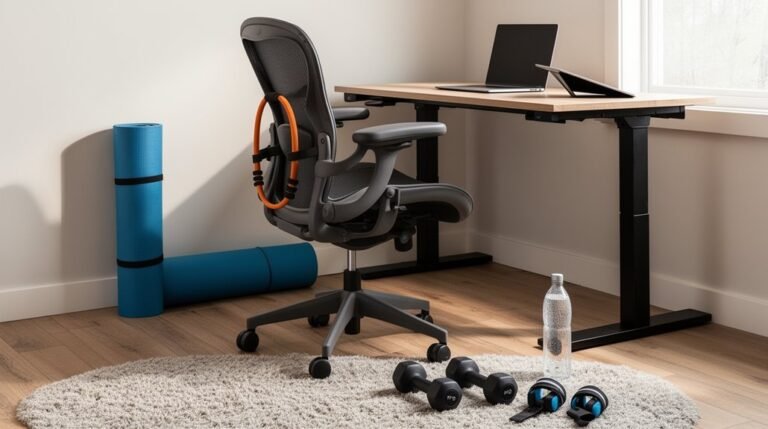
Incorporating stretching every 20 minutes reduces discomfort in key areas like the neck and back. Additionally, strengthening exercises targeting core stability enhance posture and reduce pain.
Engaging in regular aerobic activities at work can also alleviate fatigue and improve overall productivity. Implementing these practices can lead to significant health benefits.
Conclusion
Incorporating ergonomic guidelines transforms your office into a productive haven, much like a well-tuned instrument enhances music.
By focusing on chair adjustability, desk height, and monitor positioning, you create a workspace that supports comfort and efficiency.
Prioritizing keyboard and mouse ergonomics guarantees seamless interaction with your tools, while foot support stabilizes your posture.
Adhering to established ergonomic standards not only boosts performance but also promotes long-term health, making your office a cornerstone of well-being and productivity.