Monitor Height and Distance: Ergonomic Tips
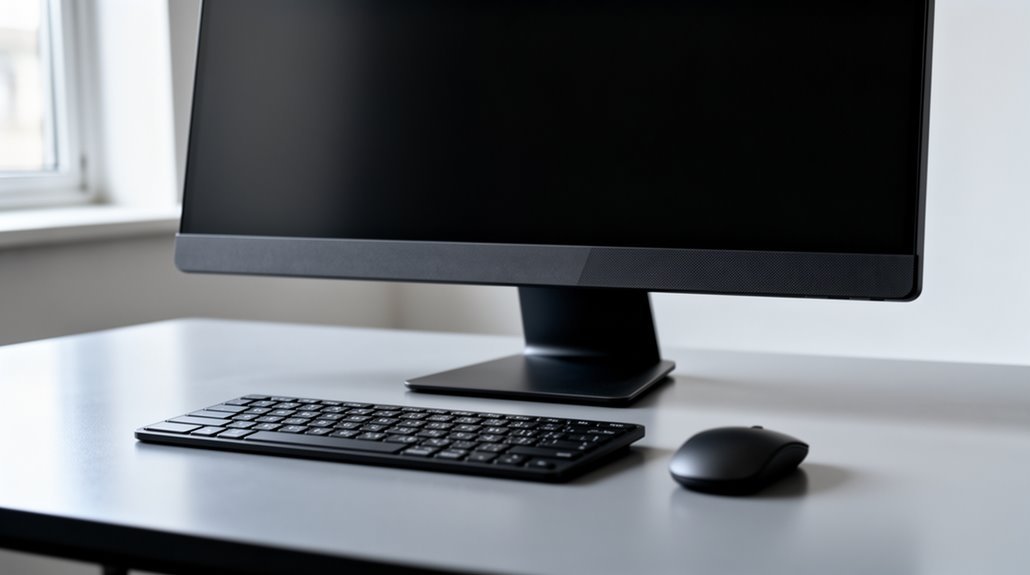
Monitor height is key for comfort and posture. To optimize your monitor height, position the top of the screen at or slightly below eye level — ideally 5–10 cm lower.
Maintain a viewing distance of 20 to 30 inches; for a 24-inch monitor, aim for 20 to 28 inches. Tilt your monitor back 10–20 degrees to reduce glare.
Regularly assess your setup to prevent eye strain and discomfort. Small adjustments can enhance your overall experience, and more ergonomic insights await you.
Ideal Monitor Height
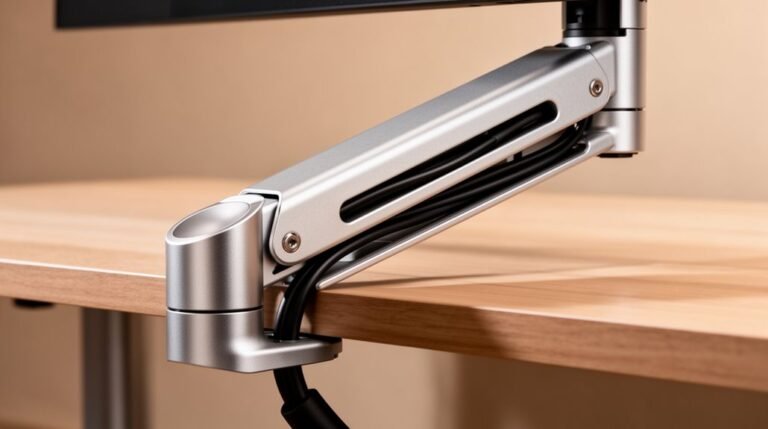
How can you determine the ideal monitor height for your workspace? Start by positioning the top of your monitor screen at or slightly below eye level, ideally 5-10 cm lower than your eyes. This setup promotes a natural downward gaze. Aim for a viewing angle of 15-18 degrees below the horizontal eye line to reduce neck strain. Adjust the monitor height based on your stature; for instance, if you’re 160 cm tall, the top of your monitor should be around 38-43 cm from the desk surface. Proper monitor height supports natural posture and prevents discomfort during extended use. Use adjustable monitor arms to fine-tune the height for best posture. Proper alignment minimizes eye strain and supports musculoskeletal health by maintaining a neutral spine position during prolonged computer use.
Optimal Monitor Distance
Optimal Monitor Distance
Determining the ideal monitor distance is essential for reducing eye strain and ensuring comfort during prolonged computer use.
The best viewing distance ranges from 20 to 40 inches (50 to 100 cm) from your eyes to the screen. Use your arm’s length as a baseline, which averages between 28 to 31 inches (71 to 79 cm). For a 24-inch monitor, aim for a distance of 20 to 28 inches (50 to 70 cm). Larger monitors require greater distances due to their size and pixel density. HSE recommends screens be about an arm’s length away, which is beneficial for promoting comfort and reducing strain.
Positioning your monitor too close increases eye strain, while placing it too far may cause squinting or poor posture. Regularly assess your distance to maintain visual clarity and overall comfort during use.
Screen Angle and Positioning
To enhance your comfort while using a monitor, it’s crucial to adjust the screen angle and positioning properly. The ideal tilt angle is between 10 to 20 degrees upward from horizontal. This minimizes glare and aligns the screen with your natural eye movement.
Position the monitor directly in front of you to avoid neck twisting, ensuring the center aligns with your nose or slightly below eye level. For multiple monitors, place primary displays centrally, with secondary ones angled toward your dominant eye.
Keep the top line of the screen at or below eye level, ideally 15 to 18 degrees below horizontal. These adjustments reduce neck strain and enhance your overall viewing experience. Proper monitor placement is essential for maintaining natural body alignment and reducing physical strain during extended computer use.
Impact of Incorrect Monitor Height and Distance
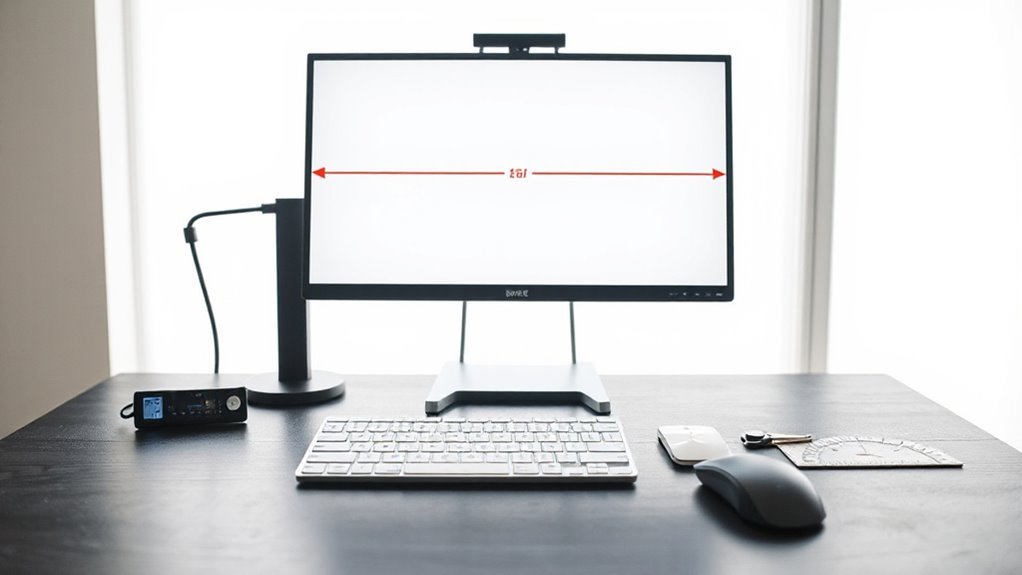
Improper monitor height and distance can greatly impact your visual and musculoskeletal health. Inefficient setups can lead to various issues, including:
- Increased eye strain, headaches, and blurred vision from incorrect distance.
- Forward head posture causing neck and shoulder strain due to improper height.
- Reduced productivity as discomfort distracts from tasks.
Sitting too close forces your eyes to work harder, leading to fatigue, while sitting too far requires squinting or leaning forward.
Prolonged exposure to these conditions can result in chronic musculoskeletal disorders and worsening vision problems. Studies show that up to 83% of computer users report tired eyes due to poor monitor ergonomics.
Addressing these factors is essential for long-term health and enhanced comfort in your workspace.
Special Considerations for Different Users and Setups
When setting up your workstation, special considerations for different users and configurations can greatly enhance comfort and productivity.
Bifocal and Progressive Lens Wearers should lower their monitor by 1-2 inches below standard eye level to minimize neck tilting. Use computer-specific glasses for extended sessions.
Maintain a standard arm’s length distance of 20-28 inches despite the lower screen position.
Multiple Monitor Configurations require aligning all monitors at the same height. Place the primary monitor directly in front, while angling secondary screens to the sides.
Task-Based Monitor Adjustments suggest closer positioning for detailed work, while an extended distance suits general tasks.
When using larger monitors, increase the viewing distance to prevent excessive neck rotation, ensuring text clarity without strain.
General Ergonomic Tips for Monitor Setup
Guaranteeing your monitor is set up correctly is essential for maintaining comfort and productivity. Follow these ergonomic tips to optimize your workspace:
- Position the top of the screen at or slightly below eye level to keep your neck neutral.
- Maintain a viewing distance of 20 to 30 inches, adjusting for larger monitors to prevent eye strain.
- Tilt the monitor back slightly, about 10–20 degrees, to reduce glare and accommodate your natural line of sight.
Regularly assess your setup for comfort. Check that your feet rest flat on the floor, with thighs parallel, and guarantee the monitor is centered directly in front of you.
These adjustments help minimize discomfort, improve posture, and enhance overall productivity in your workspace.
Importance of Regular Breaks and Exercises
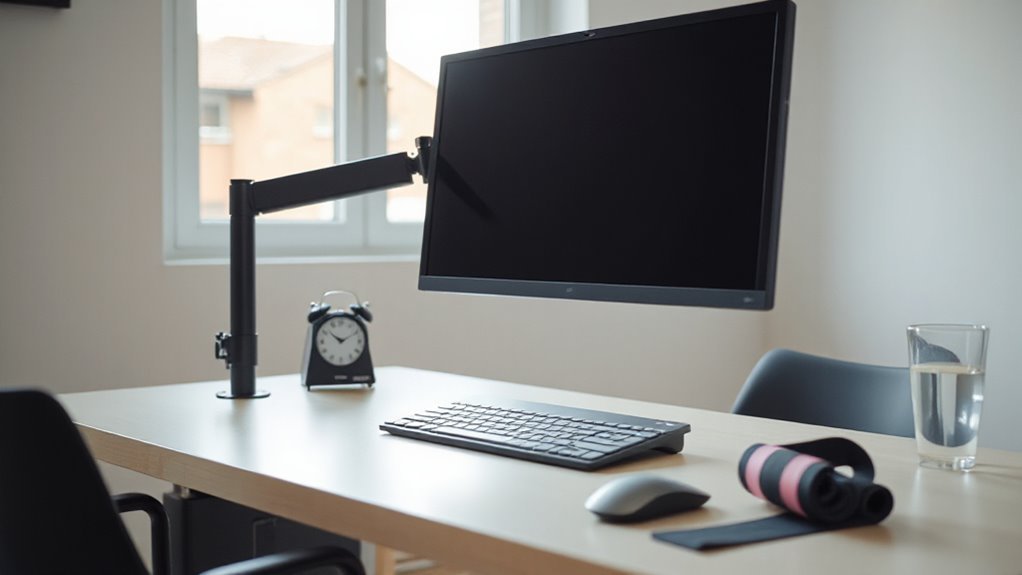
Regular breaks and exercises play a crucial role in maintaining both physical health and productivity in the workplace. Taking brief breaks every 20–30 minutes reduces discomfort in the neck, back, and shoulders. Continuous work beyond 60 minutes greatly increases errors and mental fatigue.
Micro-breaks under 10 minutes enhance vigor and lower fatigue, improving focus and cognitive performance. Regularly stepping away from your workstation also helps prevent musculoskeletal issues. Those who forgo breaks are 65% more likely to develop back pain.
Incorporating light stretching or walking during breaks promotes better circulation and reduces stiffness. Following best practices, such as the 20/20/20 rule, guarantees you maintain eye health and overall well-being.
Prioritize these practices for sustained productivity and health.
Frequently Asked Questions
How Can I Adjust My Monitor for Gaming Comfort?
To adjust your monitor for gaming comfort, position the top of the screen at or slightly below eye level.
Make certain your eyes align with the top 25 percent of the display.
Maintain a distance of 20-30 inches from your face, roughly an arm’s length.
Tilt the monitor back 10-20 degrees to reduce glare.
Finally, center the monitor with your body’s midline to prevent neck strain during extended gaming sessions.
What Monitor Size Is Best for My Workspace?
For your workspace, a monitor size between 24 and 27 inches is ideal. This range balances screen space and desk area, supporting tasks like document editing and multitasking.
If your workspace is compact, consider a 22 to 24-inch monitor, which offers sufficient functionality without overcrowding.
For larger setups, 32 to 34-inch monitors enhance productivity, especially for creative tasks.
Always guarantee monitors are placed 20 to 30 inches away to reduce eye strain.
Can Monitor Height Affect My Productivity Levels?
Yes, monitor height can greatly affect your productivity levels.
When your monitor is positioned at or slightly below eye level, it allows for a natural line of sight, reducing neck strain and eye fatigue. This setup enhances focus, enabling you to work more efficiently.
Additionally, proper monitor height minimizes discomfort, which can lead to fewer distractions and interruptions, ultimately increasing your overall work output and task performance during prolonged use.
How Often Should I Change My Monitor Setup?
You should reassess your monitor setup every few months or whenever discomfort arises.
Pay attention to physical signs like neck stiffness or eye fatigue.
Adjust your monitor when changing workstations or acquiring new equipment.
Maintain an appropriate distance of 20-40 inches, with the top of the monitor at eye level.
Regular evaluations guarantee best posture and productivity, accommodating any changes in your work environment or equipment.
What Are the Signs of Poor Monitor Positioning?
Signs of poor monitor positioning include neck and shoulder pain from incorrect height, lower back aches due to desk height, and eyestrain from improper distance.
You might experience headaches and blurred vision if the screen brightness isn’t suitable. Additionally, wrist soreness may arise from a keyboard that’s too high or lacks support.
If you’re slouching or leaning forward, your monitor’s angle or position is likely causing postural issues.
Conclusion
In summary, achieving the correct monitor height and distance is vital for your comfort and productivity.
Position the top of the screen at or just below eye level, and keep it about an arm’s length away.
Neglecting these factors can lead to discomfort and long-term issues.
Remember, the right setup isn’t just about aesthetics; it’s a foundation for your daily performance.
So, are you ready to optimize your workspace for better health and efficiency?