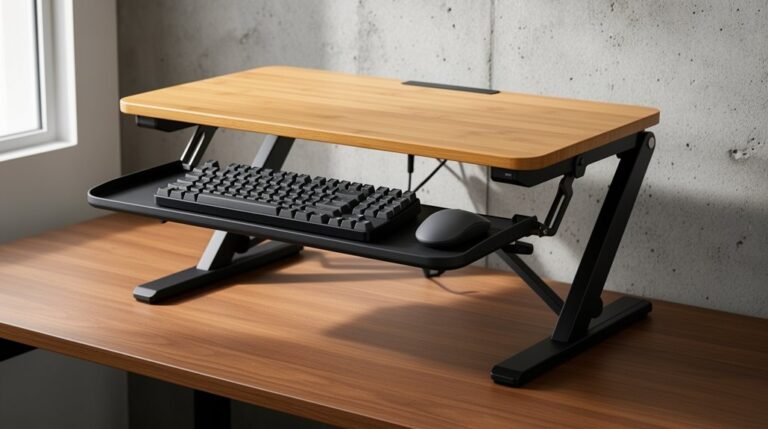
Tips for Switching Between Sitting and Standing
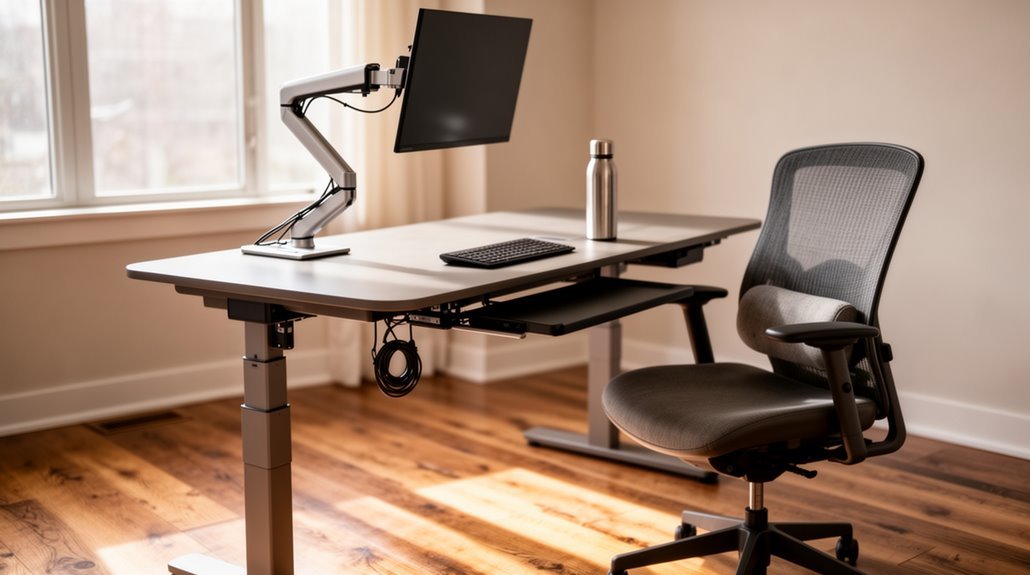
Tips for Switching Between Sitting and Standing
To switch between sitting and standing effectively, adjust your desk height so your elbows form a 90–110° angle. Position your monitor with the top just below eye level and about 20–40 inches away to reduce neck strain.
Change positions every 30 minutes and aim for at least two hours of standing spread through the day. Use an adjustable chair with proper lumbar support and consider a footrest for extra comfort when sitting.
Pay attention to body signals and tweak your routine as needed to enhance productivity and reduce discomfort. More insights await you.
Understanding Ergonomic Desk Height
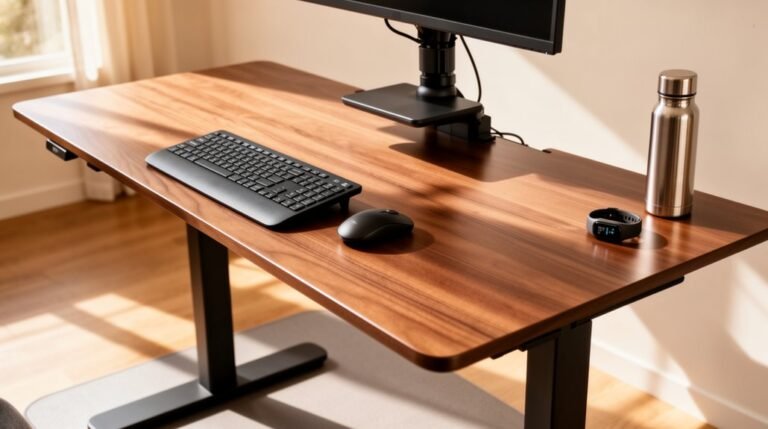
Achieving the right ergonomic desk height is essential for comfort and productivity. Standard desk heights range from 28 to 30 inches for users between 5’7″ and 6’2″. For shorter users, a height of 22.5 inches suits those around 5’0″. Conversely, taller users, up to 6’8″, may need desks reaching 52 inches. To prevent strain, keep elbows at a 90 to 110-degree angle while seated or standing. Your thighs should remain parallel to the floor, with feet flat, maintaining knee angles similar to your elbow. Proper ergonomics can significantly reduce the risk of musculoskeletal disorders, enhancing your ability to work efficiently without discomfort. Utilize height calculators for personalized adjustments, factoring in shoe height. Proper desk height promotes natural posture, reduces discomfort, and enhances overall productivity, ensuring an ideal work environment.
Adjusting Monitor Positioning
Adjusting monitor positioning is essential for maintaining good posture and reducing strain during your workday.
Position the top of your screen at or slightly below eye level, ensuring a neutral head posture. When sitting, your eyes should align with the top third of the screen, while standing may require a higher adjustment.
Keep your monitor 20-40 inches away, maintaining an arm’s length distance for comfort. Tilt the screen slightly upward at 10-20 degrees to support eye movement and reduce glare.
If using multiple monitors, place the primary screen directly in front of you, with secondary monitors angled inward.
Consider using adjustable monitor arms for seamless height adjustments, ensuring ideal alignment throughout your workday. Proper workstation setup enhances comfort and productivity, making it crucial to regularly assess your monitor’s position.
Choosing the Right Chair and Foot Support
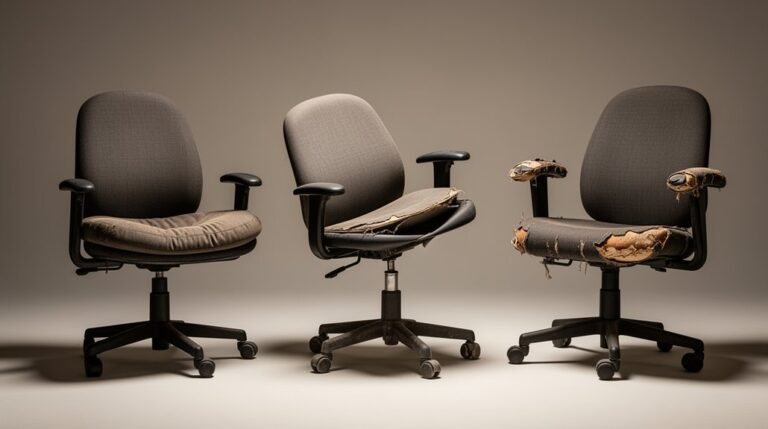
Selecting the right chair and foot support is essential for comfort and efficiency during your workday.
Consider these key features when choosing:
- Adjustable seat height: Look for a range of 16 to 21 inches for proper leg support.
- Seat depth: Guarantee a depth of 15 to 18 inches, with 2 to 4 inches clearance behind your knees.
- Lumbar support: Opt for chairs with adjustable lumbar features to maintain spinal alignment. A chair that offers ample lumbar support ensures personalized comfort throughout the day.
- Foot support: Use footrests that accommodate various angles and heights, promoting blood circulation.
- Weight capacity: Choose a chair with a weight limit of 250 to 330 lbs to guarantee stability during changes.
Maintaining Proper Posture and Body Alignment
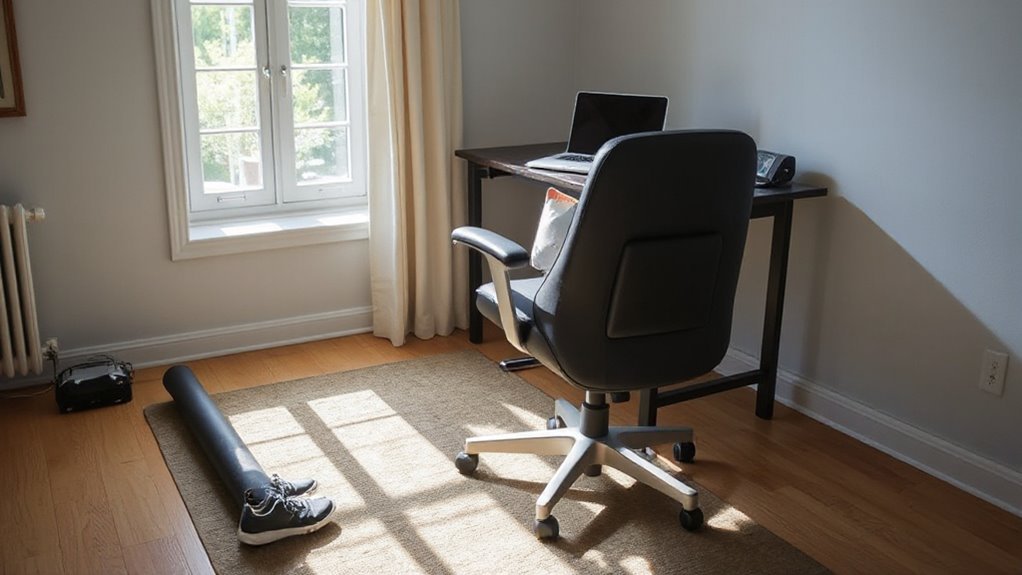
To guarantee ideal comfort and efficiency while working, it’s crucial to maintain proper posture and body alignment whether you’re sitting or standing.
Set your desk height at standing elbow level to create a 90-degree angle. Position your monitor’s top at or slightly below eye level, ensuring it’s 20–28 inches away from your eyes.
Keep your keyboard and mouse at the same level as the desk surface, preventing wrist bending. Maintain straight wrists and forearms parallel to the floor. Distribute your weight evenly between both feet, with slightly bent knees.
Avoid resting wrists on hard desk edges to reduce contact stress. Always align your spine in a natural ‘S’ curve, with your head balanced over your pelvis.
Establishing Transition Frequency and Duration
Establishing a consistent routine for shifting between sitting and standing is essential for maximizing health benefits and maintaining productivity. Research suggests alternating every 30 minutes for ideal results.
Here are key guidelines to keep in mind:
- Change positions every 30 minutes to reduce lower back pain by 47%.
- Aim for at least 2 hours of standing each workday, progressing to 4 hours.
- Take breaks from sitting for at least 10 minutes per hour, but less than 45 minutes.
- Aim for 20-25 minutes of standing per hour to enhance metabolic health.
- Use reminders or apps to double your frequency of changeovers, avoiding prolonged static postures.
Following these recommendations helps maintain comfort and supports overall well-being.
Utilizing Accessories for Optimal Setup
Creating a supportive workspace doesn’t just involve adjusting your position; it also requires the right accessories to enhance your setup.
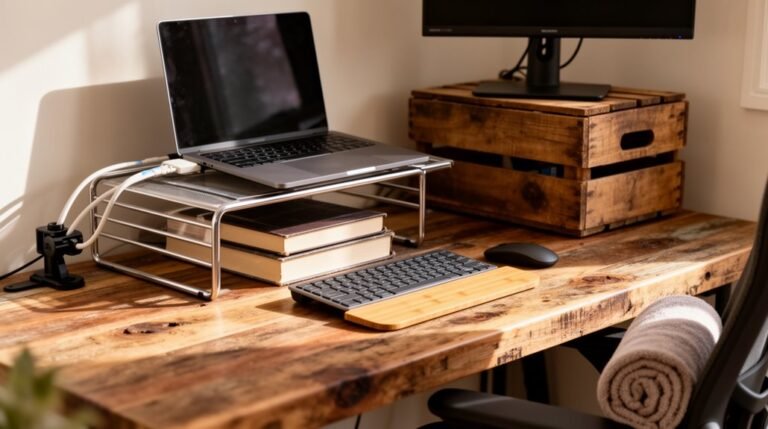
Anti-fatigue mats reduce pressure on heels and knees, promote subtle body sway, and alleviate lower back tension during standing. Footrests and ergonomic stools support your feet, enabling posture shifts and reducing strain.
Adjustable monitor arms elevate screens to eye level, ensuring proper neck alignment. Keyboard trays allow for correct wrist angles, minimizing typing strain.
Effective cable management keeps cords organized, preventing clutter and tripping hazards.
Utilize these accessories for a seamless shift between sitting and standing, enhancing comfort and productivity while maintaining an ergonomic workspace tailored to your needs.
Creating a Productive Workspace Environment
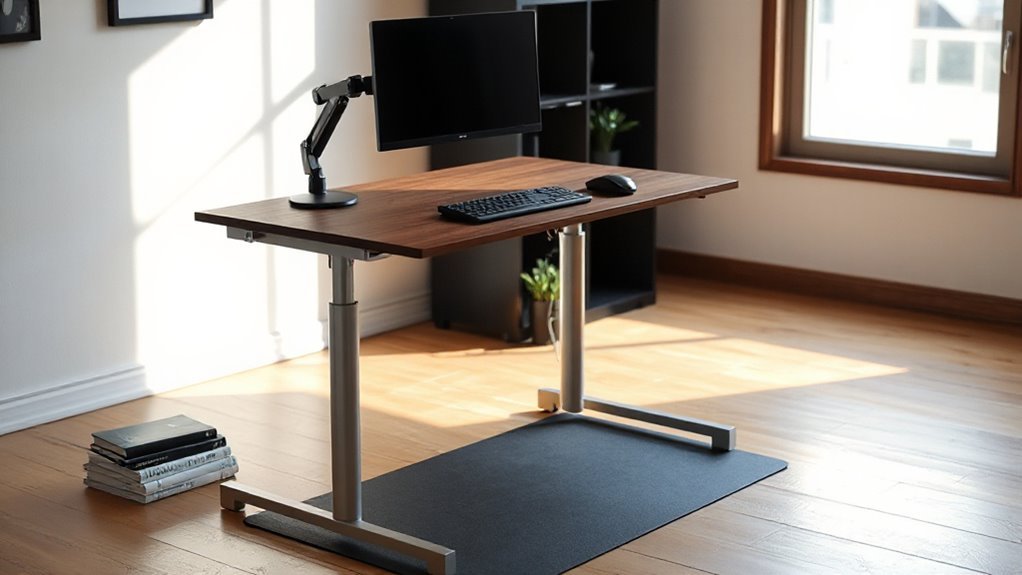
When you design your workspace, consider how each element contributes to productivity and comfort. A well-organized area enhances focus and efficiency.
Here are key factors to include:
- Desk Height: Set at elbow level for both sitting and standing to guarantee neutral arm posture.
- Monitor Position: Place the top at or slightly below eye level to prevent neck strain.
- Keyboard and Mouse: Keep them close to your body, allowing elbows to remain at 90 degrees.
- Chair and Stool: Use an ergonomic chair and a supportive stool to promote movement.
- Workspace Layout: Arrange frequently used items within reach, maintaining a clutter-free environment.
Listening to Your Body’s Needs
Listening to your body’s needs is essential for maintaining comfort and productivity in a workspace. Pay attention to signals like stiffness in your neck or lower back; these indicate it’s time to change positions.
Tingling in your legs suggests reduced circulation, while fidgeting often precedes muscle fatigue. Monitor localized pain in your lower back or hips, as this indicates overuse.
If you experience lower back tightness or foot discomfort after standing, it may signify overdoing it. General fatigue or soreness can also indicate that you’ve been static for too long.
Regularly checking in with your body can help you adjust your routine, ensuring you stay comfortable and focused throughout your workday.
Tips for Gradual Adjustment to Standing Time
To effectively change to standing, start with short intervals that allow your body to adapt. Begin by standing for 15-30 minutes each hour. Gradually increase your standing duration over days or weeks as your comfort improves.
Here are some key strategies for a gradual adjustment:
- Avoid standing continuously for more than 1-2 hours to prevent strain.
- Use timers or apps to remind you to switch positions regularly.
- Alternate between sitting and standing every 30-60 minutes to maintain circulation.
- Shift your weight between legs frequently to reduce fatigue.
- Incorporate small movements, like stretching, during standing breaks.
These practices will help you shift smoothly and maintain comfort during your standing periods.
Frequently Asked Questions
How Often Should I Clean My Ergonomic Accessories?
You should clean your ergonomic accessories at least once a week.
For high-touch surfaces, like armrests and seat controls, clean every 2–3 days.
If you’re in a shared or high-traffic environment, sanitize daily.
Follow manufacturer guidelines for specific cleaning products to prevent damage.
Regular cleaning not only maintains hygiene but also extends the lifespan of your accessories, ensuring they function effectively and remain in good condition.
Can I Use a Standing Desk if I Have Back Pain?
Yes, you can use a standing desk if you have back pain. Standing desks reduce intradiscal pressure, easing spinal load and improving posture.
Alternating between sitting and standing can alleviate discomfort, as it encourages muscle relaxation and redistributes spinal forces.
However, consult a medical professional before making a change, especially if you have severe back issues.
Adjust the desk height for proper alignment, ensuring your spine remains neutral to minimize strain.
What Are the Signs I Need to Adjust My Desk Height?
You should adjust your desk height if you’re experiencing persistent neck strain or if your elbows aren’t at a 90–100° angle when typing.
Additionally, if your forearms aren’t parallel to the floor or your feet don’t rest flat, it’s time to make changes.
Frequent slouching, shoulder tension, or difficulty maintaining a neutral spine indicate improper alignment.
Finally, if you’re stretching to reach your keyboard, consider lowering your desk.
Are There Apps to Remind Me to Switch Positions?
Yes, there are several apps designed to remind you to switch positions.
StandApp and Break Time allow you to set custom intervals for reminders.
UPLIFT Desk App tracks your daily standing goals and integrates with compatible desks for seamless adjustments.
LINAK Desk Control™ App sends notifications based on desk connectivity.
Each app also offers features like exercise suggestions and progress tracking, ensuring you maintain an active work routine while monitoring your health effectively.
How Can I Personalize My Workspace for Better Comfort?
Positioning: Place your monitor at eye level, aligning the top edge with your sightline, reducing neck strain.
Height: Adjust your chair so your feet rest flat on the ground, and your knees form a 90-degree angle.
Accessories: Utilize ergonomic keyboard trays and monitor arms for ideal placement.
Organization: Keep frequently used items within arm’s reach, minimizing unnecessary movements.
These adjustments enhance comfort and productivity in your workspace environment.
Conclusion
Incorporating a balance of sitting and standing can greatly enhance your workspace experience.
Understand ergonomic desk height, adjust monitor positioning, and maintain proper posture to optimize comfort and productivity.
Regularly shifting between positions allows your body to adapt gradually and fosters a more dynamic work approach.
Listen to your body’s cues to make adjustments that suit your needs.
Ultimately, a well-considered setup can lead to improved well-being and efficiency throughout your day.