Why Does My Monitor Shake on the Arm?
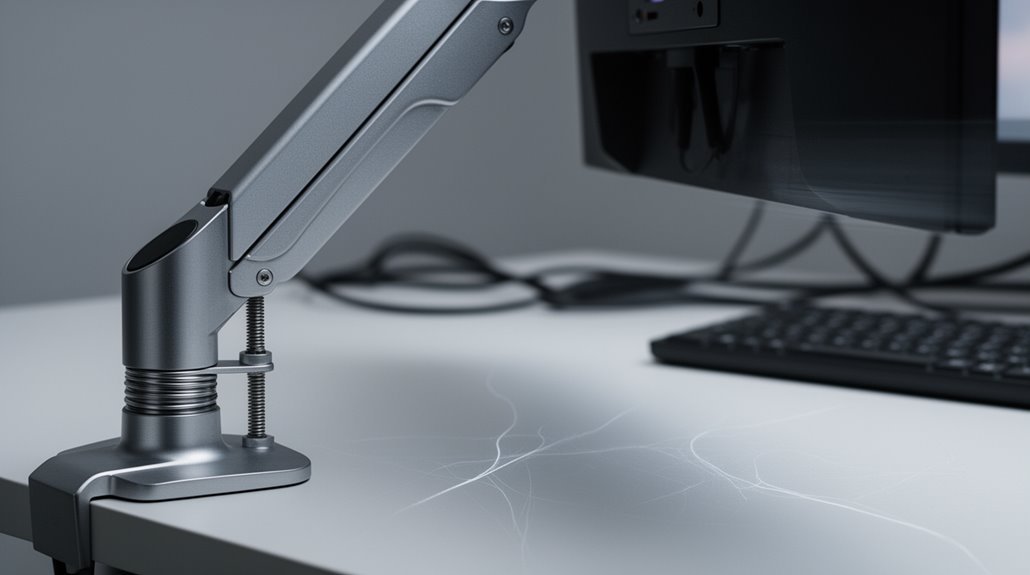
Monitor shaking on the arm can happen for several reasons. One common cause is desk instability, which may come from uneven flooring, a lightweight desk, or mistakes during assembly. Because monitor arms increase leverage—especially when extended—they can amplify that wobble.
Another factor is poor cable management. Slack or dangling cables can tug on the monitor and introduce movement. External vibrations from nearby equipment or foot traffic can also transmit through the desk and arm, causing the screen to shake.
Addressing desk stability, correctly installing the arm, tightening all joints, and tidying cables will greatly reduce shake. These steps, plus checking for nearby vibration sources, will help keep your monitor steady and improve overall performance.
Causes of Desk Instability
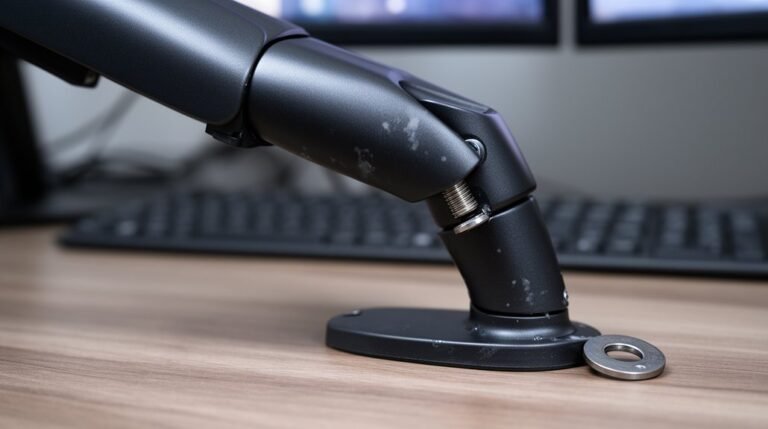
When you notice your monitor shaking, it often stems from various causes of desk instability. Uneven flooring is a primary culprit, especially if your desk has a small base or fewer legs. Even slight height differences in desk legs can lead to wobbling. Low-quality materials contribute notably; lightweight desks without adequate bracing are prone to shaking. Additionally, poor quality desks can lead to back discomfort and poor posture, which can further distract from your work. Overloading your desk, particularly with heavy items on one side, can create imbalance. Additionally, desks lacking cross-support are more susceptible to lateral movement, amplifying any shaking from the monitor arm. Finally, assembly errors, such as loose screws, can compromise stability. Addressing these issues—like leveling the floor or ensuring proper assembly—can notably reduce monitor shake.
The Role of Monitor Arm Leverage
Understanding monitor arm leverage is essential for achieving stability in your setup. Longer monitor arms increase leverage, amplifying shake and wobble. If you extend the arm by 25 to 35 cm, expect perceivable instability, especially with heavier monitors. The distance from the mounting point magnifies desk vibrations. Shorter arms decrease this mechanical leverage effect, stabilizing your monitor. The weight and size of your monitor also play a significant role; larger, heavier monitors exert greater leverage forces, making the arm prone to sagging. Curved ultrawide monitors shift the center of gravity forward, complicating stability. Additionally, achieving stability requires analysis of weight distribution and screen curvature to ensure proper balance. Proper calibration of arm tension is necessary to counterbalance torque from leverage, ensuring your monitor remains steady during use.
Importance of Proper Cable Management
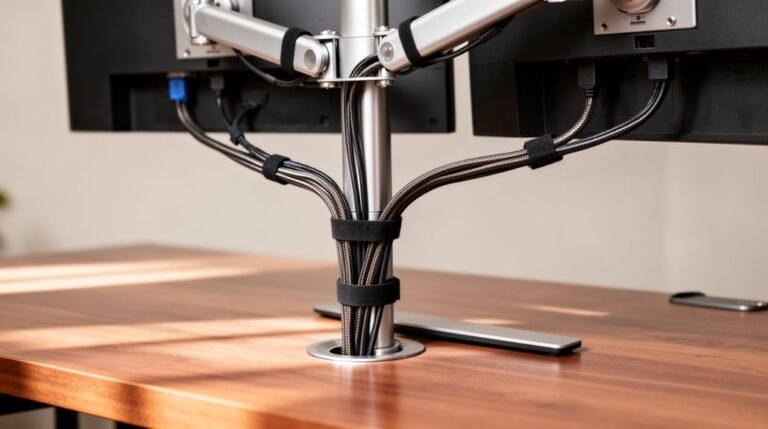
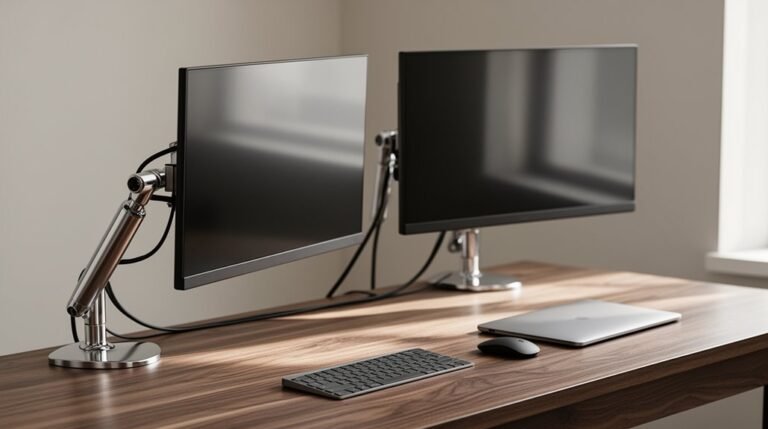
Effective cable management plays an essential role in stabilizing your monitor setup, as it directly influences both movement and vibration. Properly measuring cable lengths prevents excessive slack and tangling, minimizing strain near monitor arms. Accurate routing avoids tension from short cables, which can transmit unwanted movement. Bundle cables using twist ties or Velcro straps to reduce independent sway that causes shaking. Route cables close to surfaces or use cable trays to eliminate dangling, which amplifies arm motion. Additionally, proper cable management ensures that your workspace remains organized, leading to better airflow and device performance. Label cables for easy adjustments and perform routine checks to maintain stability. Secure bundles to desk edges or arms, integrating them with stable structures. This careful organization enhances workspace safety, promotes airflow, and supports ergonomic adjustments without introducing vibrations.
External Forces Contributing to Monitor Shake
Monitor shaking often stems from external forces that affect stability. Mechanical vibrations from operating equipment, like motors and engines, can create repetitive motions that disturb your monitor. These vibrations arise from forces generated within the machinery during normal operation.
Additionally, unbalanced or misaligned components can exacerbate the issue. If the center of gravity isn’t aligned, it results in dynamic unbalance, leading to further vibrations.
Moreover, structural factors, including inadequate support or foundation deterioration, contribute to instability. Environmental influences, such as wind or temperature changes, can induce vibrations as well.
These external forces interact with your monitor setup, causing it to shake, thereby affecting your viewing experience and overall comfort.
Effects of Weight Distribution on Stability
When weight distribution across a monitor arm isn’t balanced, it can considerably compromise stability. Uneven weight increases the likelihood of wobble and instability. Heavy monitors placed far from the support point create excessive torque, leading to arm flex and shake.
Articulating arms are particularly susceptible to this issue if the weight isn’t evenly distributed among support points. Multi-monitor setups require careful alignment to balance load effectively across all arms, as off-center placements amplify the moment arm’s impact.
Additionally, mounts with reinforced joints can handle uneven weight better, reducing the risk of premature wear. Regularly checking the distribution of weight guarantees ongoing stability, preventing potential damage to the monitor arm and enhancing overall performance.
Solutions for Reducing Monitor Shake
To effectively reduce monitor shake, consider several key solutions that enhance stability and performance.
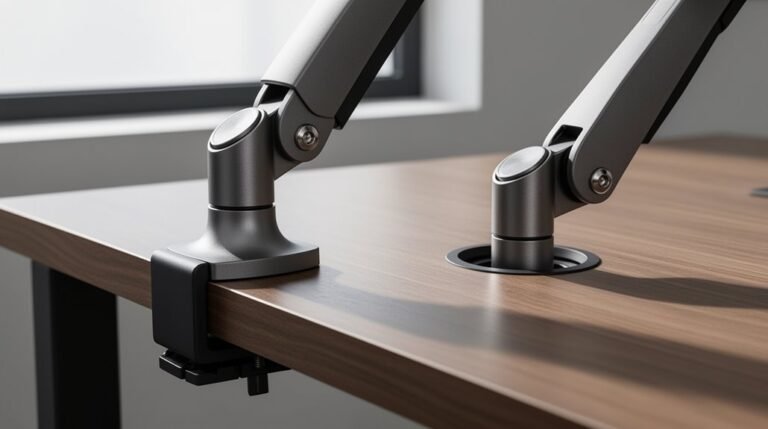
First, invest in a premium desk mount; robust construction improves overall arm stability. Choose between a C-clamp for easy installation or a grommet mount for a more solid setup.
Next, minimize the extension distance from the monitor arm to the desk post, as greater distances increase susceptibility to wobbling.
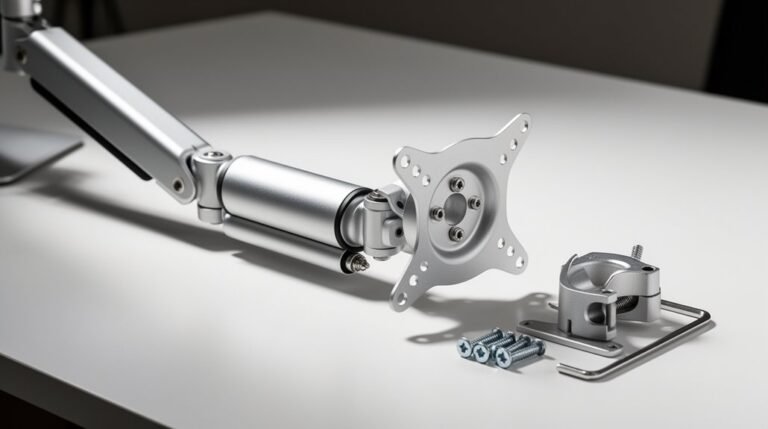
Adjust counterbalance tension using the provided Allen wrench to match your monitor’s weight; sagging indicates a need for adjustment.
Confirm your monitor’s weight complies with the arm’s specifications; exceeding these limits can compromise stability.
Finally, opt for higher-quality materials in your monitor arm for better load-bearing capacity and reduced shake.
Upgrading Your Monitor Setup
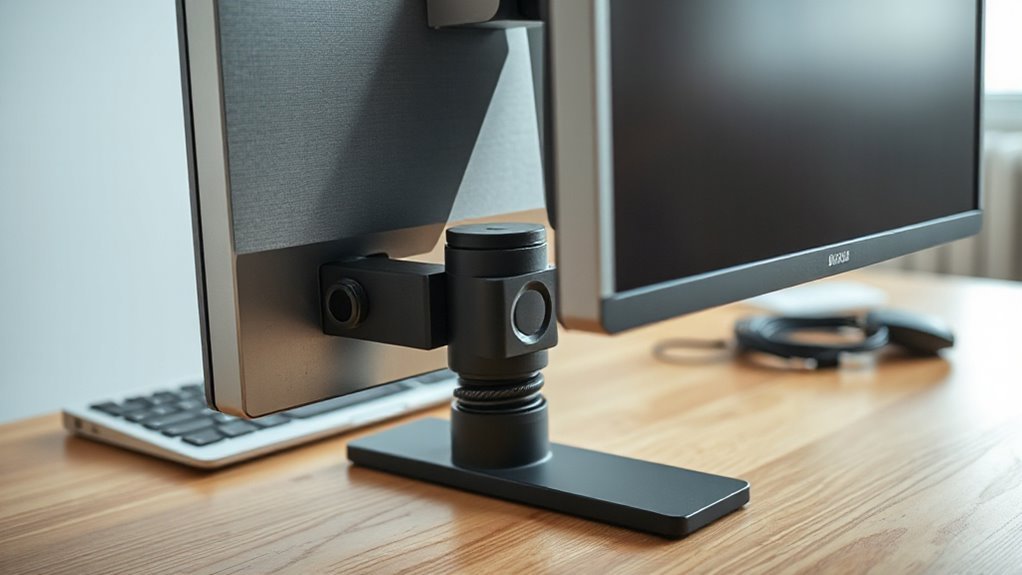
Upgrading your monitor setup can greatly enhance your workspace efficiency and comfort.
Consider single monitor arms for compact spaces, or dual monitor arms for multitasking, available in side-by-side or stacked configurations. If you need more screens, triple or multi-monitor arms support three or more displays, ideal for creative or gaming environments.
Choose gas spring monitor arms for smooth, effortless adjustments, or mechanical arms as a cost-effective alternative.
Ascertain your arm supports the monitor’s weight; standard models handle up to 9kg, while heavy-duty options support up to 18kg. Verify VESA compatibility and screen sizes, as arms accommodate monitors from 17 to 43 inches.
Explore various mounting options, including desk clamps, grommets, and wall mounts for peak integration.
Preventative Measures for Long-Term Stability
Guaranteeing long-term stability for your monitor setup involves careful selection and maintenance of components.
Start by choosing the right mount type; consider C-clamp, grommet, or wall mounts based on your desk’s structure. Verify that your monitor’s weight falls within the arm’s specified range to prevent sagging. Install the arm close to the desk’s edge to minimize leverage. Opt for high-quality materials, as sturdier designs reduce wobbling.
Regularly maintain your setup: check and tighten hardware, adjust counterbalance tension, and inspect cables. Confirm that wall mounts are anchored into studs for maximum stability.
Frequently Asked Questions
Can Environmental Factors Affect My Monitor’s Stability?
Yes, environmental factors can greatly affect your monitor’s stability.
Vibrations from nearby machinery disrupt the mounting system, causing visible shaking. Temperature changes lead to material expansion or contraction, further destabilizing the monitor.
High humidity levels can result in corrosion, while low humidity may create static electricity, impacting performance.
Additionally, electrical interference from other devices can destabilize monitor positioning.
Maintaining controlled conditions is essential for ideal stability and performance.
How Does Desk Material Influence Monitor Shaking?
Desk Material Influence on Monitor Shake
Your desk material greatly impacts monitor stability. Low-quality materials like chipboard flex under weight, causing vibrations. In contrast, solid wood or high-grade steel provides rigidity, minimizing movement.
Desks lacking cross-bracing are prone to sway, amplifying monitor wobble. Additionally, exceeding weight limits can lead to sagging.
Regular maintenance of fasteners in lower-quality desks is essential, as loosened components can worsen instability over time, increasing monitor shake during use.
Are There Specific Monitors More Prone to Shaking?
Certain monitors are more prone to shaking.
Larger monitors, like those 27 inches and above, experience increased wobble due to weight and leverage. Ultra-wide models over 34 inches often exceed recommended weight capacities, leading to instability.
Monitors weighing more than 10kg require robust arms to minimize shake. Additionally, models with high centers of gravity or poor stand designs, like Acer KA240H or ASUS VS238H-P, are particularly susceptible to wobbling.
What Are the Signs of a Failing Monitor Arm?
You’ll notice your monitor arm droops or sinks, even after adjustments.
It may produce creaking sounds or feel loose at joints. If the arm struggles to hold the monitor’s weight, it indicates failure.
You might also see visible wear or cracks on the mounting points. Frequent re-adjustments and stiff movement signal performance issues.
Finally, if the arm drifts over time, it’s time to contemplate replacement or repair.
How Often Should I Check My Monitor Setup for Stability?
You should check your monitor setup for stability at least once a week.
Loose components and desk movements can compromise stability. Inspect the monitor arm for any visible wear or damage, focusing on mounting points and joints.
If you’re using a dual-monitor setup, check more frequently due to added leverage.
Regular maintenance guarantees peak performance and reduces wobbling, allowing for a safer and more efficient workspace.
Conclusion
Monitor shake can stem from several factors, such as desk instability and improper weight distribution.
For example, a graphic designer might find their work disrupted by a shaking monitor, which can hurt both productivity and creativity.
You can address these issues with proper cable management, adjusting the monitor arm, and ensuring the weight is evenly distributed.
Implementing these solutions improves stability, enhances functionality, and creates a more focused, enjoyable workspace.