How to Set Up an Ergonomic Keyboard and Mouse
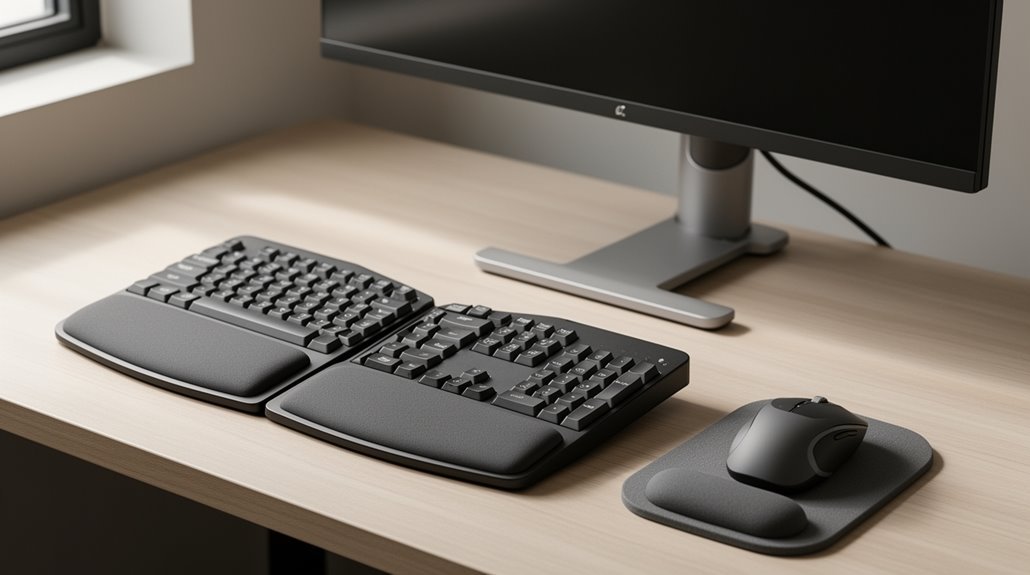
To set up an ergonomic keyboard and mouse, align your body to maintain a neutral posture. Position your keyboard slightly below elbow height so your elbows are bent at about 90 degrees and your forearms stay parallel to the floor.
Place your mouse close to the keyboard on the same level to avoid reaching. Use a relaxed grip and keep the mouse near your dominant hand to reduce strain.
Choose a full-size or compact keyboard that suits your reach and typing style. Test different layouts to find one that keeps your wrists straight.
Adjust your chair so your feet rest flat on the floor and your thighs are parallel to the ground. Small changes to these elements can further enhance comfort and reduce the risk of repetitive strain.
Understanding Neutral Posture
When you maintain neutral posture, your body aligns naturally, reducing stress on joints and muscles.
Neutral posture features balanced alignment in sitting or standing positions. The spine retains its natural S-shaped curve, while the lumbar area shows a gentle arch. Your elbows should bend between 90º and 110º, keeping them close to your body. Proper alignment helps enhance control and force production when joints are in a neutral position.
Forearms align with your wrists, which remain straight to avoid strain. Fingers naturally curve, and shoulders relax without hunching or excessive pulling. Your head balances atop the spine, facing forward without tilt.
This positioning minimizes fatigue, enhances strength, and reduces discomfort during prolonged activities. By adopting neutral posture, you lower the risk of developing musculoskeletal disorders, improving overall productivity and comfort.
Adjusting Height and Angle
Achieving the correct height and angle for your keyboard and mouse is essential for maintaining a neutral posture and preventing strain.
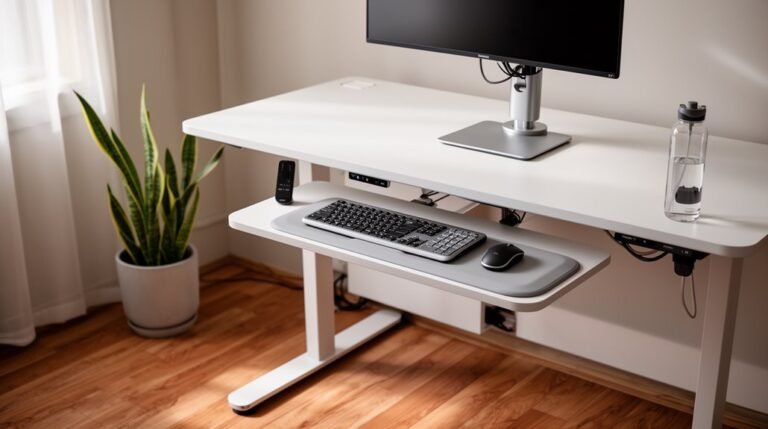
Position your keyboard keys slightly below elbow height. This keeps your wrists neutral, avoiding unwanted bending. Your elbows should be bent at 90 degrees, with forearms parallel to the floor.
Adjust your chair height first, ensuring your feet are flat and thighs are parallel to the ground. Utilize adjustable keyboard feet to create a negative tilt of about 10 degrees, promoting a natural wrist posture. Proper keyboard height is crucial to avoid wrist strain and keep joints in a neutral position.
If you’re using a standing desk, maintain the same 90-degree elbow bend. Regularly check these settings, as they directly impact your comfort and reduce the risk of repetitive strain injuries.
Optimal Mouse Placement and Grip
Proper mouse placement is essential for reducing strain and promoting a comfortable workspace. Position the mouse close to the keyboard, avoiding unnecessary stretching that can lead to shoulder and arm strain.
Keep it on the same surface and level as the keyboard to maintain a neutral wrist posture. Ideally, your mouse should be 1–2 inches above the keyboard, at elbow height, with relaxed shoulders.
Use a relaxed grip to minimize muscle tension and avoid extreme wrist angles. Select a mouse that fits your hand size and supports a neutral position. Avoid using wrist rests to prevent increased carpal tunnel pressure.
Consider using a mousepad with wrist support to maintain comfortable angles. Frequent micro-breaks can also help reduce fatigue during extended use.
Choosing the Right Keyboard Layout and Size
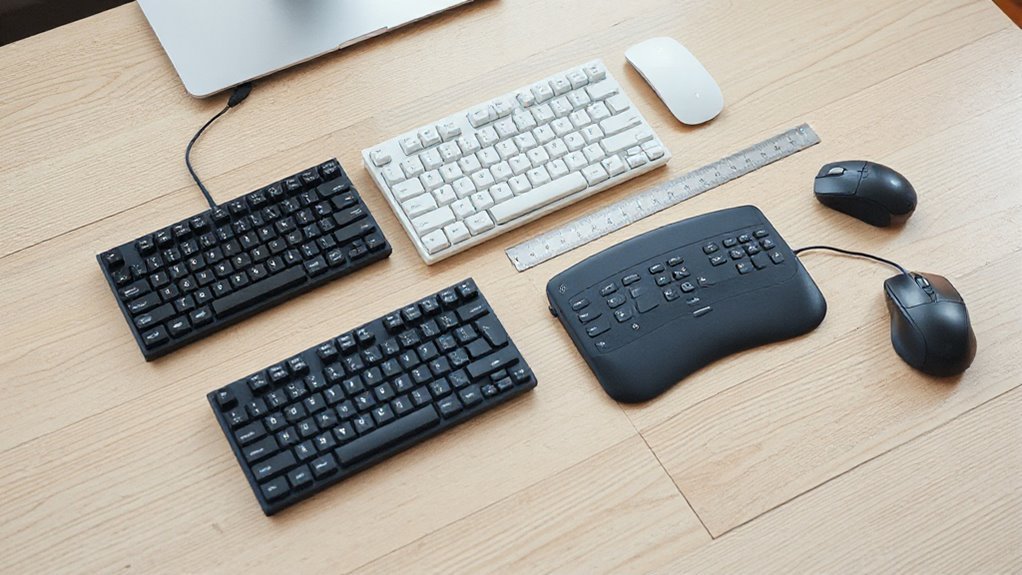
How do you select the ideal keyboard layout and size for your needs? Start by considering the standard QWERTY layout, which is familiar and widely used.
However, if you’re looking for ergonomic benefits, explore alternatives like Dvorak or Colemak. Dvorak minimizes finger movement, with 70% of typing on the home row, while Colemak reduces travel and fatigue.
Next, evaluate keyboard size. Full-size keyboards provide wrist support, while compact 60% models minimize finger reach.
For advanced ergonomics, consider tented or vertical designs that keep wrists in neutral positions. Tented keyboards tilt slightly, while vertical layouts promote a handshake position.
Each option requires an adjustment period but offers significant long-term benefits.
Integrating Workstation Accessories
Integrating workstation accessories is essential for enhancing your ergonomic setup. Proper placement of your keyboard and mouse is critical for comfort and efficiency.
Here are key considerations:
- Position your keyboard and mouse directly in front of you, centered to prevent twisting your torso.
- Use an adjustable keyboard tray, guaranteeing the keyboard height allows elbows to bend at 90 to 110 degrees, with forearms parallel to the floor.
- Confirm your mouse is level with the keyboard, close enough to minimize arm extension and wrist bending.
Maintaining neutral wrist posture is important. Keep your wrists straight, avoiding any bending during use.
Behavioral Considerations for Ergonomic Use
To improve your ergonomic setup, focus on maintaining a neutral posture. Keep your wrists straight and forearms parallel to the floor to reduce strain.
Use a vertical mouse to encourage a natural grip, minimizing wrist twisting. Position your keyboard and mouse at or slightly below elbow height to support proper alignment.
Alternate hands when using the mouse to distribute the workload and decrease repetitive strain. Utilize keyboard shortcuts to reduce mouse reliance, minimizing unnecessary movements.
Schedule frequent breaks for microstretching, which alleviates muscle tension. Monitor your typing speed and force, adjusting to a lighter touch to enhance comfort.
Finally, verify your workstation accessories fit your hand size for ideal use.
Regular Maintenance of Ergonomic Setup
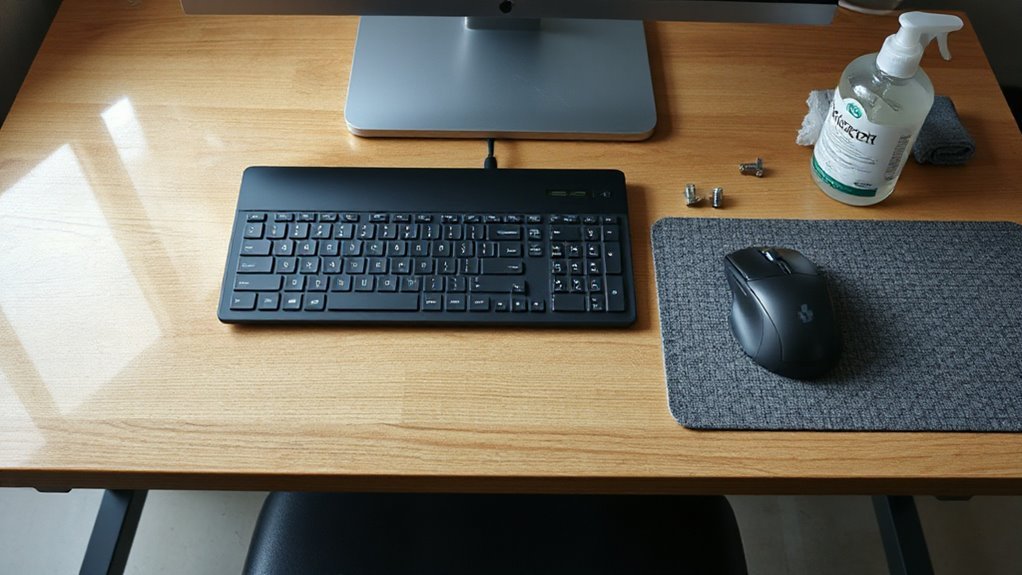
Regular maintenance of your ergonomic setup is essential for guaranteeing peak performance and hygiene.
To keep your keyboard and mouse in prime condition, follow these guidelines:
- Clean input devices weekly, or more frequently in shared environments.
- Deep clean every 2–3 months, especially for high-use devices.
- Use proper tools for maintenance, like microfiber cloths and compressed air.
Start with surface cleaning using a damp microfiber cloth and 70% isopropyl alcohol.
For deep cleaning, carefully remove keycaps and wash them in soapy water. Use compressed air to clear debris from hard-to-reach areas.
Establish a cleaning schedule based on your usage patterns, and keep food away from your workspace to minimize mess.
Regular upkeep prolongs device life and guarantees effective ergonomic support.
Frequently Asked Questions
How Often Should I Change My Keyboard and Mouse?
You should change your keyboard and mouse every 3 years for peak performance.
If you use them heavily, consider replacing them every 2 years.
Watch for signs of wear, like unresponsive keys or erratic mouse behavior.
Older devices can lead to discomfort and repetitive strain injuries.
Upgrading to newer models can enhance ergonomics, improve response times, and incorporate advanced features, ensuring compatibility with current technology and reducing the risk of injury.
Can I Use Non-Ergonomic Devices Temporarily?
Yes, you can use non-ergonomic devices temporarily, but be cautious.
“A stitch in time saves nine,” so limit usage to avoid strain. Position your keyboard and mouse at elbow height, keeping them close to your body.
Maintain a neutral wrist posture to minimize discomfort. Take frequent breaks every 20–30 minutes.
Adjust your grip to relax your shoulders, and use wrist supports if available to reduce the risk of injuries during temporary use.
What Are the Signs of Poor Ergonomic Setup?
You’ll notice persistent neck, shoulder, or back pain, which often indicates misalignment.
If your wrists feel sore or tingly, it suggests improper keyboard positioning.
Monitor height that requires you to tilt your head can strain your neck.
You may also experience fatigue or a decrease in focus due to discomfort.
Frequent adjustments while working signal that your workstation isn’t set up correctly, leading to potential long-term health issues.
Is It Necessary to Use Wrist Rests?
It’s not strictly necessary to use wrist rests, but they can offer support.
Wrist rests help maintain wrist alignment, reducing the risk of strain. However, continuous use while typing can cause pressure points. Instead, use them during breaks to relieve pressure.
Proper keyboard and mouse positioning, along with regular movement, is essential for preventing injury.
Ultimately, consider your personal comfort and ergonomic setup when deciding on wrist rest use.
How Can I Improve My Posture While Typing?
To improve your posture while typing, sit upright with your back supported, and guarantee your feet are flat on the floor.
Align your elbows at a 90–110 degree angle, keeping them close to your body. Position your forearms parallel to the ground, and maintain a neutral wrist posture.
Avoid slouching by adjusting your chair height and monitor to eye level.
Take micro-breaks every 20–30 minutes to change positions and relieve tension.
Conclusion
To sum up, setting up an ergonomic keyboard and mouse isn’t just about comfort; it’s a strategic move for your health.
You’ve adjusted your height, perfected your angles, and positioned your mouse just right. These steps reduce strain and improve long-term comfort.
Now, you’re not just a passive user; you’re a proactive defender against repetitive strain injuries.
So go ahead, embrace your new setup. If your workspace doesn’t feel like a high-tech command center, you might just be doing it wrong.