How to Properly Position Your Monitor and Keyboard
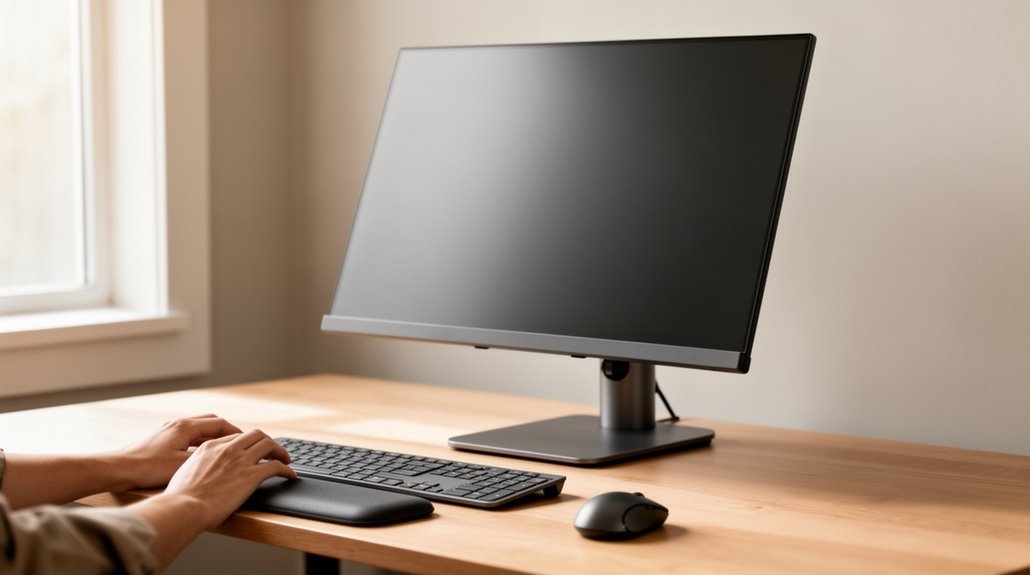
To properly position your monitor and keyboard, maintain a distance of 20–30 inches from your eyes to the screen. Keep the top of the monitor at or slightly below eye level so your gaze remains natural, and tilt the monitor back 10–20 degrees to reduce glare.
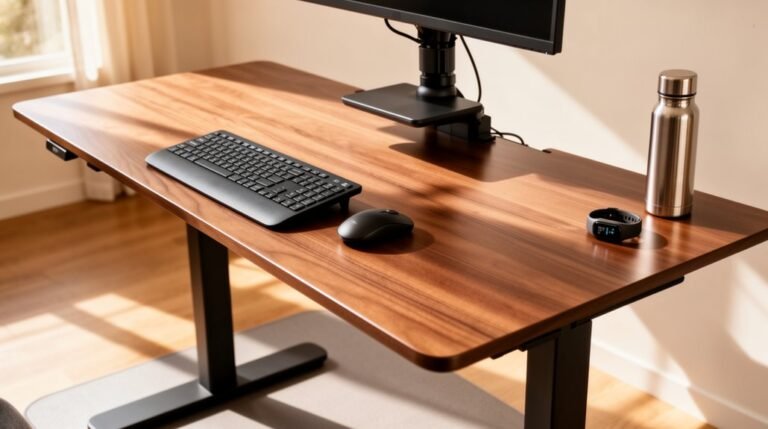
Align your keyboard with the monitor’s center and place it about 5 cm from the desk edge. This helps keep wrists neutral and reduces reaching.
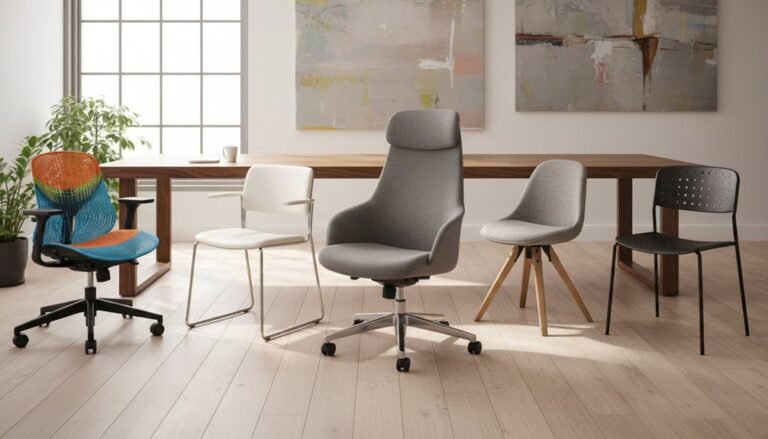
Use a suitable chair that supports good posture and organize your workspace for ergonomic comfort. Small adjustments can make a big difference in reducing strain and improving productivity.
Ideal Monitor Distance and Viewing Comfort
When setting up your monitor, the distance from your eyes greatly impacts your viewing comfort. The ideal range is between 20-30 inches (50-76 cm) for standard setups. If you sit too close, your eyes must work harder, leading to strain. Conversely, sitting too far away may compromise text clarity.
For specific monitor sizes, a 24-inch screen requires a distance of 20-28 inches (50-70 cm), while a 27-inch monitor benefits from 24-32 inches (60-80 cm). Larger 32-inch monitors need approximately 28-40 inches (70-100 cm) to guarantee clarity. Adjusting your distance based on screen size will enhance both visual comfort and overall productivity. Optimal viewing distance is crucial to prevent discomfort and promote a healthier viewing experience.
Optimal Monitor Height and Eye Level
Achieving the correct monitor height is essential for maintaining a comfortable and ergonomic workspace. Position the top of your monitor screen at or slightly below eye level. This alignment encourages a slight downward gaze, ideally 5-10 cm below the screen’s top edge.
Keeping the monitor too high forces your head to tilt backward, leading to neck and shoulder strain. A proper height prevents slouching and forward neck craning, supporting a natural, upright posture. It also reduces muscle activity in the neck and shoulders, minimizing fatigue. Proper monitor height supports natural posture, which can enhance overall productivity and reduce the risk of long-term issues.
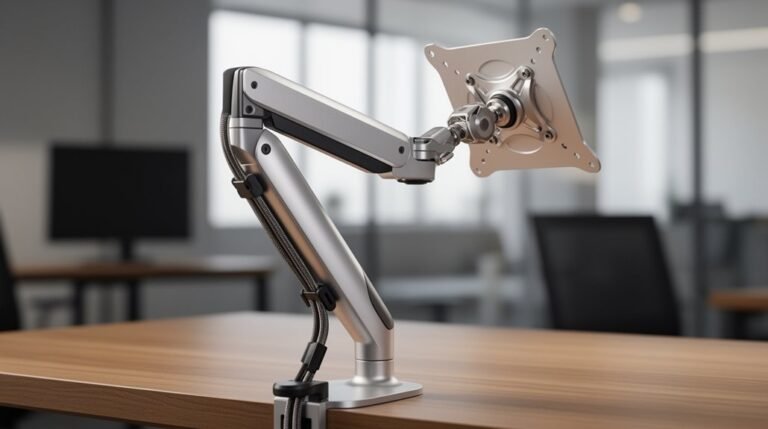
For ideal viewing, adjust the monitor so the center sits about 17 to 18 degrees below your eye level, enhancing comfort during extended use. Consider adjustable stands for flexibility.
Correct Monitor Angle and Tilt
To guarantee a comfortable viewing experience, the monitor angle and tilt play essential roles in ergonomics.
The ideal tilt range is between 10-20 degrees backward from vertical, accommodating your natural downward gaze. This adjustment reduces neck strain and improves posture quality. Ideally, the monitor center should be positioned 17-18 degrees below your horizontal line of sight, minimizing visual fatigue. Additionally, proper ergonomics enhances health, comfort, performance, and job satisfaction. Avoid zero-degree positioning, as it increases ergonomic risks and may lead to musculoskeletal disorders. For users with bifocals, slightly lowering the monitor with a 30-45 degree tilt enhances comfort.
Additionally, proper tilt helps minimize glare from overhead lighting, promoting better visibility. Adjust your monitor’s tilt after establishing its height and distance to guarantee ideal viewing conditions.
Keyboard Positioning Relative to Monitor Setup
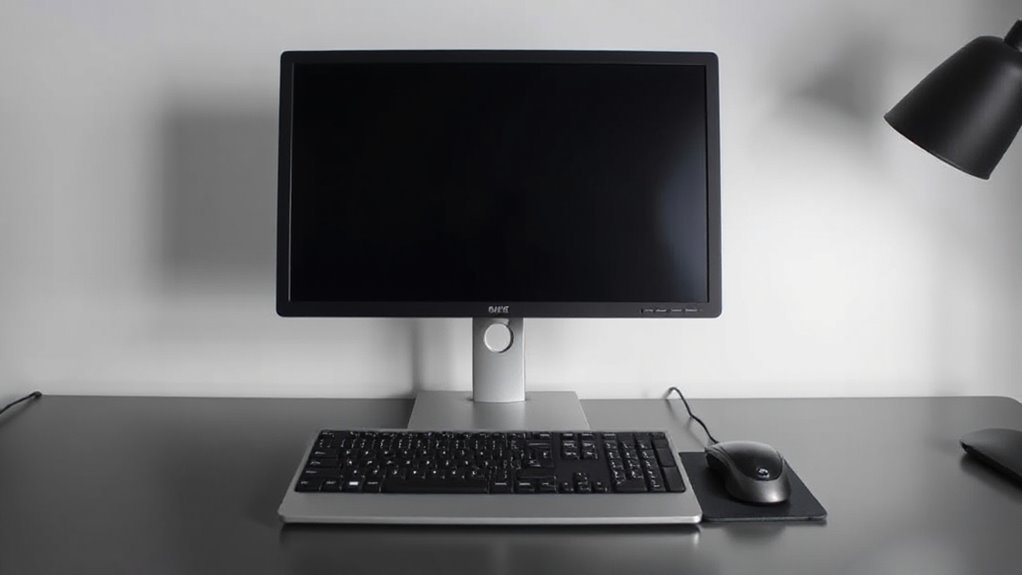
Proper keyboard positioning is essential for maintaining an ergonomic workspace, especially in relation to your monitor setup.
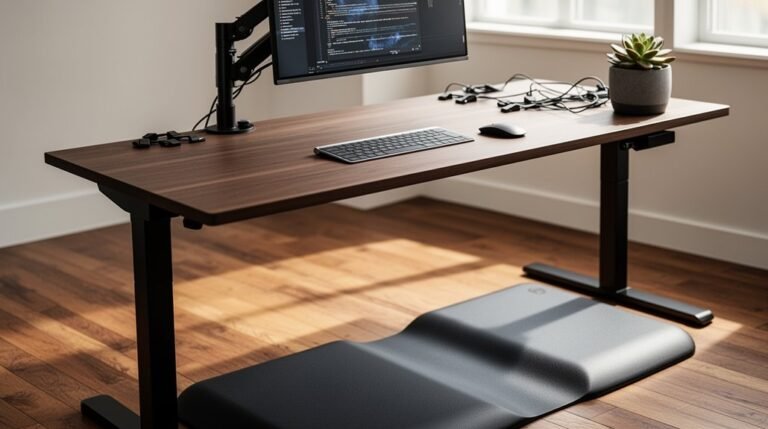
Position your keyboard directly in front of the monitor, aligned with the center of the screen. The monitor should sit directly behind the keyboard, ensuring a straight line of sight. Both should be centered with your body to prevent twisting.
Keep the keyboard at elbow height, while the monitor’s top should be at or slightly below eye level. Maintain a distance of about 20–40 inches between your eyes and the monitor.
For ideal comfort, the keyboard should be about 5 cm from the desk edge, allowing for wrist support without leaning forward.
Workspace Ergonomics for Enhanced Comfort
When you set up your workspace, consider how each element contributes to your overall comfort and productivity.
Start with an ergonomic chair that offers lumbar support, keeping your lower spine’s natural curve intact. Adjust the seat height so your feet rest flat on the floor, with knees at hip level. Utilize adjustable armrests to minimize shoulder strain.
Position your monitor so its top edge is at or slightly below eye level, about an arm’s length away, to reduce neck and eye strain.
Guarantee your desk is height-adjustable, allowing for both sitting and standing. Organize frequently used items within arm’s reach to minimize unnecessary movements.
Finally, maintain proper lighting to prevent glare and enhance visual comfort.
Frequently Asked Questions
How Can I Reduce Glare on My Monitor Screen?
To reduce glare on your monitor screen, adjust your lighting.
Use indirect light sources, avoid overhead lights, and position your window at a right angle to the monitor.
Adjust your monitor’s brightness to match the surrounding area and tilt it slightly downward.
Consider using an anti-glare screen protector to diffuse incoming light.
Finally, utilize task lighting for your work materials, ensuring it doesn’t shine directly onto the screen.
What Type of Monitor Is Best for Eye Comfort?
For eye comfort, choose an IPS monitor. It provides excellent color accuracy and wide viewing angles, reducing strain during long hours.
Look for models with flicker-free technology and blue light filtering to minimize fatigue. A QHD resolution on a 27-inch screen strikes a balance between sharpness and performance.
Additionally, verify the monitor has TÜV Rheinland Eye Comfort certification for enhanced eye protection.
Curved designs can also help reduce distortion and improve your viewing experience.
Should I Use a Blue Light Filter for My Monitor?
Using a blue light filter for your monitor isn’t a guaranteed solution for eye strain.
While some studies suggest minimal benefits, others show no significant improvement in visual performance or sleep quality.
You might find it more effective to incorporate the 20-20-20 rule, take regular breaks, and adjust screen settings.
Emphasizing proper lighting and reducing glare can enhance comfort without relying solely on filters, offering a more thorough approach to eye health.
How Often Should I Take Breaks While Using My Computer?
To optimize your productivity, you should take a break every 60 to 90 minutes. Short breaks of 5 to 10 minutes are most effective, helping reduce muscle strain and improve focus.
Consider using the Pomodoro Technique, which suggests working for 25 minutes, then taking a 5-minute break. Incorporate micro-breaks of 27 to 40 seconds throughout your tasks to enhance performance and maintain accuracy.
Regular breaks promote better overall health and efficiency.
Can Screen Brightness Affect My Eye Strain?
Yes, screen brightness can greatly affect your eye strain. High brightness in dark environments increases visual discomfort, as it creates excessive light stimulation.
Lowering brightness helps reduce strain and encourages a natural blink rate, which lubricates your eyes. Ideally, adjust your screen brightness to align with ambient light levels.
Using night mode in the evening further minimizes eye strain, as it reduces blue light exposure, enhancing comfort during prolonged screen time.
Conclusion
In conclusion, proper monitor and keyboard positioning enhances your workspace ergonomics.
Position the monitor 20–30 inches away and align the top of the screen with your eye level. Tilt the monitor slightly backward for a comfortable viewing angle.
Keep your keyboard at elbow height to reduce strain and promote comfort during long hours.
Visualize a streamlined workspace where everything aligns, allowing for focus and efficiency. By following these guidelines, you’ll create a healthier, more productive environment for daily tasks.