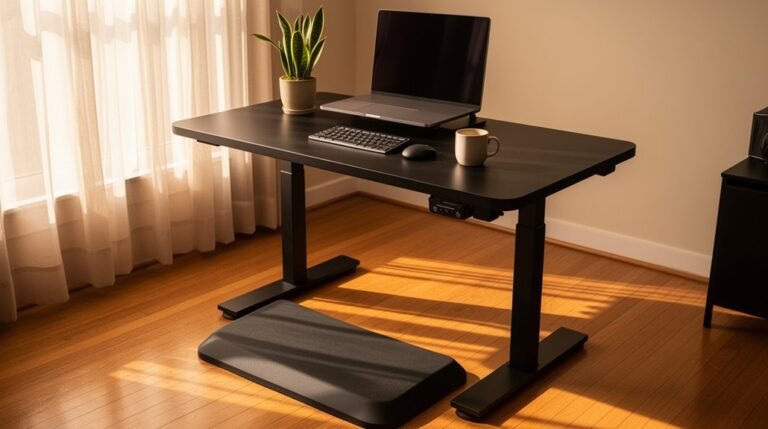
Conducting an Ergonomic Assessment of Your Office
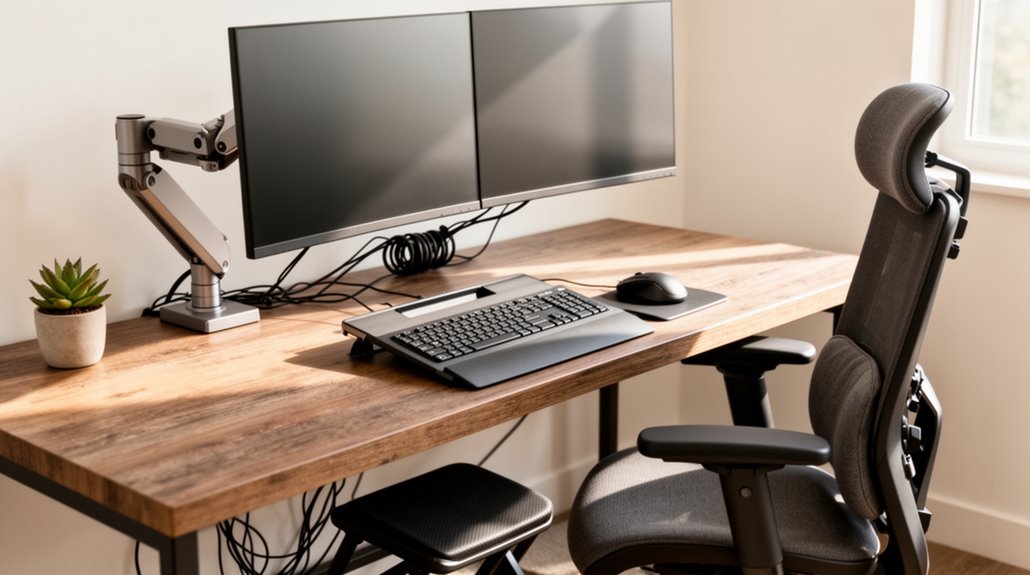
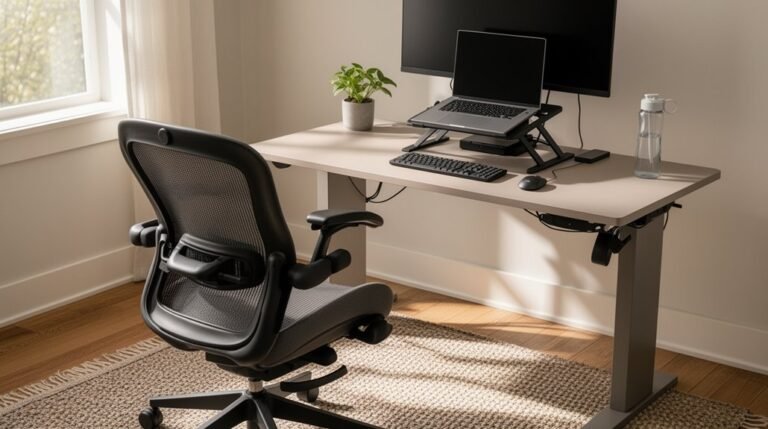
To conduct an ergonomic assessment of your office, start by evaluating chair setup and adjustments. Make certain the seat height allows your feet to rest flat on the floor and that lumbar support is adjusted to the curve of your lower back.
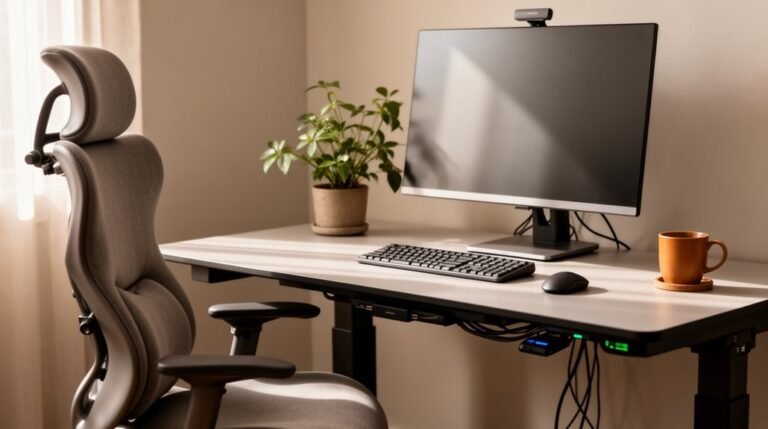
Next, analyze monitor positioning. The screen should be at eye level and about an arm’s length away to reduce neck strain and promote a neutral posture.
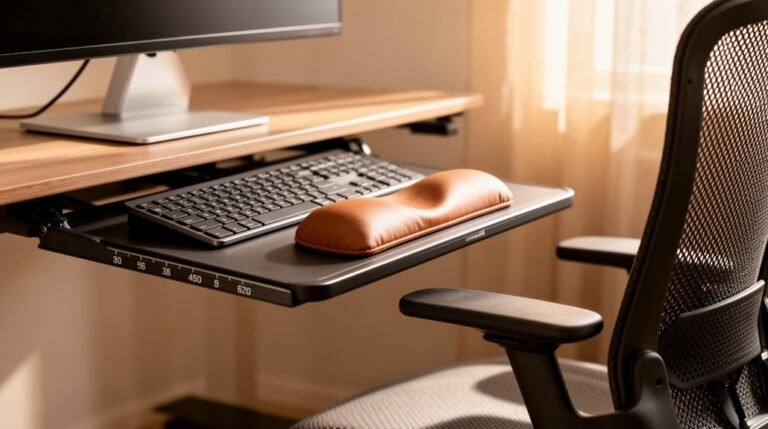
Assess keyboard and mouse ergonomics, making sure they are at elbow height and allow your wrists to remain straight. Use a wrist rest if needed and position the mouse close to the keyboard.
Organize your desk so frequently used items are within easy reach. Finally, guarantee proper lighting to reduce glare and eye strain. Taking these steps will enhance comfort and productivity in your workspace.
Evaluating Chair Setup and Adjustment
To guarantee maximum comfort and support, start by adjusting your chair’s seat height. Ascertain the highest point of the seat sits just below your kneecap when standing. Your feet should rest flat on the floor, with legs bent at a 90-degree angle. If your chair can’t be lowered enough, use a footrest for proper foot placement. Aim for your thighs to be parallel to the floor, preventing circulation issues. Maintain at least one inch of clearance between the seat edge and the back of your knees. Adjust the seat depth so that a clenched fist can fit between the seat and your lower legs, preventing pressure on your thighs. Proper adjustments promote comfort and spinal alignment during extended sitting periods. High traffic can overwhelm server capacity, making it essential to ensure a conducive environment for your workspace.
Analyzing Monitor Positioning and Screen Setup
Proper monitor positioning greatly impacts your comfort and productivity during work hours. Position your monitor 20 to 40 inches away, depending on its size. For instance, a 24-inch monitor should be 24 to 32 inches from your eyes. Set the top of the screen at or slightly below eye level, ideally 2-3 inches below the top of the monitor. Tilt the monitor back 10 to 20 degrees to minimize glare and strain. Align the monitor center directly in front of you, preventing neck and torso twisting. Confirm your workspace is free from glare by positioning the monitor perpendicular to light sources. Following these guidelines can considerably enhance your viewing experience and reduce discomfort. Proper monitor placement supports natural body alignment, emphasizing the importance of maintaining a comfortable workspace.
Assessing Keyboard and Mouse Ergonomics
When evaluating keyboard and mouse ergonomics, it’s crucial to guarantee that both devices are positioned correctly to support your body’s natural alignment. Proper setup minimizes strain during use.
- Place your keyboard directly in front of you, aligned with your body’s center to prevent twisting.
- Set the keyboard height at elbow level, approximately 5 cm from the desk’s front edge, providing wrist support.
- Position your mouse at the same height as the keyboard, close enough to limit excessive reaching. A traditional mouse design can enhance comfort by ensuring it fits your hand’s natural curve.
Keep your wrists straight, and maintain a loose grip on the mouse.
Verify the mouse fits your hand’s natural curve, and consider using a vertical mouse to enhance comfort and reduce strain.
Organizing Desk and Workspace
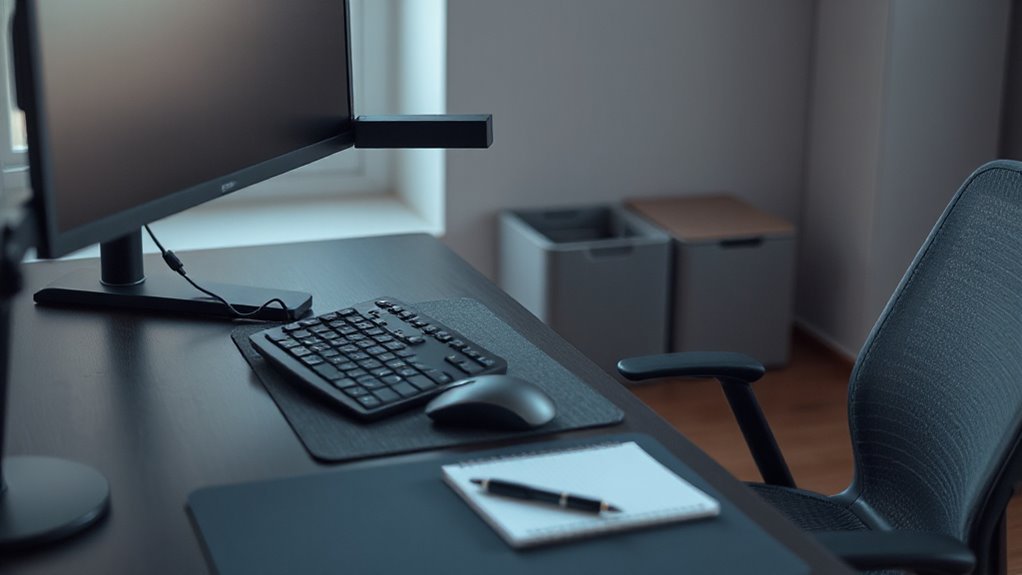
How can you optimize your workspace for better productivity and comfort? Start by adjusting your desk height so your elbows form 90-degree angles while typing. Guarantee there’s 20-28 inches of legroom under the desktop.
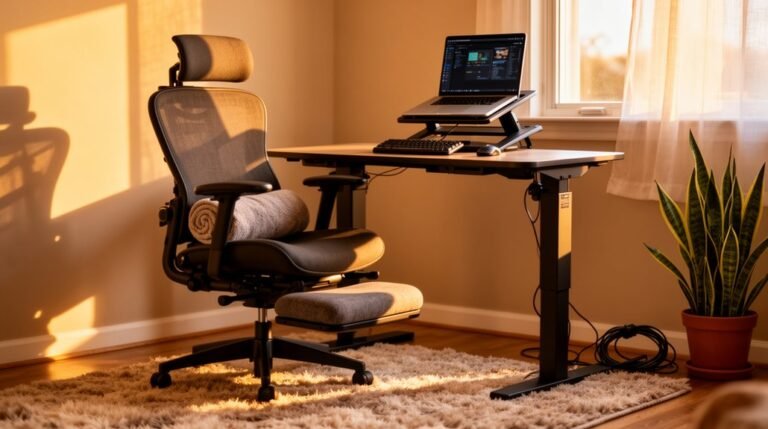
Use a height-adjustable desk for flexibility between sitting and standing. Choose an ergonomic chair that supports your spine’s natural curve, with adjustable lumbar support and a seat depth that fits your legs.
Position your monitor at eye level, about an arm’s length away, to reduce neck strain. Keep frequently used items like your phone and stapler within easy reach to minimize stretching.
Use wrist supports and anti-fatigue mats to enhance comfort during prolonged use, maintaining your workspace organized and efficient.
Ensuring Proper Lighting and Visual Comfort
Effective lighting is essential for enhancing your workspace’s productivity and comfort. Consider these key aspects:
- Illumination Levels: Aim for 500 lux at computer workstations for ideal visibility. Use 300 lux for general tasks, and increase to 750-1000 lux for detailed work.
- Glare Management: Position screens perpendicular to windows to reduce glare. Utilize task lighting to minimize reflections and employ window coverings to manage natural light.
- Color Temperature: Select cool white light (5000-6500K) for alertness during detailed tasks. Warm white light (3000-4000K) aids relaxation in collaborative spaces.
Posture and Body Alignment Assessment
To maintain ideal comfort and prevent strain during your workday, it’s important to assess your posture and body alignment.
Verify your head is directly above your shoulders and hips, with a relaxed neck and chin at a comfortable level. Keep your shoulders relaxed, avoiding any hunching. Your elbows should bend between 90° and 110°, close to your body.
Support your back with a straight posture, utilizing lumbar support to maintain the natural curve of your spine. Position your wrists neutrally while typing, with your keyboard and mouse at elbow height.
Finally, keep your feet flat on the floor or on a footrest, verifying your thighs are horizontal and your knees are bent at approximately 90°.
Regularly monitor your posture for improvements.
Checking for Adequate Space Under the Desk
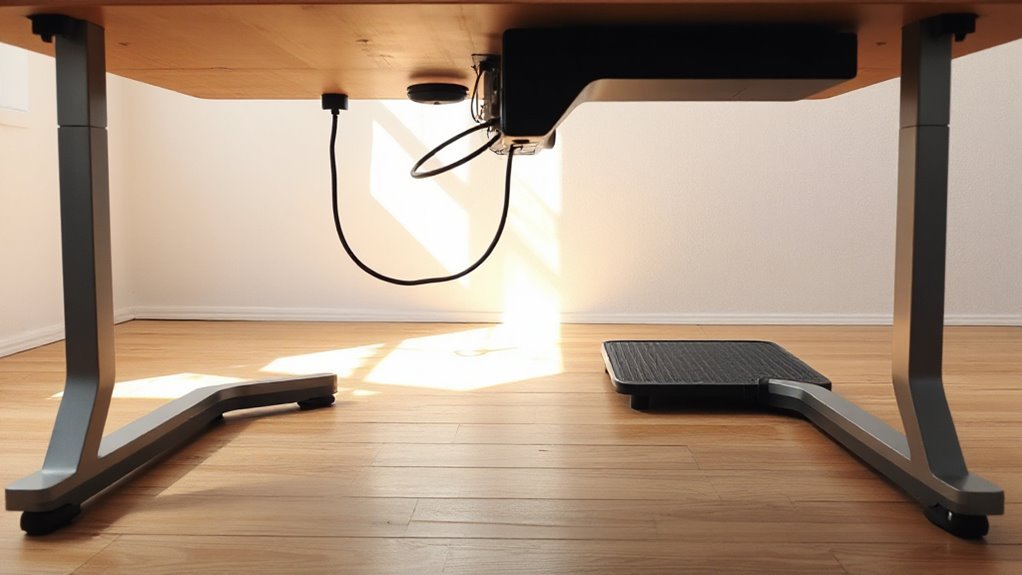
Is there enough space under your desk to move comfortably? Guaranteeing proper legroom is essential for your ergonomic setup.
- Legroom Height: OSHA recommends 20-28 inches of clearance for leg space, with standard legroom height ranging from 24 to 30 inches.
- Chair Movement: Maintain at least 36-48 inches behind your desk for easy chair movement. This prevents cramped feelings while sitting or standing.
- Desk-to-Wall Distance: Allow a minimum of 23-25 inches from the desk to the wall for standard chairs, or 30-32 inches for larger ergonomic chairs.
Adequate space under your desk supports healthy posture during extended work periods and minimizes physical strain.
Confirm your setup meets these specifications for peak comfort.
Maintaining a Clutter-Free Working Surface
How can you improve your ergonomic health through desk organization? Start by positioning frequently used items within arm’s reach, minimizing excessive reaching that can strain your shoulders and neck.
Ascertain your keyboard aligns with your body’s midline to prevent twisting. Keep your mouse close to the keyboard to avoid awkward shoulder movements.
Utilize vertical storage systems to maintain visibility and accessibility of materials, preventing clutter on your desk. Implement cable management systems to eliminate tangling and obstruction.
Regularly declutter your workspace to enhance focus and productivity. A stable, clear work surface allows for better blood flow and circulation, supporting a neutral body position that reduces the risk of repetitive strain injuries.
Implementing Changes for Improved Ergonomics
When you prioritize ergonomic changes in your workspace, you can greatly enhance comfort and productivity.
Implementing effective adjustments can lead to considerable benefits. Consider these three key changes:
- Adjustable Workstations: Installing height-adjustable desks allows users to alternate between sitting and standing, reducing fatigue and discomfort.
- Smart Ergonomic Aids: Utilize dynamic seating and posture-tracking devices to maintain proper alignment, minimizing the risk of musculoskeletal disorders.
- Employee Training: Provide education on the correct use of ergonomic equipment, ensuring employees understand how to optimize their workstation setup.
These changes can increase productivity by up to 25%, decrease worker absenteeism by 58%, and considerably reduce ergonomic risk, fostering a healthier, more efficient work environment.
Frequently Asked Questions
How Often Should I Take Breaks During Work Hours?
You should take breaks every 90 minutes, ideally lasting 20 minutes. This aligns with natural energy cycles, helping maintain productivity.
If your job is physically demanding, consider shorter breaks, like 10 minutes every hour. For cognitive tasks, the 52:17 method works well; after 52 minutes of focused work, take a 17-minute break.
Frequent short breaks, about 20-25% of your workday, can considerably enhance your overall efficiency and mental clarity.
Can Ergonomic Tools Improve Productivity Significantly?
Yes, ergonomic tools can greatly improve productivity. Studies show productivity increases between 15% and 40% with proper ergonomic interventions.
For example, ergonomic chairs alone enhance productivity by 15% to 20% by minimizing distractions. Additionally, stand-biased desks reduce lower back discomfort, leading to higher typing output.
What Are the Signs of Poor Ergonomics?
You’ll notice physical symptoms like neck and shoulder pain from improperly positioned monitors.
Wrist discomfort often points to poor keyboard placement.
Headaches and eye strain arise from inadequate lighting or screen glare.
Look for postural warning signs, such as slumping or leaning forward.
Equipment issues include desks at incorrect heights and inadequate chair support.
Ultimately, diminished productivity and fatigue may indicate an ergonomic mismatch in your workspace.
Are There Exercises to Alleviate Office-Related Discomfort?
Yes, there are several exercises to alleviate office-related discomfort. Neck stretches, like tilting your head toward each shoulder, help relieve tension.
Shoulder rolls improve circulation, while posterior shoulder stretches target tight muscles.
For your back, chair twists and back extensions strengthen core muscles and reduce pain.
Wrist stretches, finger exercises, and ankle mobility work counteract stiffness.
Incorporate these exercises into your daily routine, holding each stretch for 10-15 seconds, to enhance comfort and flexibility.
How Can I Assess My Ergonomics at Home?
To assess your ergonomics at home, start with your chair.
Guarantee it’s adjustable, allowing your feet to rest flat on the floor. Check your desk height; your elbows should be at 90 degrees when typing.
Position your monitor at eye level, about an arm’s length away.
Finally, incorporate breaks every 30 minutes to stand or stretch, reducing muscle strain and promoting circulation.
Adjust items within reach to maintain proper posture.
Conclusion
Conducting an ergonomic assessment of your office is essential for your health and productivity. Studies show that proper ergonomics can reduce workplace injuries by up to 60%.
Start by evaluating your chair setup, monitor positioning, and keyboard use. Small adjustments in these areas can create a workspace that promotes comfort and efficiency.
Implementing ergonomic changes not only enhances your well-being but also improves overall performance. Prioritize ergonomics to foster a healthier work environment and minimize discomfort during daily tasks.