How to Choose the Right Monitor Arm
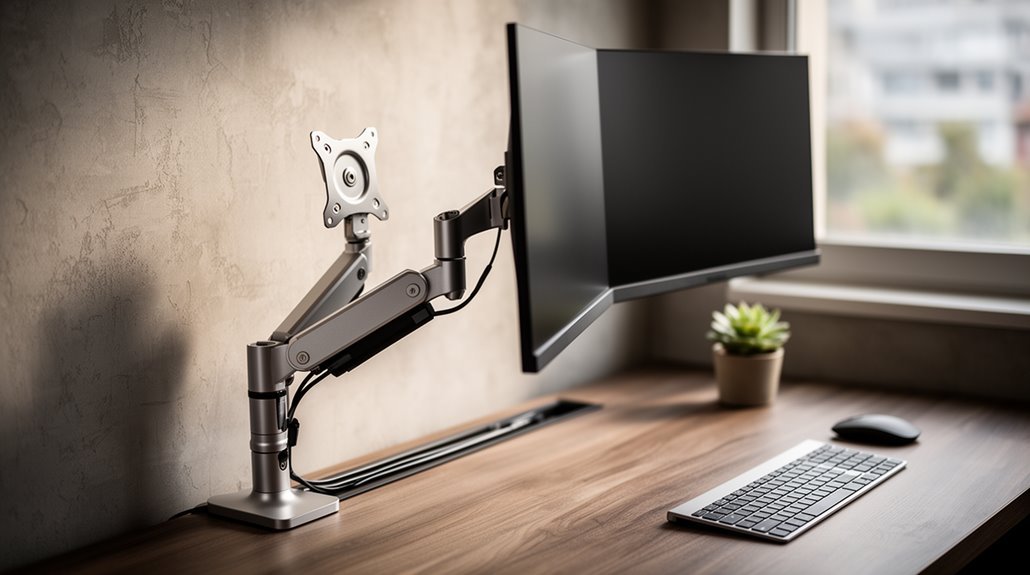
To choose the right monitor arm, start by assessing weight capacity. Standard monitors typically weigh 8.8–22 lbs, so pick an arm that supports at least 2.2–4.4 lbs more than your monitor’s weight to ensure safe, long-term use.
Next, check for VESA compliance so the arm matches your monitor’s mounting pattern (usually 75×75 mm or 100×100 mm). This prevents compatibility issues during installation.
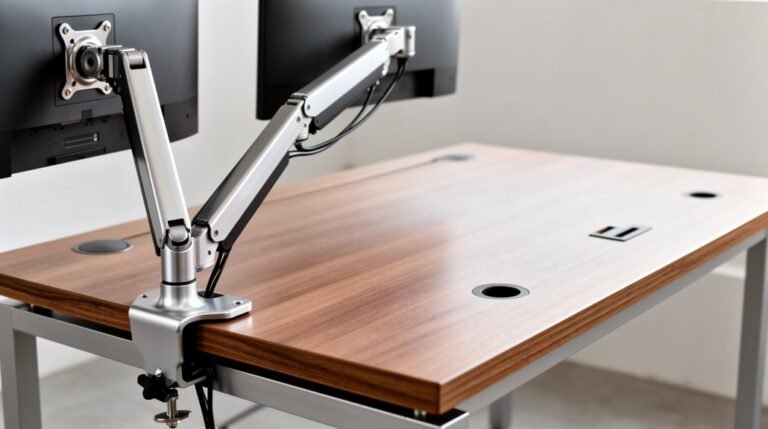
Consider whether you need a single or multi-monitor setup based on your workspace and workflow. Multi-monitor arms offer expanded screen real estate but require more desk space and a sturdier mount.
Evaluate gas spring versus mechanical arms for adjustment capabilities. Gas-spring models provide smooth, easily adjustable movement, while mechanical arms can be more budget-friendly and stable.
Finally, ascertain durability by looking at build quality, materials, certifications, and warranty terms. Also explore additional features—such as cable management, tilt/swivel range, and height adjustment—that can enhance your workspace experience.
Understanding Weight Capacity Requirements
When selecting a monitor arm, understanding weight capacity is essential to guarantee stability and functionality. A monitor arm must support the display’s weight without drooping or drifting downward.
Most standard monitors weigh between 8.8–22 lbs (4–10 kg), excluding ultra-wide models. Exceeding the weight capacity can lead to monitor failure or a fall. It’s crucial to maintain a safety margin of 2.2–4.4 lbs (1–2 kg) beyond the monitor’s weight. Additionally, monitor weight must not exceed the arm’s capacity to maintain proper positioning.
Consider the depth of the monitor, as deeper models create more torque on pivot points, stressing the arm. Curved monitors shift the center of gravity, necessitating higher capacity arms.
Always factor in any additional accessories, as they affect the total weight and the arm’s performance.
VESA Compliance and Compatibility
Understanding VESA compliance is essential for ensuring your monitor arm and display work together effectively.
Most monitors have a standard four-hole screw pattern on their backs, typically adhering to VESA MIS-D, which features 75×75 mm or 100×100 mm hole patterns. This standard supports weights up to 30.8 lbs (14 kg).
For larger monitors, VESA MIS-E utilizes a 200×100 mm pattern and accommodates weights from 50-66 lbs (23.7-30 kg).
If your monitor isn’t VESA compliant, like many Apple displays, you’ll need third-party adapter plates for compatibility. Non-VESA monitors may require additional solutions to ensure a secure mount.
Always check your monitor’s user guide for VESA specifications, and measure the distance between hole centers to confirm the correct pattern before purchasing a monitor arm.
Choosing Between Single and Multi-Monitor Configurations
Choosing the right monitor configuration can greatly impact your productivity and workspace organization. If you prioritize focus, a single monitor setup provides a clutter-free environment. This configuration typically requires less desk space and fewer cables, making it budget-friendly. However, multitasking may be limited, necessitating frequent window switching.
In contrast, a dual monitor setup enhances productivity by allowing you to run different applications simultaneously. It offers flexibility in arrangement and is cost-effective compared to high-end ultrawide monitors. Multi-monitor setups allow for task segmentation, reducing the need for constant window-switching.
For extensive multitasking, consider a triple monitor configuration, which provides ample screen real estate but requires significant desk space and investment. Finally, ultrawide monitors deliver seamless displays but lack customization options. Your choice should align with your work needs, available space, and budget.
Mechanical vs. Gas Spring Technology
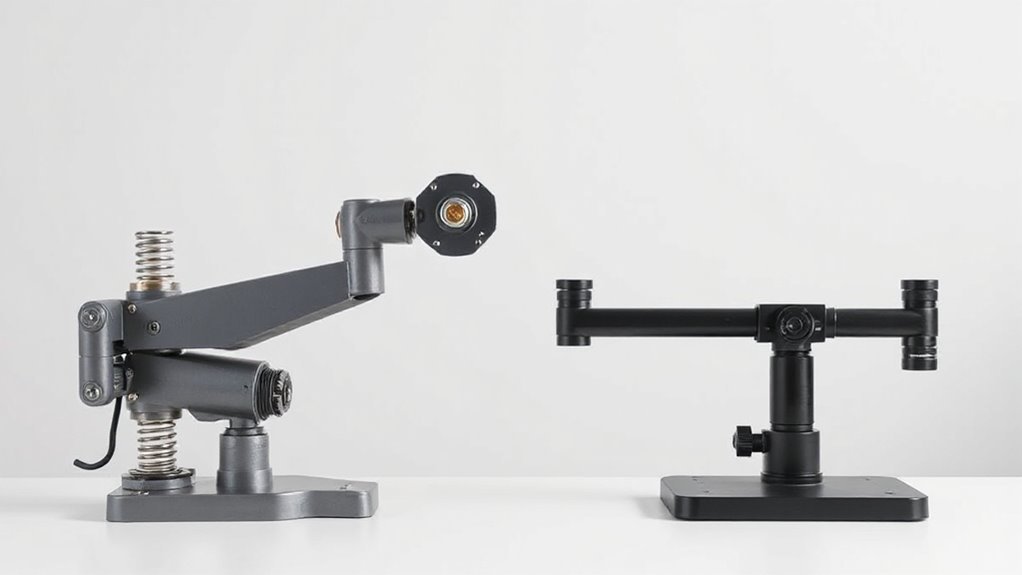
While both mechanical and gas spring monitor arms offer effective solutions for mounting your display, they operate on fundamentally different mechanisms.
Gas spring arms utilize pressurized gas cylinders, allowing for smooth, adjustable support. They provide non-linear force, meaning resistance increases as you compress them.
In contrast, mechanical spring arms rely on metal coil springs, delivering linear force that’s proportional to compression. This results in a more direct, albeit less smooth, adjustment experience.
While gas springs tend to operate silently and smoothly, mechanical springs excel in longevity and require less maintenance.
Cost-wise, mechanical arms are usually more economical, while gas spring options reflect advanced technology and higher price points.
Choose based on your adjustment needs and budget flexibility.
Height Adjustment Features
When you’re evaluating monitor arms, height adjustment features play an essential role in achieving ergonomic comfort and flexibility.
Dynamic height adjustments allow quick changes with just a finger, while gas spring arms provide smooth positioning for frequent adjustments.
Mechanical spring systems offer durable adjustments with adjustable tension, guaranteeing stability.
Articulating arms require manual adjustments, which can be inconvenient for frequent changes, whereas spring-assisted arms balance ease of use with cost-effectiveness.
The best height adjustment range should accommodate sitting to standing positions, ideally between 173mm to 505mm.
Look for arms with greater height ranges to support multiple users or changing postures, and verify compatibility with your desk’s thickness for secure mounting.
Range of Motion and Flexibility
Achieving ideal ergonomics goes beyond height adjustments; a monitor arm’s range of motion and flexibility greatly enhances user experience.
Consider these key features when selecting a monitor arm:
- Tilt Range: Most arms tilt between +20° and -45°. Options like Ergotron LX allow +45° to -45°, providing flexible viewing angles.
- Swivel Range: Standard swivel is typically +90° to -90°. Models like MotionGrey arms also support this range for easy lateral adjustments.
- Screen Rotation: Many arms enable 360° rotation for portrait and landscape modes. UPLIFT Range arms excel here, offering full rotation for versatile positioning.
These factors contribute to comfort and usability, ensuring your monitor setup meets your specific needs.
Quality Standards and Durability
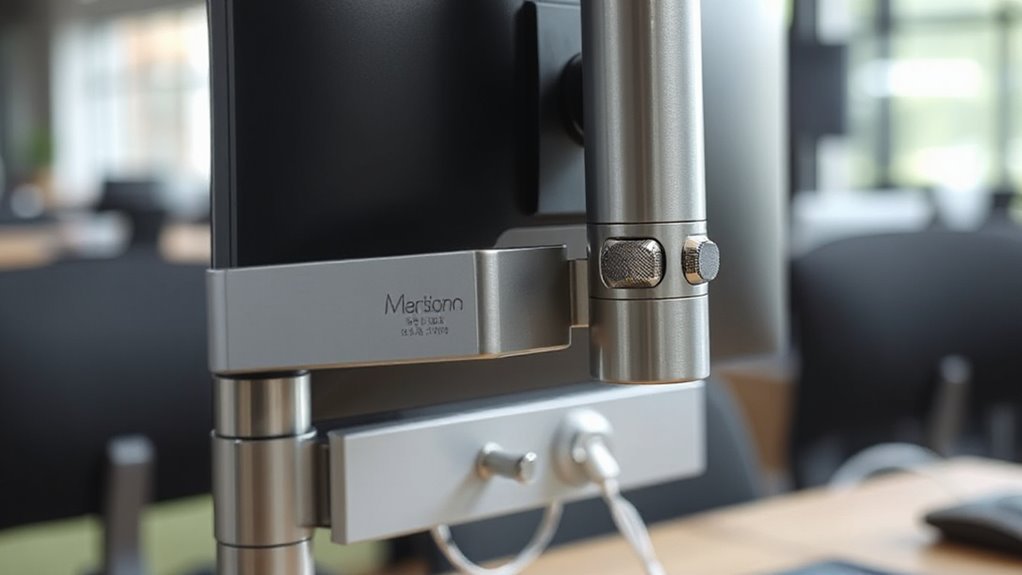
To guarantee a reliable and effective monitor arm, you must consider quality standards and durability.
Look for IEC 60601-1 certification, which assures electrical safety and protects against shocks. Compliance with ISO 9001:2015 indicates best practices in manufacturing. For medical applications, ISO 13485:2016 focuses on quality management systems.
Durability is essential; select monitor arms designed for over 12,000 cycles, securing longevity. ANSI/BIFMA X5.5 standards help assess ergonomic furniture performance.
Additionally, VESA mounting standards (75mm and 100mm) confirm compatibility with various monitors. Maintenance-free gas spring mechanisms improve reliability. Integrated wire managers conceal cables, enhancing aesthetics.
Warranty Considerations
Selecting a monitor arm involves more than just evaluating its quality and durability; warranty considerations play a significant role in your purchasing decision. Here are key aspects to keep in mind:
- Warranty Duration: Monitor arms generally come with warranties ranging from 1 to 15 years, indicating the manufacturer’s confidence in durability.
- Coverage Terms: Most warranties cover defects in materials and workmanship, but exclude damage from improper use or installation.
- Manufacturer Reputation: Established brands typically offer better customer support and responsive service for warranty claims.
Aesthetic and Space Efficiency
When you consider a monitor arm, its aesthetic appeal and space efficiency are essential factors that can enhance your workspace.
Monitor arms feature streamlined designs that minimize structural bulk, while signature patterns create visual interest. Integrated cable management systems keep wires organized, reducing desk clutter.
You can choose base-mount or pole-mount options to suit different desk types and space constraints. Adjustable post heights come in 4-inch, 11-inch, and 19-inch sizes, accommodating various workspace needs.
With single and stacking configurations, you can customize your setup based on the number of monitors. Additionally, compact designs and vertical mounting free up valuable desk space.
Select from different finishes to guarantee your monitor arm harmonizes with your office décor.
Frequently Asked Questions
Can I Use a Monitor Arm With Curved Displays?
Yes, you can use a monitor arm with curved displays.
Verify the arm supports the weight and size of your specific curved monitor, checking for VESA mount compatibility. Heavy-duty arms can accommodate monitors up to 57 inches and weights around 22–37.5 lbs.
Look for features like adjustable depth and tilt pivots to enhance ergonomic positioning. Additionally, consider designs that allow mixing curved and flat monitors for versatile setups.
How Do I Install a Monitor Arm on a Glass Desk?
To install a monitor arm on a glass desk, start by cleaning the glass surface thoroughly.
Use a reinforcement mounting plate to distribute pressure evenly.
Position the monitor directly above the clamp to minimize torque.
Avoid mounting too far from the clamping point to reduce stress.
Regularly inspect for signs of stress or cracks.
If uncertain, consult a professional for advice on safe mounting options specific to your desk’s structure.
Are Monitor Arms Compatible With All Laptop Models?
Monitor arms aren’t compatible with all laptop models. Most laptops lack built-in VESA mounts, which are essential for direct attachment.
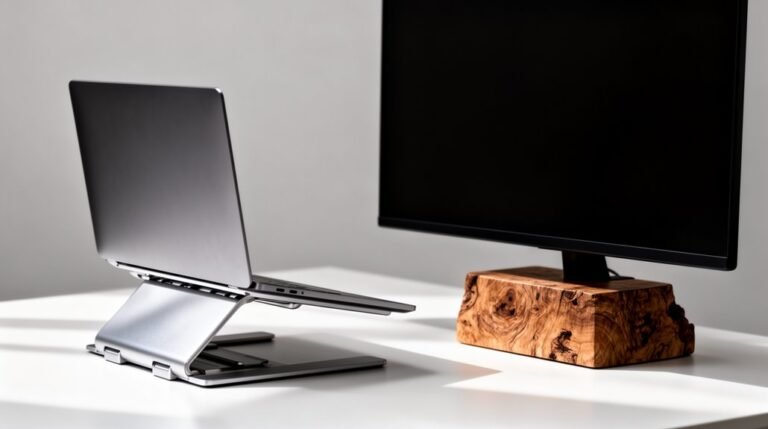
You’ll need a laptop tray or cradle, often VESA-compatible, for proper use. Check the tray specifications for size and weight limits, typically accommodating laptops up to 15″ or 17″.
If your laptop doesn’t have a VESA mount, consider using third-party adapters to guarantee compatibility with monitor arms.
Can I Adjust the Angle of a Monitor Arm Easily?
Yes, you can adjust the angle of a monitor arm easily.
Hydraulic arms allow smooth, fingertip adjustments, making it simple to change angles on the fly. Mechanical arms require manual effort, often needing tools for adjustments.
Clamp systems enable quick changes but may need periodic tightening for stability. Friction-controlled joints provide effortless movement without constant resistance adjustments.
Most models offer up to 70 degrees of tilt and 180 degrees of swivel for ideal viewing comfort.
Do Monitor Arms Affect the Overall Stability of My Desk?
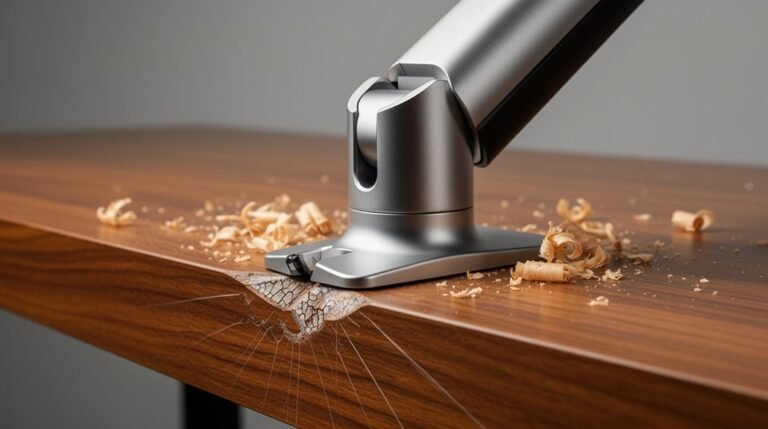
Yes, monitor arms can considerably affect your desk’s overall stability.
For instance, extending the arm far from its mounting post increases wobble due to leverage. A study shows that monitor arms mounted closer to the desk center reduce movement by up to 50%.
Solid wood or steel desks provide better support than lightweight materials, minimizing vibration and instability.
Proper installation and weight management also enhance stability, ensuring a secure and effective workspace.
Conclusion
In selecting the right monitor arm, consider your specific needs and workspace layout.
Just as a sturdy tree supports various branches, a well-chosen monitor arm stabilizes your setup, accommodating different weights and adjusting to preferred heights.
Prioritize VESA compatibility, weight capacity, and flexibility to guarantee durability and longevity.
By making informed decisions on these key features, you can enhance both productivity and comfort in your workspace, creating an efficient environment tailored for your tasks.