How to Hide Cables With a Monitor Arm
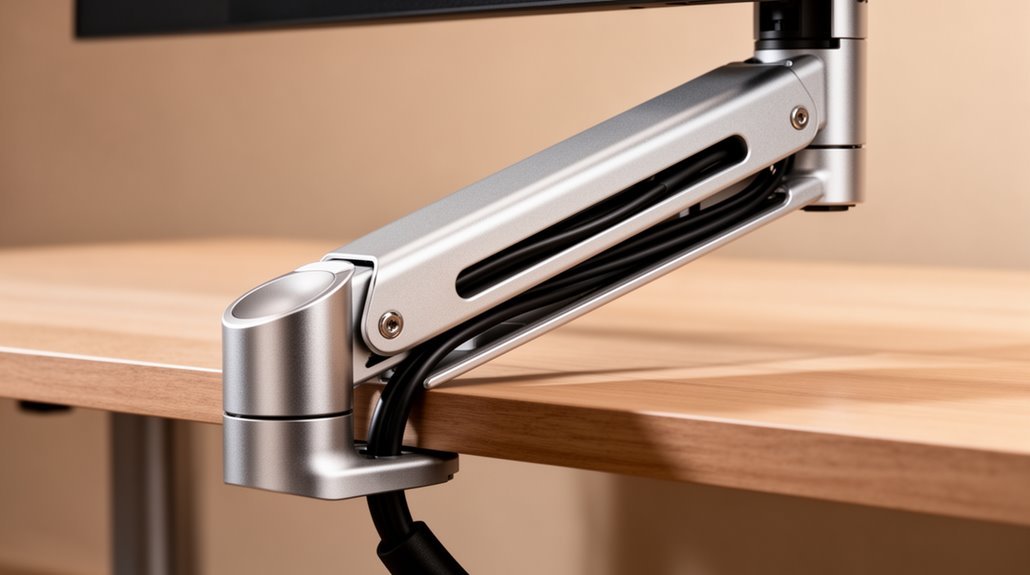
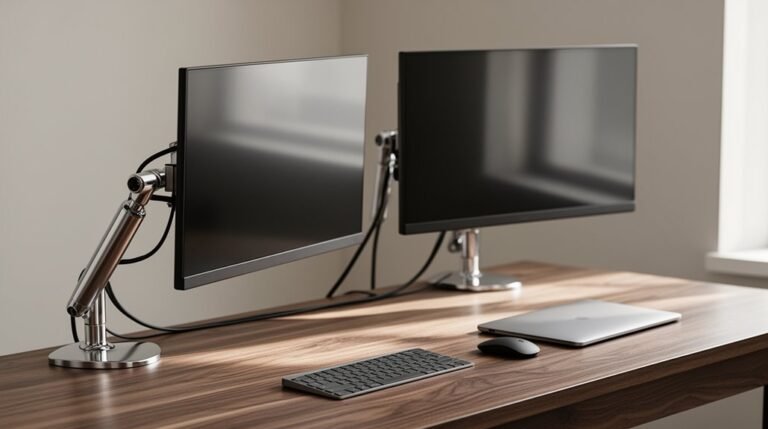
To hide cables with a monitor arm, use the arm’s integrated cable management features such as clips and channels. Start by routing cables from the monitor’s ports and guiding them along the arm so they follow the arm’s path instead of dangling.
Secure cables under the desk with adhesive clips, and direct them into a cable tray to keep them organized and out of sight. Group similar cables with ties to prevent tangling and label them if helpful.
Ensure cables are the proper length to avoid excess slack; coil and secure any remaining length neatly. These steps create a clean, clutter-free workspace.
For more details on accessories and techniques, consult additional resources that cover trays, cable sleeves, and mounting options.
Understanding Built-in Cable Management Features
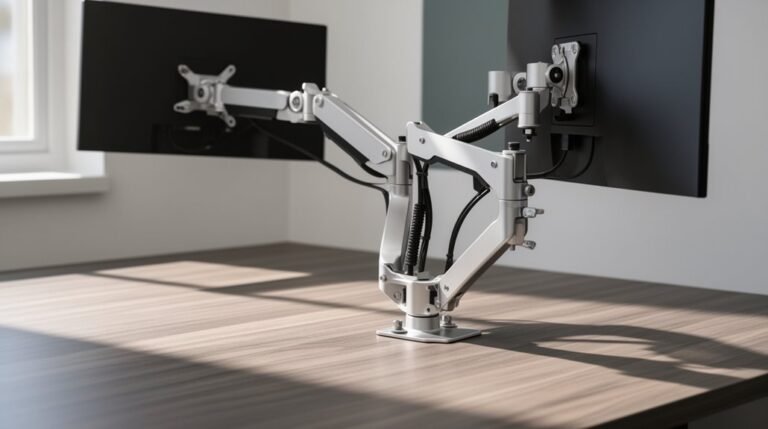
When you consider a monitor arm, built-in cable management features play a crucial role in maintaining an organized workspace. Cable clips securely fasten individual cables along the arm, preventing tangling. Cable channels, designed as enclosed pathways, hide multiple cables simultaneously, enhancing aesthetics. Flexible cable sleeves bundle several cables neatly, reducing clutter. Magnetic guides attach easily, holding cables firmly while allowing adjustments. Additionally, cable trays connect with arms under the desk, discreetly routing cables. These features greatly minimize desk clutter, protect cables from damage, and support ergonomic setups, ultimately contributing to an organized workspace.
Techniques for Concealing Cables With Monitor Arms
To effectively conceal cables with a monitor arm, you can employ various routing techniques that enhance both aesthetics and functionality.
First, route cables along the underside or backside of your desk to keep them hidden and avoid tangling. Utilize integrated cable channels or clips on the monitor arm to secure and guide cables along its structure. Additionally, consider utilizing cable clips and ties to group cables that follow similar paths, further enhancing organization.
You should also guide cables through the monitor arm’s management pathways for an unobtrusive look. Measure cable lengths carefully before setup to avoid excess slack, which can create bulk. Secure bundles with cable clips on the desk’s underside, and use Velcro straps to keep cables organized. This way, you maintain a clean workspace while ensuring easy access to your cables.
Additional Cable Management Accessories and Solutions
Exploring additional cable management accessories can greatly enhance the organization and aesthetics of your workspace.
Cable Clamps and Clips
Use cable clamps, like the m!ka Monitor Arm Cable Clamp, to secure wires against the monitor arm. They attach at any point, offering flexible routing options. The m!ka Cable Clamp allows for neat wiring organization with its design specifically tailored for m!ka Monitor Arms.
Under-Desk Cable Trays
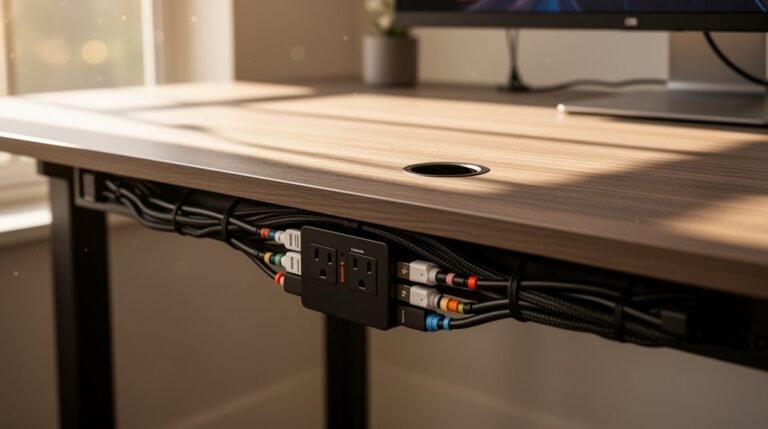
Install under-desk cable trays to hold power strips and cables, keeping your workspace clutter-free. Many trays include mounting brackets for easy attachment and openings for cable routing.
Cable Sleeves and Ties
Consider braided cable sleeves to bundle multiple cables while maintaining flexibility. Velcro straps and clips can help adhere cable bundles to surfaces, allowing easy adjustments.
Integrated Solutions
Look for modular systems that combine clamps, trays, and sleeves for seamless integration with your monitor arm setup.
Steps to Hide Cables Effectively With a Monitor Arm
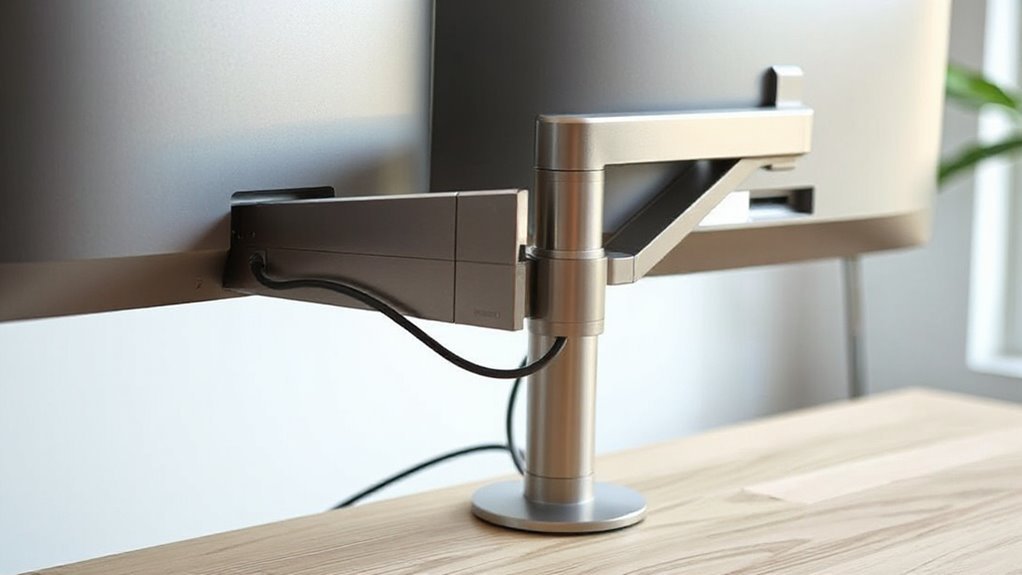
Hiding cables effectively with a monitor arm involves several precise steps that enhance both organization and aesthetics.
First, prepare cables for routing by measuring lengths, trimming excess, grouping by type, and labeling each one. Unplug all devices to guarantee safe handling.
Next, utilize built-in cable management features, securing cables with clips and routing them through enclosed channels. As you route cables, start from the monitor’s ports, guiding them along the arm while keeping them parallel to its movement.
Then, anchor cables at desk level using adhesive clips, directing them to a cable tray.
Finally, inspect your setup, confirming no cables restrict movement, and verify all connections are accessible and secure. This guarantees a clean, organized workspace.
Benefits of Using Monitor Arms With Built-In Cable Management
When you incorporate monitor arms with built-in cable management into your workspace, you immediately enhance both aesthetics and functionality.
These arms provide a clean, organized appearance by concealing cables, reducing visual clutter. This minimalist design enhances your workspace’s professional look.
Elevated monitors free up valuable desk space, allowing room for documents and peripherals, especially beneficial in smaller setups.
Integrated cable management systems prevent tangling, using clips and channels to keep cords secure and accessible. Proper monitor positioning supports ergonomic health, reducing eye strain and discomfort.
Additionally, monitor arms are cost-effective, with prices ranging from $40 to $500, and feature easy installation options. This investment leads to long-term productivity and improved workspace quality.
Monitoring and Maintenance Tips for Cable Management
Effective cable management doesn’t stop at installation; it requires ongoing monitoring and maintenance to guarantee a tidy workspace.
Start by scheduling monthly inspections of all cable management components. During these checks, look for loose or damaged cable clips, frayed cables, and confirm all cable ties are secure.
Group cables by function to simplify identification, using sleeves or straps for bundling. Route cables through designated channels on your monitor arm while avoiding over-tightening ties.
Regularly clean cables and dust management accessories to prevent buildup. Remove unused cables to minimize clutter.
Finally, measure cable lengths to confirm they allow full monitor arm movement without strain, while leaving some slack for flexibility in your desk setup.
Selecting the Right Monitor Arm for Your Setup
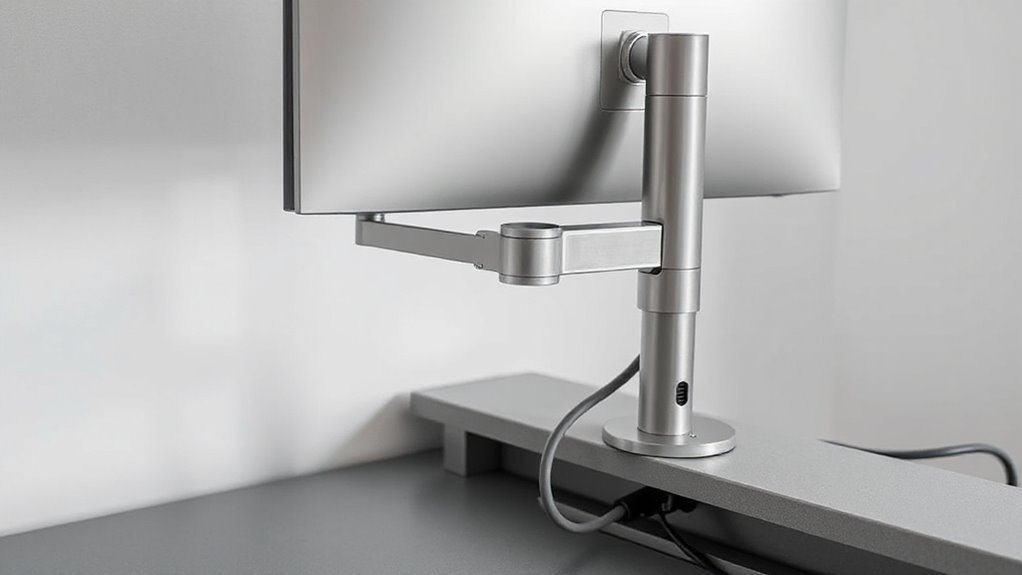
Selecting the right monitor arm for your setup is essential for optimizing your workspace.
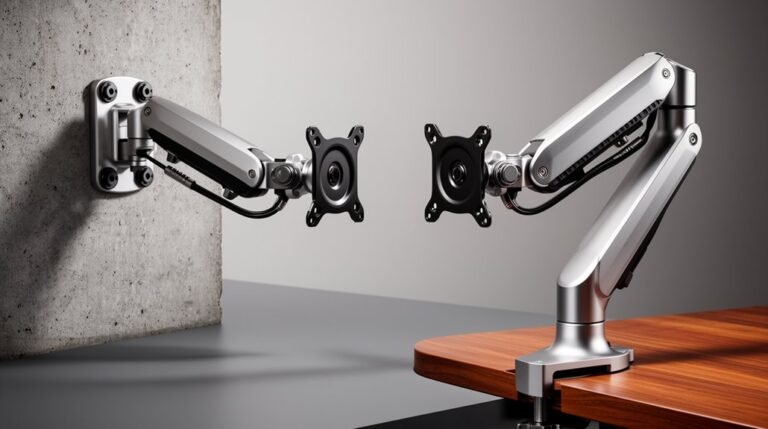
Consider wall-mounted designs for smaller areas, as they save desk space and enhance aesthetics. Choose desk-mounted options if you need easy repositioning and flexibility; these typically use clamps for sturdy support.
Evaluate cable management features, like integrated clips and channels, to keep cords organized and concealed. Assess adjustability; look for models offering swivel, tilt, and height adjustments to reduce eye strain and support multiple monitors.
Confirm installation suits your desk configuration; tool-free assembly simplifies setup.
Ultimately, balance workspace size, aesthetic preferences, and functional needs to find a monitor arm that enhances both organization and ergonomics in your environment.
Frequently Asked Questions
Can I Use Any Monitor Arm for Cable Management?
No, you can’t use just any monitor arm for effective cable management.
Most arms offer varying levels of cable management features, like clips, channels, or sleeves. Higher-end models provide enclosed routing systems, while budget options might only include basic zip ties.
Check specifications for compatibility with cable types and thicknesses. Verify the arm supports the necessary number of cables for your setup, especially in multi-monitor configurations.
How Do I Choose the Right Cable Management Accessories?
To choose the right cable management accessories, assess your setup’s needs.
Consider cable clips for securing frequently used wires, Velcro ties for easy bundling, and cable sleeves for protection.
Under-desk trays organize larger setups, while grommet holes facilitate discreet routing.
Match accessories with your monitor arm type—integrated systems simplify installation.
Evaluate color options for aesthetics.
Prioritize functionality and neatness to maintain a clutter-free workspace, enhancing both usability and appearance.
Are Monitor Arms Compatible With All Monitor Sizes?
Monitor arms aren’t compatible with all monitor sizes. They typically support specific size ranges, usually between 13 to 32 inches.
Each arm has weight limits based on size, requiring heavy-duty models for larger screens. For ultra-wide monitors, specialized arms accommodate their unique width and weight distribution.
Always check your monitor’s VESA mount pattern, size, and weight against the arm’s specifications to guarantee a secure and stable setup.
Will Cable Management Affect Monitor Arm Mobility?
Yes, cable management does affect monitor arm mobility. Properly managed cables guarantee free movement, allowing for tilt, swivel, and height adjustments without restriction.
Use longer cables to avoid tension during adjustments, and route them through clips or channels along the arm. This keeps cables aligned with movements, reducing wear.
Avoid tight bundling; maintain slack to accommodate dynamic repositioning. Effective cable management enhances functionality and extends the lifespan of both the cables and the monitor arm.
How Do I Clean Cables and Monitor Arms Effectively?
To clean cables and monitor arms effectively, unplug and carefully disconnect cables.
Use a microfiber cloth dampened with water or mild soap to wipe down surfaces, avoiding abrasive materials. For stubborn dirt, apply diluted isopropyl alcohol sparingly.
Use soft brushes to remove dust from hard-to-reach areas. Bundle cables with Velcro straps for easy access, and regularly inspect cable channels to maintain cleanliness and functionality.
Implement a monthly cleaning schedule for best results.
Conclusion
To summarize, mastering cable management with a monitor arm isn’t just about aesthetics; it’s a technical endeavor.
By leveraging built-in features and supplementary accessories, you can create a streamlined workspace.
Proper selection of monitor arms, along with routine maintenance, guarantees peak functionality.
So, while cables may tempt you to envision a chaotic jungle, you can instead cultivate a tidy oasis—one where wires disappear as if by magic, leaving you free to focus on productivity.