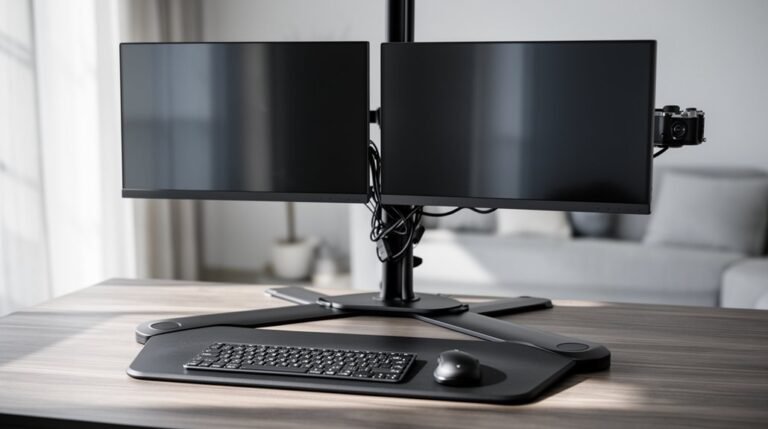
Monitor Positioning Tips for Dual Setups
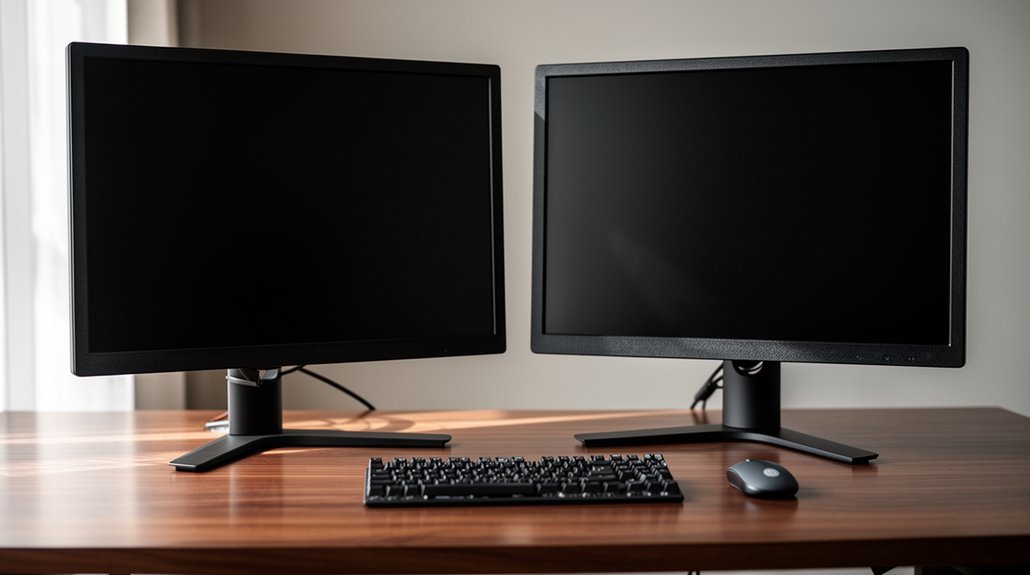
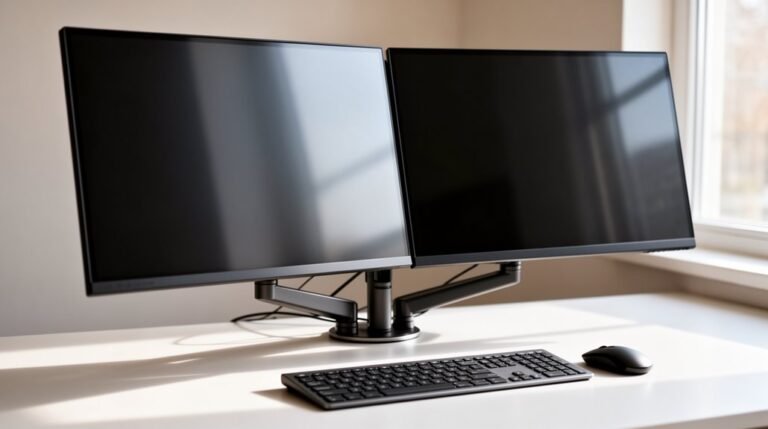
Monitor Positioning Tips for Dual Setups: Position your dual monitors side-by-side with the edges touching to minimize head rotation and make switching between screens easier.
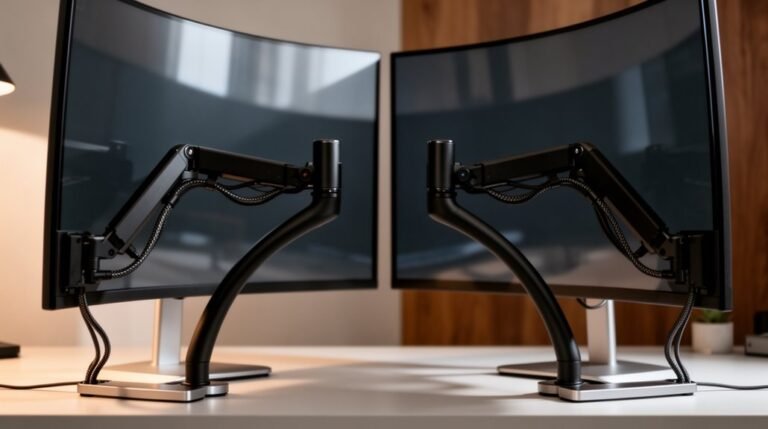
Angle each monitor inward about 10 to 20 degrees so your eyes travel a shorter distance and your neck stays comfortable. Keep the top of each screen at eye level and place them roughly 20 to 30 inches away for optimal viewing.
Adjust your chair so your feet are flat on the floor and your lower back is supported. This helps maintain good posture during long sessions.
Minimize glare by checking room lighting and adjusting monitor tilt. Small changes to light sources and screen angle can greatly improve visibility and reduce eye strain.
Optimal Monitor Arrangement
When setting up your monitors, proper arrangement is essential for reducing strain and enhancing productivity.
Arrange dual monitors side-by-side, with edges touching, to minimize head rotation. Position them in a slight semi-circle, aligning with your natural eye movement.
For primary-secondary setups, place the primary monitor directly in front and angle the secondary screen to the side for easy access. If space is limited, consider stacking monitors vertically, ensuring height alignment to avoid neck strain.
Maintain symmetry by keeping both screens at equal prominence and eye level. Align all monitors at the same height, with the tops slightly below your eye level. This will help ensure that you are within the acceptable visual zone for optimal comfort.
Consistent brightness and resolution across screens will further reduce eye strain and visual fatigue.
Ergonomic Considerations for Height and Distance
To guarantee ideal comfort and productivity, you must carefully consider the height and distance of your monitors. Proper positioning minimizes strain and enhances focus. Follow these guidelines:
- Monitor Height: Position the top of the screen at or slightly below eye level to maintain neutral neck posture.
- Viewing Distance: Maintain a distance of 20 to 30 inches (50-65 cm) from your eyes to the screen for optimal viewing.
- Bifocal Adjustments: If you wear bifocals, lower your monitors by an additional 1 to 2 inches for comfort. Proper ergonomics enhances health, comfort, performance, and job satisfaction.
- Consistent Distance: Ascertain both monitors maintain the same distance to prevent neck strain during extended use.
Effective Angling and Orientation
Proper monitor angling and orientation are essential for optimizing your workspace.
Position your monitors adjacent, with the inner edges nearly touching, and angle each inward by 10 to 20 degrees. This configuration creates a cockpit-style curve, centering the bezel seam directly in front of your body and keyboard.
For asymmetrical workflows, place your primary monitor directly in front, while the secondary monitor should be angled inward at 15 to 30 degrees. Align the top edges of both displays horizontally to maintain visual consistency.
Guarantee minimal gaps between screens to support natural eye scanning patterns. Regularly adjust angles for comfort, as this reduces neck strain and eye fatigue during extended use, enhancing overall productivity. Additionally, proper monitor positioning ensures that you can easily transition between tasks without straining your eyes or neck.
Posture and Chair Setup for Comfort
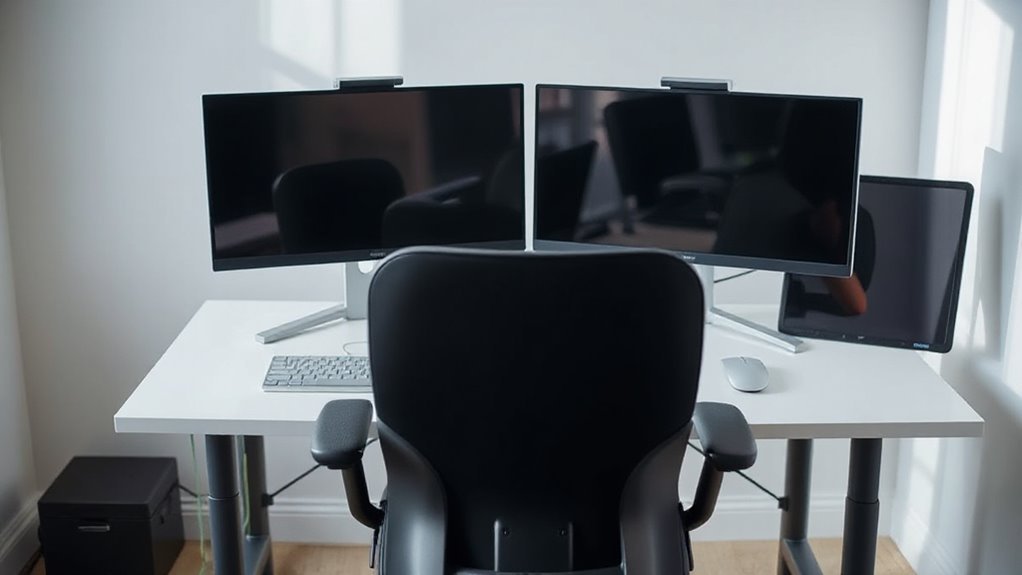
Achieving an ergonomic workspace starts with your chair setup. Proper adjustments reduce discomfort and improve productivity. Follow these guidelines for ideal chair positioning:
- Seat Height: Adjust so your feet are flat on the floor, knees bent at 90 degrees, and the seat’s highest point is just below your kneecap.
- Backrest Configuration: Position the backrest to fit your lower back’s natural curve, recline slightly, and verify it doesn’t pressure your thighs.
- Armrest Height: Set armrests to elbow height, allowing forearms to rest comfortably while elbows remain bent at 90 degrees.
- Seat Depth: Confirm the seat depth supports your back while leaving 2-3 fingers’ clearance at the seat’s front edge.
These adjustments enhance comfort, stability, and overall well-being during work.
Creating the Right Environment to Reduce Glare
Creating the right environment to reduce glare is essential for maintaining visual comfort and productivity while working at your computer.
Position your monitors perpendicular to windows to avoid direct reflections. Use vertical blinds for East/West windows and horizontal blinds for North/South setups to block harsh sunlight.
Adjust overhead lighting, turning it off if it creates glare, and utilize task lighting to enhance workspace visibility without shining on screens.
Tilt monitors slightly downward to minimize reflections and keep them at eye level for ideal posture.
Employ anti-glare screens or monitor hoods if natural light is significant.
Finally, adjust brightness settings to match surrounding light, ensuring balanced illumination and reduced eye strain during work hours.
Frequently Asked Questions
What Type of Monitors Are Best for Dual Setups?
For dual setups, 27-inch monitors are ideal due to their size and resolution.
Opt for 4K resolution for clear visuals and better productivity. IPS panels are recommended for their wide viewing angles and color accuracy.
Look for ultra-thin bezels to reduce distractions and enhance alignment. Monitors with USB-C connectivity simplify cable management.
Additionally, adjustable stands allow for ergonomic positioning, ensuring comfort during extended use.
How Can I Manage Cables in a Dual Monitor Setup?
To manage cables in a dual monitor setup, use cable ties or Velcro strips for bundling.
Group similar cables, like power and data, to minimize clutter. Secure bundles under the desk for a cleaner look.
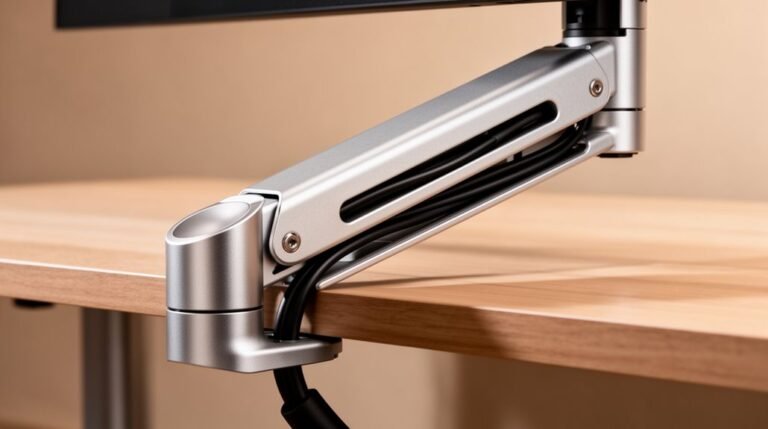
Consider monitor arms with built-in cable management, which conceal wires effectively.
Utilize cable trays to keep power strips organized.
Finally, wireless devices can reduce cable clutter, but make sure monitors remain connected with necessary wired connections for peak performance.
Can I Use Different Monitor Brands Together?
Yes, you can use different monitor brands together. Compatibility depends on available video outputs like HDMI and DisplayPort.
Most operating systems, such as Windows and macOS, support this setup. However, keep in mind that differences in color accuracy and brightness may occur due to diverse panel technologies.
Additionally, resolution mismatches or refresh rate variations can lead to visual inconsistencies, so it’s important to take into account these factors when configuring your dual setup.
What Software Can Help Manage Dual Monitor Displays?
To manage dual monitor displays effectively, consider software like DisplayFusion, Synergy, Actual Multiple Monitors, or UltraMon.
DisplayFusion offers customizable taskbars and window organization.
Synergy enables seamless control across screens with a single mouse and keyboard.
Actual Multiple Monitors enhances navigation with additional titlebar buttons.
UltraMon simplifies window movement and maintains application sizes.
Each option provides unique features to optimize your workflow, ensuring a more efficient multi-monitor experience.
How Do I Adjust Settings for Color Consistency Between Monitors?
To adjust settings for color consistency between monitors, start by calibrating each display individually using hardware colorimeters for accurate ICC profiles.
Adjust color temperature, brightness, and RGB values in the on-screen display. Validate adjustments with test patterns to guarantee matching colors.
Regularly recalibrate to account for ambient light changes or monitor aging. Use a reference monitor for critical work, adjusting secondary displays to visually align with it, minimizing discrepancies.
Conclusion
In conclusion, positioning your monitors correctly enhances both productivity and comfort.
Like a well-tuned instrument, each element must align for peak performance. Make certain your monitors are at eye level, about an arm’s length away, and angled slightly backward.
Adjust your chair to maintain an upright posture.
Minimize glare by positioning screens away from windows and bright lights.
By following these guidelines, you create an effective workspace that supports long hours of focused work.