Dual Monitor Ergonomics: Alignment and Spacing
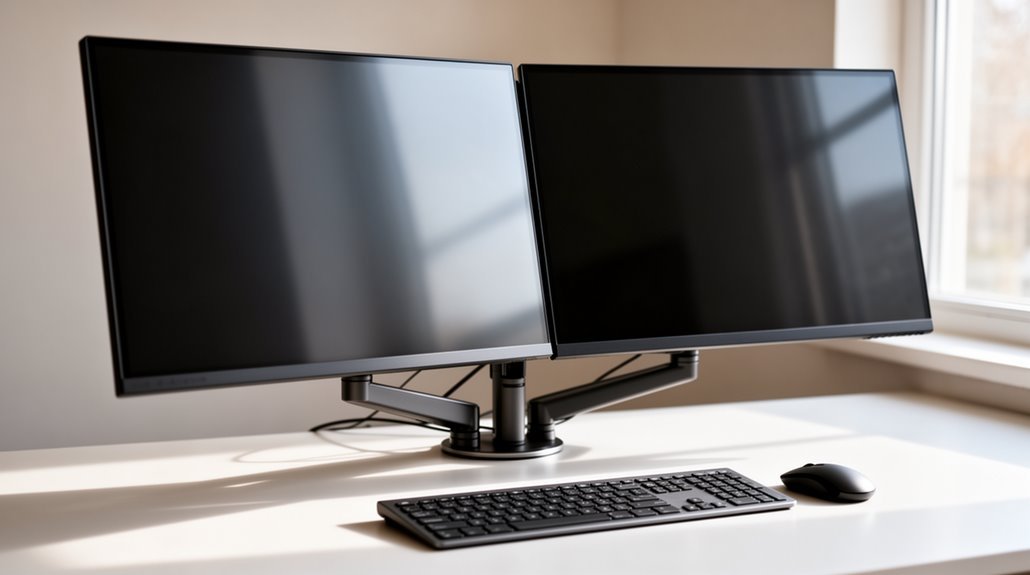
Dual monitor ergonomics: For ideal dual monitor ergonomics, position your primary monitor directly in front of you with the top line at or slightly below eye level. This helps reduce neck strain and keeps your posture neutral.
Set your secondary monitor at about a 30-degree angle to the primary screen, making sure both monitors are at similar heights to avoid repeated head tilts.
Maintain a viewing distance of roughly 20 to 30 inches for screens sized 22–25 inches, and increase that distance for larger monitors as needed.
Tilt monitors slightly back to minimize glare, and take regular breaks to enhance comfort and productivity. Further insights follow.
Primary Monitor Placement
Positioning your primary monitor correctly is essential for an ergonomic setup. Place your monitor directly in front of you to avoid twisting your head and neck, which can lead to discomfort. The top line of the screen should sit at or slightly below eye level, aligning your gaze with a point 2-3 inches below the top of the monitor casing. Maintain a viewing distance of at least 20 inches to prevent eyestrain, ideally between 50-65 centimeters. Tilt the monitor back slightly, between 10-20 degrees, to reduce neck strain. Finally, position the monitor away from windows and lights to minimize glare. Proper placement not only enhances comfort but also promotes productivity by ensuring your primary monitor remains the central focal point of your workstation. Additionally, maintaining an appropriate viewing angle is crucial for reducing the risk of work-related musculoskeletal disorders.
Secondary Monitor Positioning
Correctly setting up your secondary monitor is key to maximizing your ergonomic workspace.
Position your secondary monitor about 30 degrees away from your primary monitor, creating a slight V-shape. This setup allows for ideal viewing angles between 15-30 degrees, reducing neck rotation. Keep it at arm’s length, ideally 50-65 cm away, ensuring consistent viewing comfort. Additionally, ensure that both monitors are at similar heights to prevent neck strain.
If you use both screens equally, center your body between them, aligning your eyeline at their midpoint. For less frequent use, angle the secondary monitor toward your dominant eye.
Maintain similar heights for both monitors to prevent neck strain. Close proximity between the screens facilitates easy eye movement and minimizes excessive head turns, enhancing your overall comfort and efficiency.
Screen Height and Eye Level
Achieving the ideal screen height is essential for reducing neck strain and enhancing overall comfort while using dual monitors.
Position the top of 22″-24″ monitors at or slightly below eye level. For 27″ monitors, align the top of the screen at eye level, with the center 17-18 degrees below horizontal eye level.
If you’re using 32″ or larger monitors, set the center at eye level to guarantee full visibility. For ultrawide monitors, keep the center at eye level and sit further back. Regularly assess monitor positioning to ensure both screens align at the same height to prevent strain. Remember, a slight downward gaze of 2-3 inches below eye level is generally recommended for maximum comfort and viewing.
Optimal Viewing Distance
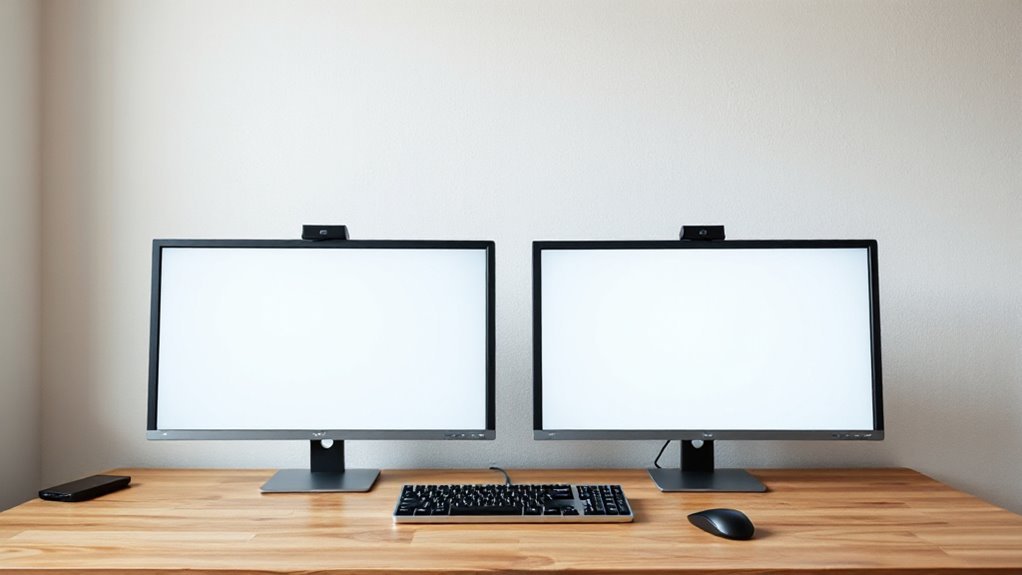
When using dual monitors, maintaining the right viewing distance is key to comfort and productivity. For most monitors, the recommended distance is 20 to 30 inches (50 to 76 cm).
Larger monitors, like those between 27 and 32 inches, may require a distance of up to 36 inches (90 cm). Ideally, position your monitors at arm’s length for best viewing.
For a 22 to 25 inch screen, aim for 20 to 30 inches, while a 27 inch monitor should be 24 to 36 inches away. If you’re using a 39 to 40 inch monitor, maintain a distance of 32 to 48 inches (80 to 120 cm).
Adjust your distance based on monitor size and resolution to prevent eye strain.
Monitor Tilt and Glare Reduction
Proper monitor tilt and glare reduction are critical for optimizing your dual monitor setup. Aim to tilt the top of your screens slightly away from you, typically at a 10 to 20-degree angle. This adjustment aligns the screen with your line of sight, reducing visual distortion and eye strain.
Avoid excessive tilt, as it can lead to neck strain and hinder readability, especially if you wear bifocals or progressive lenses.
To minimize glare, position monitors perpendicular to windows and bright lights. Use monitor hoods or anti-glare filters to reduce reflections, and adjust ambient lighting for balanced brightness.
Keeping both monitors tilted uniformly ensures visual consistency and prevents discomfort, enhancing your productivity during extended use.
Ergonomic Posture Guidelines
Ergonomic posture guidelines play an essential role in maintaining comfort and productivity during long hours at your dual monitor setup.
Make sure your chair allows your feet to rest flat on the floor, with knees bent at approximately 90 degrees. Support your lower back with the chair’s backrest to maintain a neutral posture, reducing fatigue and strain.
Distribute your body weight evenly across both hips, avoiding slumping. Keep your head aligned with your spine and position your eyes with the top third of the primary monitor.
Your forearms should rest parallel to the desk, with elbows bent at 90 degrees. Finally, take breaks every 30-60 minutes to stretch and adjust your seating as necessary to maintain comfort.
Lighting Considerations
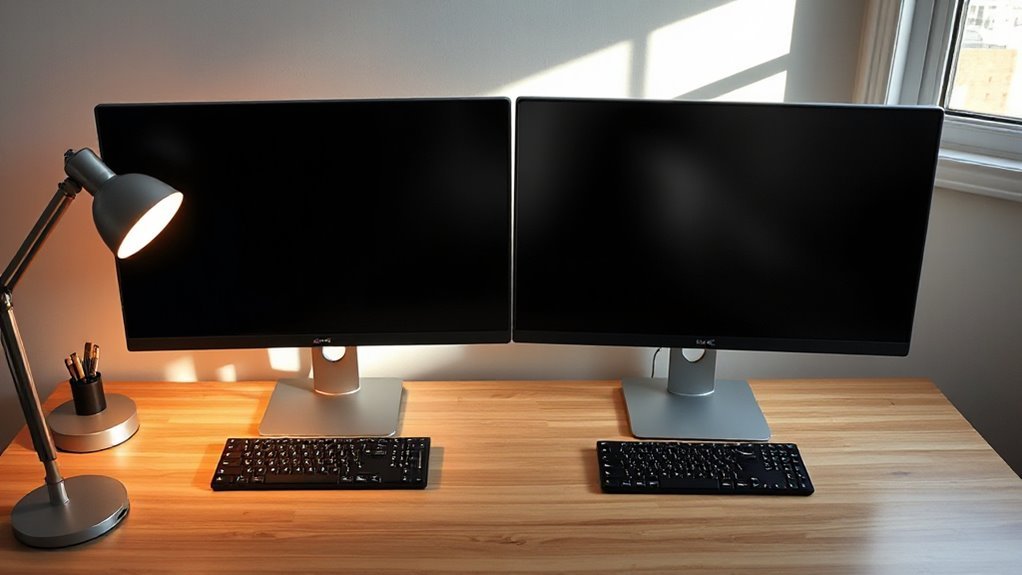
To guarantee ideal visual comfort in a dual monitor setup, it’s essential to address lighting effectively.
Minimize glare by positioning your desk with bright windows to the side, not directly in front or behind the monitors. Use adjustable blinds to control sunlight and consider anti-glare screen protectors.
Place monitor light bars centered on the primary monitor, angling them to avoid reflections. Opt for cooler light during the day and warmer light in the evening for maximum alertness and relaxation.
Set monitors about an arm’s length away, maintaining equal height for consistent light exposure. Combine ambient lighting with monitor brightness adjustments to reduce eye strain and enhance visual comfort in your workspace.
Enhancing Productivity With Dual Monitors
A well-optimized dual monitor setup not only improves visual comfort but also greatly boosts productivity.
Studies show productivity increases of 20% to 50% with dual monitors, providing significant time savings.
Here are key benefits:
- Error Reduction: Users experience up to 33% fewer errors in data-intensive tasks, enhancing accuracy.
- Time Savings: Dual monitors can save up to 2.5 hours per employee daily, minimizing window management.
- Task-Specific Advantages: Roles like financial analysts or traders benefit from improved workflow and faster execution.
- User Preference: 98% of users favor dual setups, linking satisfaction to increased productivity.
Implementing a dual monitor configuration can be a strategic move for improving both efficiency and task accuracy in your work environment.
Adjusting for Different Monitor Sizes
When setting up dual monitors of different sizes, ensuring proper adjustment is essential for maintaining comfort and productivity.
Align both monitors at the same height to minimize neck strain. Use risers or adjustable stands to set the top of each screen at or slightly below eye level.
Position the monitors so the center seam faces you, reducing head rotation. Angle both screens inward slightly, creating a gentle curve to enhance viewing comfort.
Maintain a distance of 60-70cm from each screen, adjusting as needed for size differences. Match resolutions when possible to avoid visual jumps.
Utilize monitor arms to fine-tune positioning, ensuring both screens are comfortably visible and reducing excessive head movement.
Regular Breaks and Adjustments for Comfort
Regular breaks and adjustments play an essential role in maintaining comfort during long hours of dual monitor use.
To optimize your ergonomic experience, consider implementing the following strategies:
- Follow the 20-20-20 rule: Every 20 minutes, look at something 20 feet away for 20 seconds to alleviate eye strain.
- Take short breaks: Scheduled breaks of 1-5 minutes every 30-60 minutes can reduce muscle tension.
- Incorporate microbreaks: Brief intervals of 30-60 seconds every 10-15 minutes can lower repetitive motion stress.
- Engage in stretching: Focus on neck, shoulders, and wrists during breaks to maintain flexibility and circulation.
Frequently Asked Questions
How Can I Reduce Neck Strain While Using Dual Monitors?
To reduce neck strain while using dual monitors, position the primary monitor directly in front of you at eye level, with the top third of the screen aligned with your eyes.
Place the secondary monitor close and angled inward. Keep both monitors within your natural field of view to minimize head rotation.
Take regular breaks every 20-30 minutes and maintain proper seating posture, ensuring your feet are flat on the floor for ideal support.
What Is the Best Chair Height for Dual Monitor Setups?
Your chair height should allow your feet to rest flat on the floor, with knees at approximately 90 degrees.
When seated, your elbows should also be at 90 degrees when your arms rest on the desk.
Adjust the chair so that the top of your monitors is at eye level, promoting a neutral neck position.
This setup helps maintain comfort and reduces strain during prolonged use of dual monitors.
Are There Specific Monitor Brands Recommended for Ergonomic Setups?
When it comes to ergonomic setups, you’ve got several brands to evaluate.
Dell UltraSharp monitors offer height, tilt, swivel, and pivot adjustments.
BenQ PD2730S features excellent color accuracy with similar ergonomic flexibility.
ASUS ProArt displays provide thorough adjustments, enhancing usability.
AOC Q27G3XMN is budget-friendly with essential tilt and swivel options.
Finally, Apple Studio Display integrates seamlessly with Mac systems, providing a stylish and ergonomic solution.
Choose based on your needs and device compatibility.
How Do I Effectively Manage Cable Organization With Dual Monitors?
Cable Bundling
You can use cable ties or Velcro strips to bundle your monitor cables neatly.
Group cables by type—like power and HDMI—before securing them.
Monitor Arms
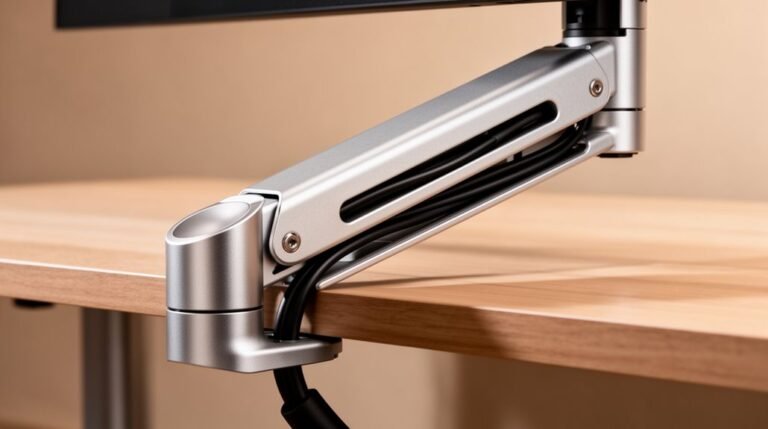
Consider monitor arms with built-in cable management channels, which conceal cables effectively.
Under-Desk Solutions
Install under-desk trays and spines to keep power strips organized.
Wireless Options
Opt for wireless peripherals to minimize clutter and enhance organization.
This way, you maintain a clean workspace.
What Exercises Can Help Alleviate Discomfort From Prolonged Monitor Use?
Eye Exercises
Perform blinking exercises to moisten your eyes, reducing dryness.
Follow the 20-20-20 rule: every 20 minutes, look 20 feet away for 20 seconds.
Incorporate eye movement exercises, shifting your gaze up and down, left and right.
Neck and Shoulder Exercises
Engage in chin nodding and side-to-side neck stretches to alleviate tension.
Regular shoulder rolls and neck stretches help maintain muscle flexibility.
Breaks
Take 30-second breaks every 30 minutes to refresh and reduce strain.
Conclusion
To summarize, properly aligning your dual monitors can enhance your workspace’s ergonomics considerably.
Position your primary monitor directly in front of you, similar to how a book rests open on a table. Keep the top of the screen at or slightly below eye level to ensure ideal viewing angles.
Maintain an arm’s length distance for comfort.
Make regular adjustments and take breaks to sustain productivity and reduce strain.
Prioritizing these elements can lead to a more efficient and healthier work environment.