How to Position Your Laptop on a Stand
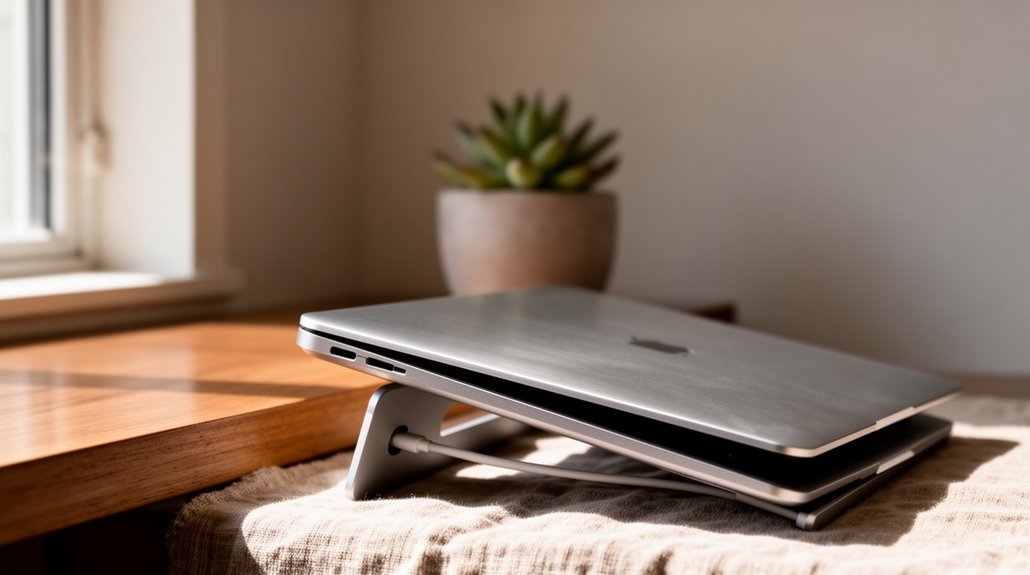
To position your laptop on a stand, keep the top edge of the screen at or slightly below eye level. Elevate the laptop about 4–6 inches above the desk to bring the screen to a comfortable height.
Maintain a viewing distance of 20 to 40 inches from your eyes for ideal visibility. Tilt the screen back 10° to 20° to enhance comfort and reduce neck strain.
Align the screen’s center with your body’s midline to prevent twisting. Adjusting these factors can greatly enhance your workspace ergonomics, while further details await you.
Understanding Ergonomic Height Positioning
When setting up your laptop, it’s crucial to contemplate ergonomic height positioning to promote comfort and reduce strain. Position the top of your laptop screen at or slightly below eye level, ensuring your neck remains in a natural posture. Elevate the screen 4-6 inches above desk level using a stable laptop stand or a stack of books. Your eyes should meet the top third of the screen when looking straight ahead, preventing excessive neck flexion. Maintain a viewing distance of 20 to 40 inches for clarity. Align the screen’s center with your body’s midline to avoid neck twisting. Proper height adjustments enhance your workspace ergonomics and contribute to overall comfort during laptop use. Additionally, using a separate keyboard and mouse allows for better positioning of the laptop screen at eye level.
Adjusting Screen Angle for Optimal Comfort
Adjusting the screen angle of your laptop is essential for achieving ideal comfort during use.
Tilt your screen back between 10° to 20° to minimize neck strain and guarantee a comfortable viewing experience. Position the screen center about 15° below your horizontal eye level, allowing for a natural downward gaze. This alignment helps maintain a neutral neck posture. Proper ergonomic setup enhances health, comfort, performance, and job satisfaction.
For maximum visibility, eliminate glare by adjusting the angle according to lighting conditions. If you wear bifocals, slightly tilting the screen back supports easier viewing through the lower lens segments.
Regularly check your screen’s position, making sure it remains directly in front, so you avoid twisting your neck. These adjustments enhance viewing comfort and reduce eye fatigue effectively.
Ensuring Stability and Design Quality
To guarantee your laptop stand remains stable and reliable, you should prioritize material selection and structural design. Choose aluminum or steel over plastic for superior durability. CNC-milled aluminum resists warping, maintaining integrity over years. Additionally, ergonomic design is crucial as it allows for optimal screen positioning, enhancing user comfort.
Ascertain the stand’s weight capacity exceeds your laptop’s actual weight, accommodating devices up to 10 kg. Look for friction-locking mechanisms to prevent wobbling, and select stands with non-slip rubber pads to avoid accidental movement.
An open-frame design enhances airflow, preventing overheating. Properly centering your laptop improves weight distribution, stabilizing the setup. Verify that the stand’s surface area supports your device dimensions, especially for laptops ranging from 14 to 17 inches.
These features collectively guarantee a stable and durable laptop stand.
Incorporating Auxiliary Ergonomic Factors

Positioning your laptop on a stand not only enhances stability but also considerably improves user ergonomics. Elevating your screen to eye level reduces neck strain, preventing hunching and promoting natural body alignment.
Height-adjustable stands allow customization for various desk setups. Proper screen positioning decreases visual fatigue, enhancing focus on your work.
Additionally, elevated laptops alleviate backaches, aligning your spine correctly. This adjustment reduces neck pain notably.
Stands with integrated cooling features promote airflow, maintaining ideal device performance and preventing overheating during intensive tasks. By integrating external keyboards and mice, you can further enhance posture and accessibility.
Integrating Your Work Environment
Integrating your work environment involves more than just setting up a laptop stand; it requires a thoughtful arrangement of your workspace to enhance productivity and comfort.
Position your screen at eye level, aiming for a viewing angle of 15-20 degrees downward. This reduces neck strain and keeps your neck aligned. Maintain an ideal viewing distance of 50-70 cm, ideally at arm’s length, to prevent eye strain.
Organize your workspace by placing an external keyboard and mouse below the laptop for neutral wrist positioning. Guarantee sufficient desk space around the stand for easy access to tools.
Finally, position the stand away from direct light sources to minimize glare, guaranteeing a comfortable and efficient working environment.
Recognizing Health and Productivity Benefits
When you use a laptop stand, you’ll likely notice significant health and productivity benefits. Studies show that using a stand can reduce back and neck pain by 35%, and decrease the risk of neck discomfort by 40%.
Proper height and angle promote better posture, aligning your spine and reducing strain. Laptop stands can also lower the risk of computer vision syndrome by 25%, enhancing eye comfort.
Improved posture leads to increased typing accuracy and concentration, allowing for longer work sessions. Additionally, many users report higher energy levels and fewer work absences due to pain.
Ultimately, a properly positioned laptop helps prevent repetitive strain injuries, contributing to overall health and greater productivity in your daily tasks.
Regularly Assessing and Adjusting Your Setup

Regular assessments of your laptop setup are essential for maintaining comfort and productivity over time. Start by evaluating your posture; look for signs of discomfort in your neck, shoulders, or wrists.
Use checklists to review your chair height, monitor position, and keyboard placement. Ideally, position the laptop screen at or slightly below eye level, maintaining an arm’s length distance. Adjust the keyboard and mouse to be at or slightly below elbow height to support a natural wrist posture.
Regularly check ambient lighting to minimize glare, and consider using task lighting for better visibility. Document any discomfort patterns to track improvements or persistent issues, ensuring your setup remains ergonomic and effective for your needs.
Frequently Asked Questions
What Materials Are Laptop Stands Typically Made From?
Laptop stands are typically made from several materials: aluminum, steel, plastic, wood, and acrylic.
Aluminum’s lightweight and durable properties provide excellent heat dissipation, while steel offers maximum support for heavier laptops.
Plastic stands are cost-effective and portable, though less stable.
Wooden stands add elegance and are eco-friendly, whereas acrylic stands are visually appealing but less durable.
Each material presents unique benefits and drawbacks, influencing your choice based on needs and preferences.
Can I Use a Laptop Stand With a Tablet?
Yes, you can use a laptop stand with a tablet. Many stands, like the Lifelong X-tend, support both devices.
They feature adjustable heights and grips that secure tablets, preventing slipping. Additionally, stands often allow portrait or landscape orientations, enhancing usability.
However, verify compatibility with your tablet’s size and case. Remember, “a stitch in time saves nine,” so double-check stability before prolonged use to avoid potential issues.
Are There Specific Weight Limits for Laptop Stands?
Yes, there are specific weight limits for laptop stands.
Premium portable stands can hold laptops up to 13 pounds, while most aluminum stands support a maximum of 11 pounds.
Foldable compact stands typically accommodate up to 6.6 pounds, and heavy-duty monitor arm mounts can handle up to 19.8 pounds.
Always verify the weight capacity before purchasing to make sure your laptop’s weight doesn’t exceed the stand’s limits for ideal stability and safety.
How Do I Clean and Maintain My Laptop Stand?
To clean your laptop stand, disconnect all devices and disassemble removable parts.
Use a microfiber cloth for dust, and compressed air for joints and hinges.
For stubborn grime, a mild soap solution on plastic stands works well.
After cleaning, dry thoroughly and reassemble without loose components.
Check for wear or damage regularly.
Maintain your stand every two to three weeks to guarantee longevity and peak performance.
Store it in a dust-free environment.
Can I Use a Laptop Stand While Sitting on a Couch?
Yes, you can use a laptop stand while sitting on a couch.
Choose a stand with adjustable height and angle settings for ergonomic comfort. Confirm the stand features non-slip feet to maintain stability on soft surfaces.
Select a compact design for easy portability. Make certain it supports your laptop size, typically up to 17 inches.
Position the stand for ideal airflow and proper screen alignment to reduce neck strain and enhance productivity.
Conclusion
Positioning your laptop on a stand can greatly enhance your work setup.
For example, a case study of an office worker showed increased productivity after adjusting their laptop height to eye level.
Aligning the screen with your line of sight reduces neck strain.
Regularly assess your workspace to ensure your setup remains stable and ergonomic.
These adjustments lead to improved health and productivity, creating a more efficient work environment.