Posture Tips for Sitting in an Office Chair
Posture Tips for Sitting in an Office Chair
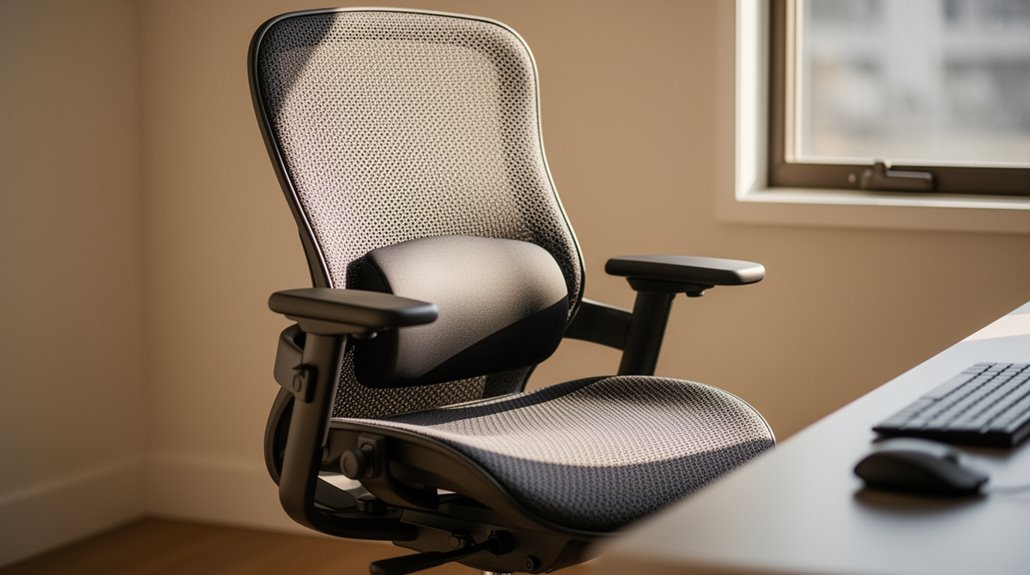
To maintain proper posture in an office chair, adjust the height so your feet rest flat on the floor and your thighs are parallel to the ground. Confirm your lumbar support aligns with your lower back curve, ideally about 190 mm above the seat.
Position your monitor at eye level, about 20 to 40 inches away, to reduce neck strain. Adjust armrests to support your forearms at about 90–100 degrees.
For more details on optimizing your workspace, explore further.
Chair Height Adjustment
Adjusting your office chair to the correct height is essential for maintaining comfort and preventing strain during long hours of work. Your chair height should allow your feet to rest flat on the floor, with thighs parallel to the ground or slightly sloping downward. Aim for a knee angle of 90° to 100° relative to your hips, guaranteeing your hips sit slightly higher than your knees. For ideal ergonomics, the ideal chair height typically ranges from sitting knee height to 2 inches above. If your sitting knee height is 18 inches, adjust your chair to 18–20 inches. Always verify your chair height works well with your desk, which usually stands at 28–30 inches for compatibility. Regular adjustments are key, as proper chair height supports healthy posture and minimizes strain on joints.
Back Support and Lumbar Alignment
Back support plays an essential role in maintaining healthy spinal alignment during prolonged periods of sitting.
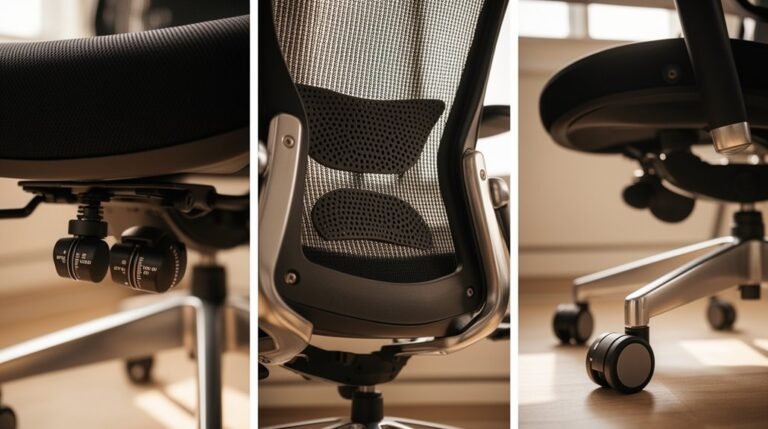
Proper lumbar support should align with the natural inward curve of your lower back, typically at belt level. This placement helps maintain the spine’s natural S-curve, reducing disc pressure and preventing discomfort. If the support is positioned too high or low, it can disrupt spinal alignment and cause strain. Adjustable lumbar support allows you to customize the height and depth to fit your unique body shape, enhancing comfort. For reference, the mean preferred lumbar support height is about 190 mm above the seat surface. Additionally, proper lumbar support considerably reduces lower back pain, contributing to overall well-being while working.
Maintaining a neutral spine and pelvic posture considerably reduces the risk of mechanical lower back pain.
Armrest and Desk Positioning
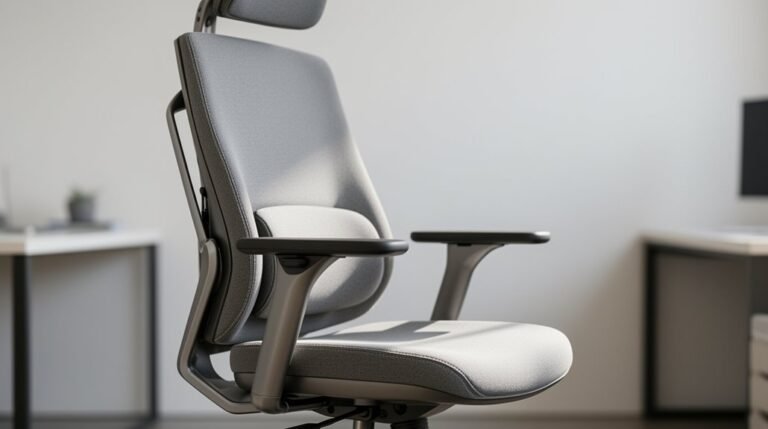
Proper armrest and desk positioning is vital for maintaining ergonomic integrity while you work. Adjust your armrests so your elbows bend at approximately 90–100 degrees. This angle keeps your shoulders relaxed and prevents strain.
Make sure armrests slightly lift your forearms without pushing your shoulders upward. Your desk should allow you to sit close, with armrests fitting under it comfortably.
The width and depth of armrests should be adjustable to support your forearms without forcing them to hang. Aim for at least 7.5 cm (3 inches) of forearm support to minimize discomfort. Dynamic adjustment of armrests throughout the day caters to different tasks, relieving shoulder tension and enhancing overall comfort, which is essential for your productivity and well-being.
Monitor and Screen Placement
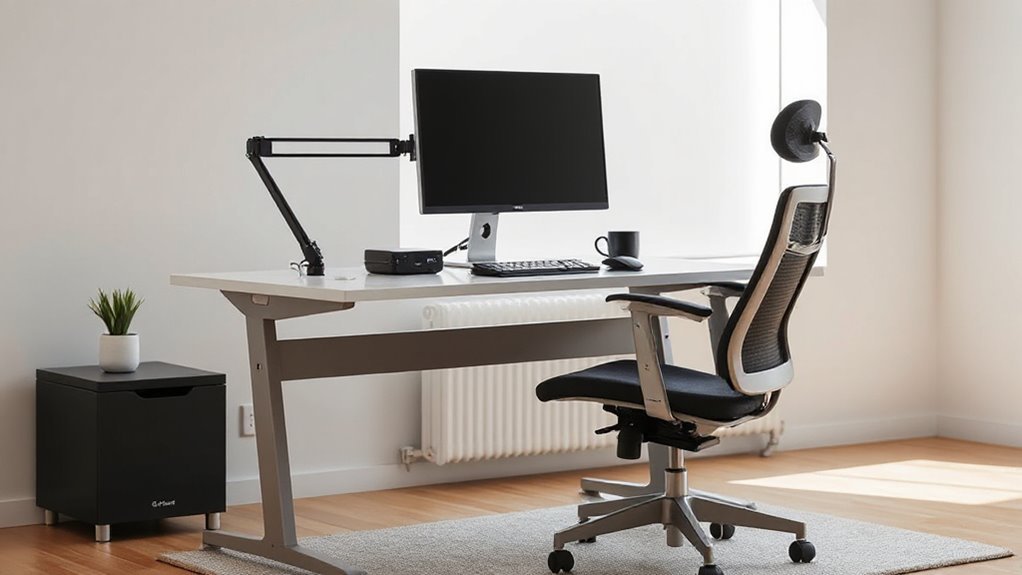
Effective monitor and screen placement is essential for reducing eye strain and maintaining good posture during prolonged computer use.
To optimize your setup, consider these guidelines:
- Position the monitor 20 to 40 inches away from your eyes, ideally at arm’s length.
- Align the top of the screen at or slightly below your eye level, allowing your eyes to rest 2-3 inches below the monitor’s top.
- Maintain a downward viewing angle of 15-20 degrees to minimize neck strain.
- Ascertain the monitor is directly in front of you, avoiding any twisting of the neck.
Sitting Posture and Movement
To maintain ideal sitting posture while working at your desk, focus on aligning your body correctly to reduce strain and discomfort. Keep your upper back straight and shoulders relaxed to minimize spinal stress.
Position your hips far back in the chair, ensuring your lower back maintains contact with the lumbar support. Avoid slouching to prevent kyphosis.
Your feet should be flat on the floor or a footrest, with knees at or slightly below hip level, creating a 90° angle. Change sitting positions frequently to reduce fatigue; stand and move every 50 minutes.
Incorporate small stretches while seated, maintaining a neutral pelvis and avoiding twisting of the torso. Regularly check your posture to stay aligned throughout the workday.
Seat and Chair Features
Choosing the right chair involves understanding key features that enhance comfort and support. Here are essential aspects to take into account:
- Seat Height Adjustment: Customizes to your height, ensuring feet rest flat on the floor and knees align with hips.
- Lumbar Support: Maintains your spine’s natural curve, reducing lower back strain and promoting better posture.
- Seat Material and Cushioning: Options like foam or mesh provide varying comfort levels, helping to reduce pressure points during long hours.
- Armrest Features: Adjustable for height, width, and angle, allowing your arms to rest comfortably at desk level, minimizing shoulder strain.
These features are vital in creating a supportive workspace that reduces discomfort and promotes productivity.
Importance of Taking Breaks
While sitting may seem like a low-energy task, consistent periods of inactivity can lead to considerable health risks. Prolonged sitting can account for up to 80% of your workday, increasing your chances of type 2 diabetes, cardiovascular disease, and obesity.
Taking breaks reduces these risks. Research shows that frequent breaks improve metabolic profiles, including lower waist circumference and better blood glucose control. Just a five-minute walk every half hour can considerably offset the negative effects of sedentary behavior.
Additionally, breaks enhance cognitive function; 71% of participants report improved focus and productivity after regular interruptions. Prioritizing short breaks not only benefits your health but also boosts your overall work performance.
Tips for Creating a Comfortable Workspace
Creating a comfortable workspace is essential for maintaining productivity and well-being during long hours of work. To enhance your workspace, consider these tips:
- Select ergonomic furniture: Use adjustable chairs with lumbar support and sit-stand desks to promote comfort and movement.
- Optimize layout: Arrange your desk for easy access to items, minimizing excessive reaching or twisting.
- Control lighting and environment: Utilize natural light, maintain a comfortable temperature, and reduce noise distractions to improve focus.
- Set up equipment correctly: Position monitors at eye level, place keyboards and mice at elbow height, and guarantee adequate desk surface area to prevent clutter.
Implementing these strategies can help create a workspace that supports both comfort and productivity.
Frequently Asked Questions
How Often Should I Change My Sitting Position?
You should change your sitting position every 20 to 30 minutes. This aligns with expert recommendations, promoting better health and reducing risks associated with prolonged sitting.
Aim for at least 40 position changes throughout your workday. Incorporating standing or light activity for 10 to 15 minutes every hour can further enhance your well-being.
Additionally, consider using reminders to maintain this frequency, ensuring you stay active and less sedentary during your work hours.
What Are the Best Exercises for Office Workers?
Incorporate upper body stretches like the triceps stretch and latissimus stretch to relieve tension.
For neck and shoulder relief, perform neck side bends and shoulder rolls.
Include wrist and hand stretches such as wrist bends and finger stretches to counteract repetitive strain.
Finally, engage in leg and core exercises like hip flexion stretches and desk planks to strengthen muscles.
Aim for 10–30 seconds per stretch, repeating as needed to maintain flexibility.
How Can I Reduce Eye Strain While Working?
Position your screen slightly below eye level, about 25 inches away. Adjust brightness to match the room’s light.
Follow the 20-20-20 rule: every 20 minutes, look 20 feet away for 20 seconds. Use anti-glare screens or protective coatings to minimize reflections.
Stay hydrated to combat dry eyes. Consider blue-light blocking glasses and schedule regular eye exams to monitor any strain.
Implement breaks to alleviate cumulative eye fatigue throughout the workday.
What Should I Do if My Chair Is Uncomfortable?
To enhance your comfort, adjust your chair’s height and depth. Your feet should rest flat on the floor, knees bent at about 90 degrees.
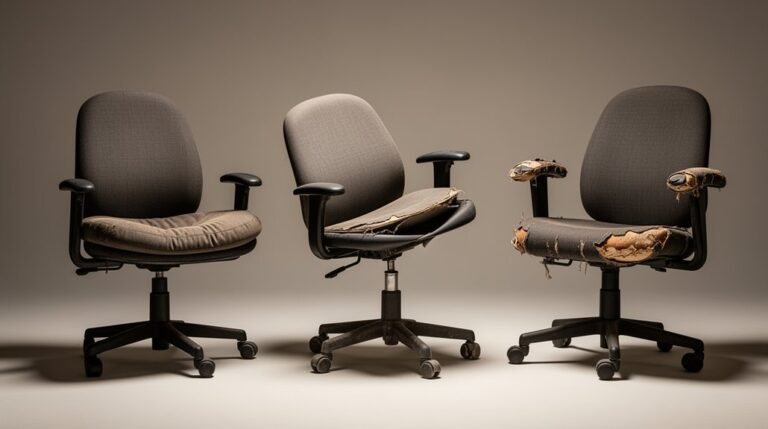
Consider adding lumbar support, like a small pillow, to maintain your spine’s natural curve. If your chair’s cushioning feels inadequate, explore memory foam or gel cushions for better pressure distribution.
Regularly check your workstation setup—monitor height and armrest positioning can greatly impact your overall comfort during long hours.
How Can I Personalize My Workspace for Better Productivity?
To enhance your productivity, adjust your desk height so it aligns with your elbows, keeping your wrists neutral.
Position your monitor at eye level to reduce neck strain. Use a footrest if your feet don’t touch the floor, ensuring proper spinal alignment.
Incorporate noise management solutions, like sound masking, to minimize distractions.
Finally, utilize technology that centralizes data, streamlining communication and reducing interruptions during focused work periods.
Conclusion
In the domain of office ergonomics, your chair is your throne. Adjust its height so your feet rest flat, creating a stable foundation. Also consider ergonomic chair seating tips when positioning your arms; they should rest comfortably on the armrests to avoid strain. Incorporating lumbar support can make a significant difference in maintaining proper posture throughout the day. Lastly, remember to take breaks and adjust your seating periodically to enhance overall comfort and productivity.
Align your lumbar support with your lower back to foster proper spine alignment.
Position your arms comfortably at your desk, and make sure your monitor’s screen sits at eye level.
Remember, even the tallest trees need to sway; take regular breaks to refresh.
Crafting a comfortable workspace is essential for productivity, transforming your office into a sanctuary of efficiency.