How to Make Your Home Office More Ergonomic
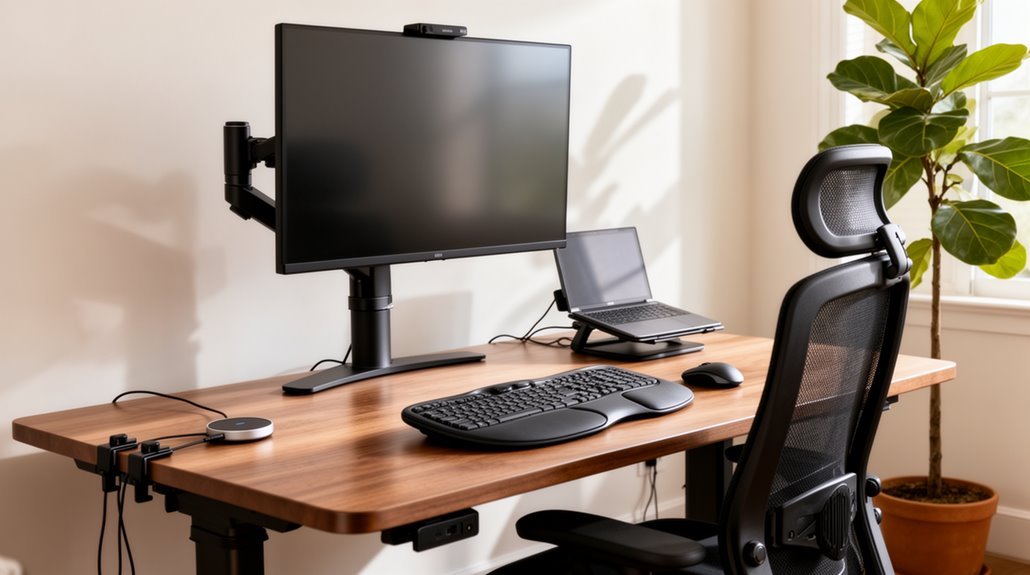
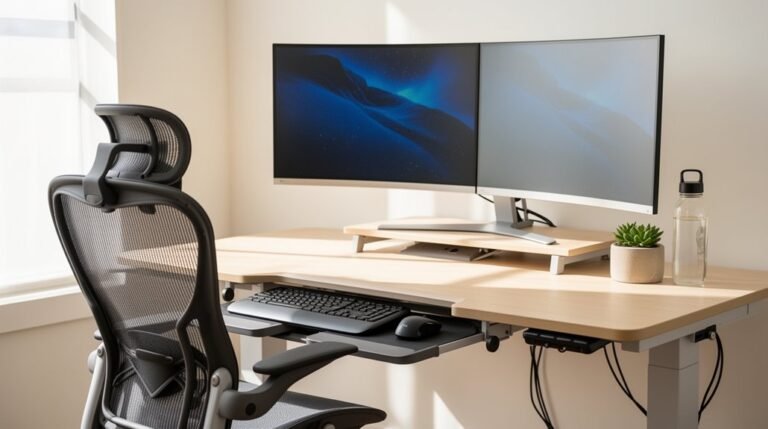
How to make your home office more ergonomic starts with the right chair. Prioritize an adjustable chair with lumbar support to protect your lower back and promote proper posture throughout the day.
Set your desk height between 28 and 30 inches for average users to help maintain a neutral position. Position your keyboard at elbow height so your arms remain relaxed and bent about 90 degrees.
Place your monitor 20 to 40 inches from your eyes, with the top of the screen at or slightly below eye level. These adjustments will enhance comfort and workspace efficiency.
Explore further for additional tips on organization and design to complete an ergonomic, productive home office.
Selecting the Right Ergonomic Chair
When you’re choosing an ergonomic chair, it’s crucial to prioritize lumbar support and lower back health. Look for adjustable lumbar support that can change in height and depth. This feature accommodates various body types and guarantees your lower back fits comfortably into the chair’s natural curve. A pronounced lumbar support should protrude about 1 inch from the seat back for ideal alignment.
Choose a backrest that measures between 12 to 19 inches wide, making sure it provides firm support. The backrest should also allow adjustments in height and tilt angles. This capability enables personalized comfort while maintaining spinal alignment. To enhance overall productivity, consider investing in ergonomic design principles that promote proper posture and support throughout your workday.
Finally, consider inflatable lumbar cushions for tailored support, addressing your specific needs throughout the day.
Desk Height and Adjustability
To complement your ergonomic chair, the desk height and adjustability play an essential role in maintaining proper posture during work hours.
- Standard Desk Heights: Most desks range from 28 to 30 inches, suitable for individuals between 5’8″ and 5’10”.
- Adjustable Desks: These desks accommodate heights from 22 to 48 inches, allowing for changes between sitting and standing. This flexibility reduces discomfort from prolonged static postures and promotes better ergonomics throughout the workday.
- Height Calculation: For ideal positioning, individuals 4’11” to 5’2″ need desks at 24 to 26 inches. Taller users, up to 6’6″, require heights between 30 to 32 inches.
Selecting the right desk height enhances your workspace’s ergonomics, supports your posture, and promotes comfort throughout your workday.
Optimal Keyboard and Mouse Positioning
Achieving the right keyboard and mouse positioning is essential for maintaining a comfortable and ergonomic workspace.
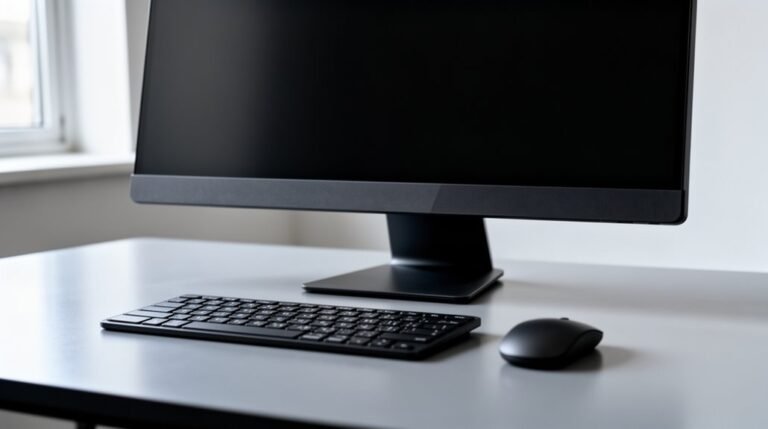
Position the keyboard directly in front of your torso to promote symmetrical alignment, avoiding spinal twisting. Keep your elbows bent at about 90 degrees with relaxed arms at your sides. Place the keyboard at or slightly below elbow height to guarantee natural wrist positioning. Ergonomic keyboards are designed to reduce muscle and tendon stress, making them a worthwhile investment for long-term comfort.
The mouse should be next to the keyboard on the same surface, keeping its height aligned with the keyboard. Maintain a distance that allows easy access to all keys without leaning forward.
Use wrist supports to cushion your wrists, and make certain your wrists remain neutral, aligned with your forearms, minimizing strain during use.
Monitor Placement for Comfort
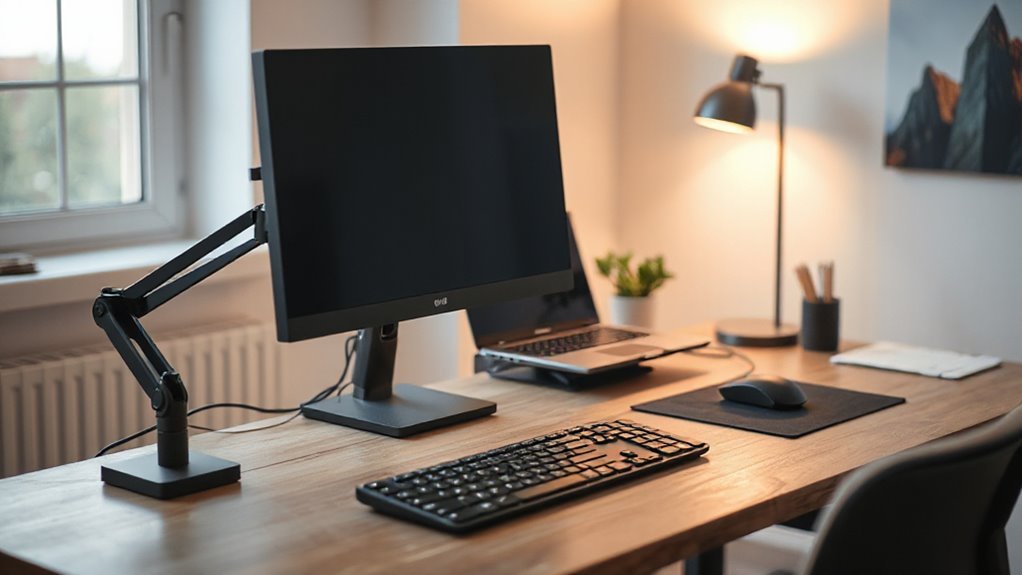
Proper monitor placement plays a key role in creating an ergonomic home office. Follow these guidelines for ideal comfort:
- Distance: Keep your monitor 20 to 40 inches from your eyes. For larger screens, increase this distance slightly. An arm’s length, about 50–65 cm, is a practical rule to prevent eye strain.
- Height: Position the top of the screen at or slightly below eye level. If you wear bifocals, lower the monitor by 1–2 inches to maintain a natural downward gaze of 15–20 degrees.
- Angle: Tilt the screen back 30° to 45°. This angle guarantees your monitor is about 15 degrees below the horizontal line, supporting a comfortable visual zone without straining your neck.
Document Management and Organization
Document management and organization are essential for maintaining efficiency in a home office, especially as digital and physical records accumulate. Inefficient document management causes a significant productivity loss, accounting for 21.3% of total work time.
You might spend 30% of your day searching for documents, which can lead to recreating files instead of locating them. Adopting digital document management systems can boost productivity by up to 40% and reduce paper consumption by 65%.
Furthermore, digital storage takes up to 75% less space compared to physical storage, making it a practical choice. Integrating document management systems with other software enhances collaboration, allowing you to work more efficiently and locate necessary files quickly.
Incorporating Movement and Breaks
To counter the risks associated with prolonged sitting, it’s essential to incorporate regular movement and breaks into your home office routine.
Implement the following strategies:
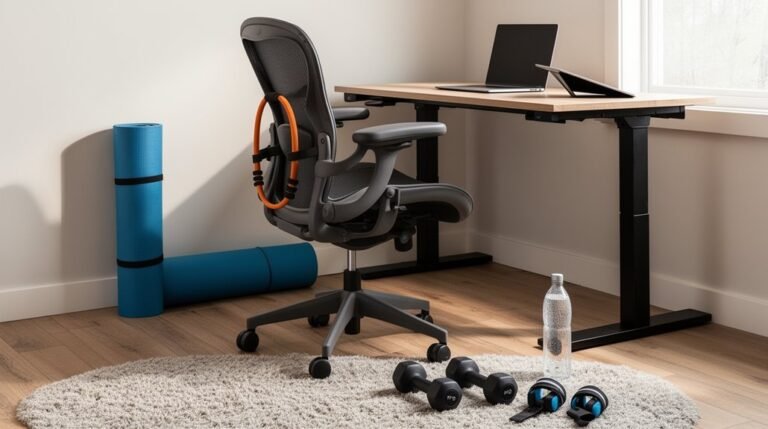
- Set a Timer: Every 30 minutes, take a 2–3 minute active microbreak. Light activity can include stretching or walking.
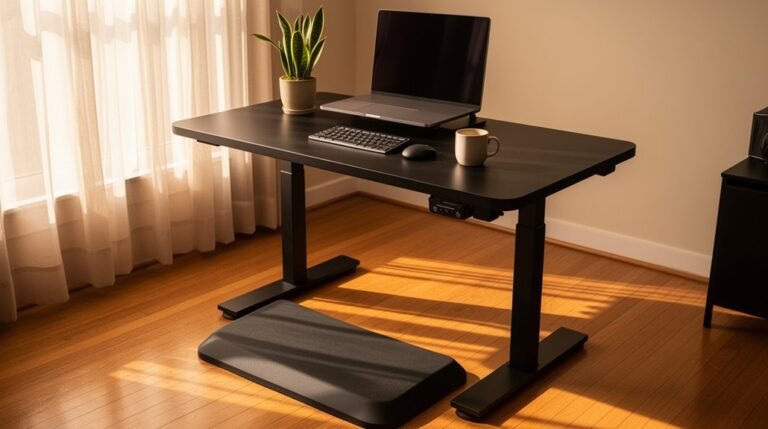
- Change Your Position: Alternate between sitting and standing. If possible, use a sit-stand desk or a treadmill workstation to reduce static posture.
- Integrate Quick Exercises: Incorporate short walks, trunk rotations, or neck stretches to alleviate musculoskeletal discomfort.
Frequent movement and breaks not only decrease fatigue and discomfort but also enhance cognitive function.
Home Office Layout and Design
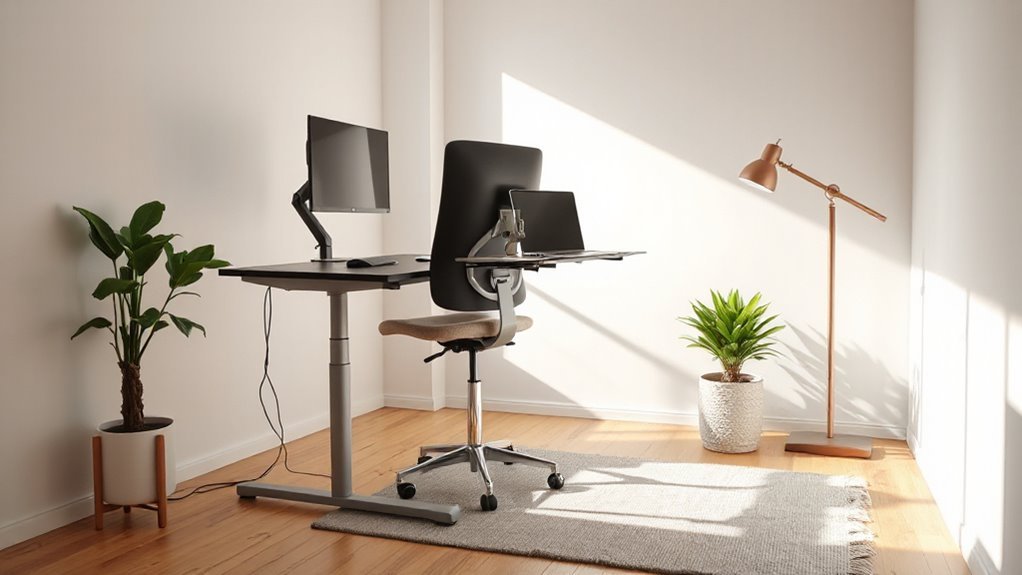
Creating an ergonomic home office layout is essential for maintaining comfort and productivity while you work. Start with an adjustable desk that accommodates both sitting and standing positions.
Verify your chair offers proper lumbar support, adjustable height, and adequate padding. Position your monitor at eye level, with the top of the screen about 50 inches high, to minimize neck strain.
Keep your keyboard and mouse close to your body, allowing your forearms to rest comfortably at a 90-degree angle. Maintain clear knee space beneath the desk for circulation.
Arrange frequently used items within arm’s reach to reduce unnecessary movement. Finally, position your workspace near a window for natural light, enhancing mood and reducing eye strain.
Utilizing Ergonomic Accessories
Utilizing ergonomic accessories can greatly enhance your home office experience.
These tools not only improve comfort but also promote better posture, reducing the risk of injury.
Here are three essential accessories:
- Ergonomic Keyboards and Mice: Designed to align your wrists and hands naturally, these devices minimize muscle strain and prevent RSIs like carpal tunnel syndrome.
- Monitor Risers: Position your screens at eye level, preventing neck strain and ensuring proper posture during extended work hours.
- Adjustable Office Chairs: These chairs provide lumbar support, adjustable height, and armrests to alleviate discomfort and maintain spinal alignment.
Regular Workspace Assessments
Conducting regular workspace assessments is essential for maintaining an ergonomic environment. You should perform these assessments periodically to identify emerging ergonomic issues.
Start with a self-assessment using checklists or online evaluations to benchmark proper postures while using equipment. Evaluate your workstation setup; your monitor needs to be at eye level, an arm’s length away, and free from glare. Confirm your keyboard and mouse are positioned at elbow height, keeping your wrists straight.
Assess your posture—your head should remain upright, and your shoulders relaxed. Regularly check that your chair offers lumbar support, and frequently used items are within easy reach.
Finally, confirm adequate lighting and comfortable room temperature to enhance your workspace’s ergonomic conditions.
Maintaining Work-Life Boundaries
Maintaining clear work-life boundaries is essential for achieving a healthy balance while working from home. You can enhance these boundaries by implementing specific strategies:
- Define Physical Boundaries: Create a dedicated workspace, separate from living areas. This reduces distractions and signals when it’s time to work or relax.
- Establish Work Hours: Set and communicate your working hours to colleagues and family. This clarity minimizes intrusions and allows for focused personal time.
- Manage Digital Communication: Limit after-hours emails and calls. Schedule specific times to check messages, preventing work from bleeding into personal life.
Frequently Asked Questions
What Are the Signs of an Ergonomic Issue in My Workspace?
You’ll notice persistent discomfort in your neck, shoulders, or back.
Headaches or eye strain during work often indicate poor monitor placement.
If you experience tingling or numbness in your fingers, it may signal nerve compression.
Frequent position changes, slumping, or leaning forward can show improper chair or desk setup.
Increased fatigue and diminished focus throughout the day suggest underlying ergonomic problems impacting your productivity.
Pay attention to these signs for better workspace health.
How Can I Improve My Posture While Working From Home?
To improve your posture while working from home, adjust your chair height so your feet rest flat on the ground.
Your monitor should sit at eye level, reducing neck strain. Use an ergonomic chair with lumbar support to maintain the natural curve of your spine.
Incorporate regular breaks to stand and stretch, alternating positions every 30 minutes.
Finally, consider using a standing desk to promote better spinal alignment and circulation.
Are There Specific Exercises to Relieve Tension From Sitting?
To relieve tension from sitting, incorporate targeted exercises.
Perform neck side bends by gently tilting your head toward each shoulder for 15–30 seconds.
Execute shoulder rolls in both directions for 30 seconds.
Engage in seated spinal twists to alleviate lower back tension.
Utilize wrist flexor and extensor stretches for 20–30 seconds each.
Finally, practice hip flexor stretches by kneeling and pushing your hips forward, enhancing mobility and reducing discomfort.
How Often Should I Change My Workstation Setup?
You should change your workstation setup whenever you experience discomfort or when your job tasks or office layout changes considerably.
Initially, assess your ergonomic needs during onboarding, then follow up within 2-4 weeks. Aim for at least one annual assessment to identify accumulated postural issues.
If you introduce new equipment or shift to remote work, reassess immediately. Regular feedback and adjustments enhance comfort, supporting your overall productivity and well-being.
What Tools Help Track My Movement and Breaks Effectively?
To effectively track your movement and breaks, consider using wearable sensors and fitness trackers.
Wearable sensors, placed on key body areas, monitor posture and movement data, providing real-time feedback for corrective actions. Fitness trackers like Fitbit or Apple Watch remind you to stand or move, promoting activity.
Both tools collect continuous data, enhancing your understanding of daily activity levels while integrating with apps for personalized fitness plans and posture coaching.
Conclusion
In your home office, think of your workspace as a garden. Each element, from your chair to your monitor, contributes to your overall productivity.
An ergonomic chair supports your posture, while the right desk height allows for comfortable positioning.
Proper keyboard and mouse placement reduces strain, and careful monitor positioning minimizes glare.
Like tending to plants, regular assessments help ensure your setup remains ideal. By cultivating an ergonomic environment, you foster not just comfort but also efficiency, promoting a healthier, more productive work life.